A simple, no-jargon walkthrough for anyone building apps with Microsoft Power Apps.
If you build apps in Microsoft Power Apps, you will save data at some point. Maybe you want to save a form. Maybe you want to update one field when a button is clicked. Maybe you want to change many records at once. For all of these jobs, there is one function you will use again and again: the Patch function.
In this guide, we will explain the Patch function in plain, easy words. No confusing terms. No long theory. Just clear steps, real examples, and simple tips you can use today, whether you are new to Power Apps or you just want a quick refresher.
What You Will Learn
- What the Patch function is and why it matters
- The exact syntax, explained part by part
- How to create a new record with Patch
- How to update an existing record with Patch
- How to update many records at once
- Common Patch errors and how to fix them
- Best practices from real app-building experience
- Answers to common questions (FAQ)
What Is the Patch Function in Power Apps?
The Patch function is used to save or change data in a data source. A data source can be a SharePoint list, a Dataverse table, an Excel file, or a collection you built inside your app.
Think of Patch like a smart pen. You tell the pen three things: where to write (the data source), which line to write on (the record), and what to write (the new values). Patch then does the writing for you, in one single step.
Patch works in two main situations: creating a brand-new record and updating an existing record. We will cover both, with examples, later in this guide.
Patch Function Syntax Explained
Here is the basic shape of the Patch function:
Patch( DataSource, BaseRecord, ChangeRecord1 [, ChangeRecord2, … ] )
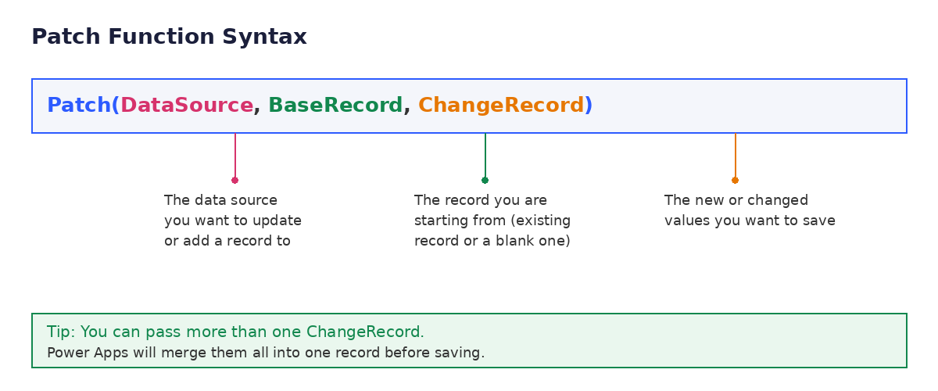
Figure 1: The three main parts of the Patch function.
The Three Parts of Patch
| Part | What It Means | Example |
| DataSource | The table or list where the record lives. | Employees |
| BaseRecord | The record you start from. Can be an existing record or a blank one. | Defaults(Employees) or First(Employees) |
| ChangeRecord | The new values you want to save, written inside curly braces. | {Name: “Amit”, Age: 28} |
Two Ways to Use Patch: Create vs. Update
This is the most important idea to understand about Patch. The same function can either add a new row or change an old row. The only difference is what you use as the BaseRecord.
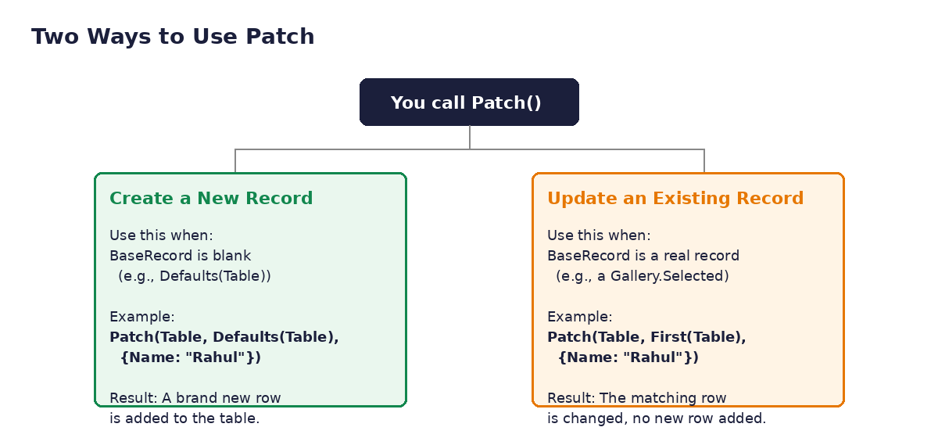
Figure 2: How Power Apps decides whether Patch creates or updates a record.
1. Creating a New Record
To add a new record, use Defaults(DataSource) as the BaseRecord. This tells Power Apps: “start from a blank record with the normal default values.”
Patch(
Employees,
Defaults(Employees),
{ Name: “Amit Sharma”, Department: “Sales”, Age: 28 }
)
This example adds a brand-new employee named Amit Sharma to the Employees table.
2. Updating an Existing Record
To change a record that already exists, use that real record as the BaseRecord. A common way to get that record is with First() or with a gallery’s Selected property.
Patch(
Employees,
First(Filter(Employees, Name = “Amit Sharma”)),
{ Department: “Marketing” }
)
This example finds Amit Sharma and changes only his Department field. Every other field stays the same, because Patch only touches the fields you mention.
Step-by-Step Example: Saving a Form with Patch
One of the most common uses of Patch is saving data from a screen with input boxes, instead of using a Form control. Here is a simple, real example.
Imagine you have three input boxes on a screen:
- txtName – for the employee’s name
- txtDept – for the department
- txtAge – for the age
On the OnSelect property of a Save button, you would write:
Patch(
Employees,
Defaults(Employees),
{
Name: txtName.Text,
Department: txtDept.Text,
Age: Value(txtAge.Text)
}
)
When the user taps the button, Power Apps reads the text from each input box and saves it as one new row in the Employees table. Simple and fast.
Updating Multiple Records at Once
Sometimes you need to change many records in one go, for example giving every employee in a department a small bonus. You can do this by combining Patch with ForAll.
ForAll(
Filter(Employees, Department = “Sales”),
Patch(Employees, ThisRecord, { Bonus: 500 })
)
This looks through every Sales employee and adds a bonus of 500 to each one, using Patch inside a loop.
Patch with Different Data Sources
Patch behaves in almost the same way across data sources, but a few small details change. Here is a quick comparison:
| Data Source | Key Field | Good to Know |
| SharePoint List | ID | Choice and Person fields need special syntax, like {Value: “Option1”}. |
| Dataverse Table | GUID | Lookup fields need a full related record, not just plain text. |
| Collection | None required | Great for testing Patch logic before connecting to a real data source. |
| Excel Table | Row number | Works only when the Excel file is set up as a proper table. |
Common Patch Errors and How to Fix Them
| Error | Common Cause | Simple Fix |
| “The requested operation is invalid” | A required field was left empty. | Fill in every required field before saving. |
| “Invalid argument type” | Text was sent to a number field. | Wrap the value with Value() to convert text to a number. |
| Choice field not saving | Choice value sent as plain text. | Use {Value: “YourChoice”} instead of just text. |
| Nothing happens on Save | OnSelect formula has a small typo. | Check field names match the data source exactly, including spelling. |
| Record duplicates instead of updating | Defaults() used instead of the real record. | Use the actual record (like Selected item) as BaseRecord to update. |
Best Practices for Using Patch
- Always test Patch on a collection first, before connecting it to real data. This keeps your live data safe while you check your formula.
- Use Notify() after Patch to tell the user if the save worked or failed. This makes your app feel more polished.
- Wrap Patch in an IfError() function to catch problems and show a friendly message instead of a confusing error.
- Only send the fields that changed, instead of the whole record. This makes your app faster and easier to read.
- Keep field names simple and consistent across your data source and your app, so formulas are easier to write and fix later.
IfError(
Patch(Employees, Defaults(Employees), { Name: txtName.Text }),
Notify(“Something went wrong. Please try again.”, NotificationType.Error),
Notify(“Saved successfully!”, NotificationType.Success)
)
Patch vs. SubmitForm: Which Should You Use?
Many beginners ask if they should use Patch or SubmitForm to save data. Both work, but they suit different needs.
| Situation | Better Choice |
| You are using a built-in Form control with standard fields. | SubmitForm |
| You are using your own input boxes, not a Form control. | Patch |
| You need to save only one or two fields, not a whole form. | Patch |
| You need to update many records in a loop. | Patch (with ForAll) |
| You want the simplest option for a basic form screen. | SubmitForm |
In short, SubmitForm is easier for simple, standard forms. Patch gives you more control and is better for custom screens, partial updates, and bulk changes.
Frequently Asked Questions (FAQ)
Does Patch work offline?
Patch can work offline with some data sources, like Dataverse with offline profiles turned on. Most other data sources need an internet connection to save changes right away.
Can Patch update more than one table at the same time?
No, a single Patch call works on one data source. To update two tables, use two separate Patch calls.
Why does Patch create a duplicate record instead of updating?
This happens when Defaults(DataSource) is used as the BaseRecord for a record that already exists. Use the real, existing record instead to update it.
Is Patch faster than SubmitForm?
For simple forms, speed is about the same. Patch can feel faster in custom screens because it only sends the fields you choose, not the whole form.
Can I use Patch inside a Gallery?
Yes. A common pattern is Patch(DataSource, ThisItem, {…}) inside a button placed within a gallery, so each row can be updated on its own.
What happens if I leave the ChangeRecord empty, like {}?
Power Apps will still create or touch a record, but no field values will change. It is a valid but not very useful pattern.
Final Thoughts
The Patch function is one of the most useful tools in Power Apps. Once you understand its three parts, the data source, the base record, and the change record, you can use it to create records, update records, and even update many records at once.
Start small. Try Patch on a test collection first. Add error handling with IfError(). Once you are comfortable, you will find that Patch gives you far more control over your data than the basic Form controls, and your apps will feel faster and more custom-built.
With the examples and tables in this guide, you now have a solid, simple reference to come back to any time you need to write a Patch formula in your own Power Apps project.