If you have built even one flow in Power Automate, you have probably run into a moment where the drag-and-drop actions just were not enough. Maybe you needed to join two pieces of text, pull today’s date, or check if a value was empty before moving on. That is where expressions come in. They are small pieces of code that live inside your flow and let you do things the regular action boxes cannot do on their own.
This guide walks you through what expressions are, how to add them to a flow, and gives you more than 50 real examples grouped by what they do. No confusing jargon, just plain explanations you can actually use.
What Are Power Automate Expressions?
An expression is a short line of code that Power Automate reads and runs while your flow is working. It always starts with a function name, followed by round brackets that hold the values it needs to work with. Think of it like a small calculator built into every field in your flow. You type in what you want, and Power Automate hands back an answer.
For example, if you want to greet someone using their first name from a form, you would use an expression that joins the word ‘Hello’ with the name field. The picture below shows how that looks.
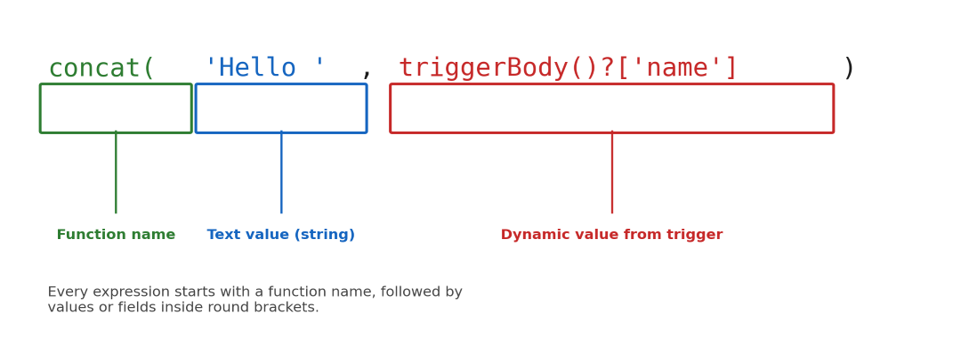
The basic parts of a Power Automate expression.
Why You Need Expressions in Your Flows
You do not need expressions for every flow, but they come in handy the moment your flow needs to:
- Combine text from different fields, like a full name or a full address
- Work with dates, such as adding days or changing the time zone
- Check conditions before running the next step
- Clean up messy data coming from a form or a spreadsheet
- Pull one item out of a list without using a loop
- Convert a value from one type to another, like text to a number
How to Add an Expression in Power Automate
Adding an expression takes only a few clicks. Here is the process, step by step.
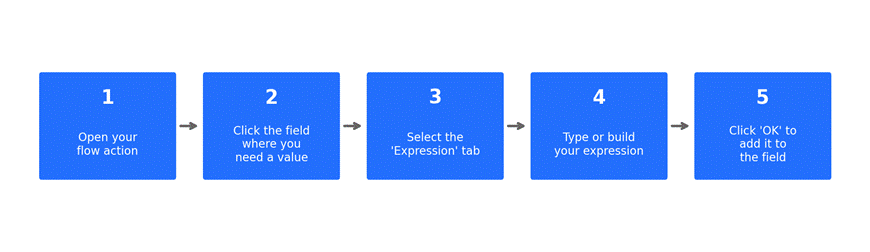
Five steps to add any expression to a flow field.
- Open the action in your flow where you want to add a value.
- Click inside the field that needs the value (for example, an email body or a variable).
- A small window pops up with three tabs: Dynamic content, Expression, and Function.
- Click on the Expression tab and either type your expression or click functions from the list to build it.
- Press OK and the expression is added to that field, ready to run when the flow triggers.
Understanding Expression Syntax
Before jumping into examples, it helps to know the basic building blocks you will see again and again.
| Part | What It Means |
| functionName() | Every expression starts with a function name and round brackets |
| ‘text’ | Plain text is always wrapped in single quotes |
| 123 | Numbers are written without quotes |
| triggerBody() | Pulls data from the trigger of your flow |
| body(‘Step_name’) | Pulls the output from an earlier step |
| ?[‘fieldName’] | Grabs one field from a set of data, and will not error if it is missing |
50+ Power Automate Expression Examples
Below are the expressions you will use most often, grouped into six simple categories. Copy any of these straight into your flow and adjust the field names to match your own data.
1. String (Text) Functions
These help you join, cut, search, and clean up text values.
| Expression | What It Does | Example Result |
| concat(‘Hello ‘, ‘World’) | Joins two or more pieces of text together | Hello World |
| toUpper(‘power automate’) | Turns text into all capital letters | POWER AUTOMATE |
| toLower(‘POWER AUTOMATE’) | Turns text into all small letters | power automate |
| length(‘Hello’) | Counts how many characters are in the text | 5 |
| substring(‘Hello World’, 0, 5) | Pulls out part of a text, starting at a position | Hello |
| replace(‘Hello World’, ‘World’, ‘There’) | Swaps one piece of text for another | Hello There |
| trim(‘ Hello ‘) | Removes extra spaces from the start and end | Hello |
| split(‘a,b,c’, ‘,’) | Breaks text into a list using a separator | [a, b, c] |
| indexOf(‘Hello World’, ‘World’) | Finds where a piece of text starts | 6 |
| startsWith(‘Hello’, ‘He’) | Checks if text begins with certain letters | true |
| endsWith(‘Hello’, ‘lo’) | Checks if text ends with certain letters | true |
| contains(‘Hello World’, ‘World’) | Checks if text is found inside another text | true |
| guid() | Creates a random unique ID | 3f2b1c4a-… |
| formatNumber(1234.5, ‘C’) | Formats a number as currency | $1,234.50 |
2. Date and Time Functions
Dates come up in almost every flow, whether it is a due date, a timestamp, or a reminder.
| Expression | What It Does | Example Result |
| utcNow() | Gets the current date and time | 2026-08-27T10:15:00Z |
| addDays(utcNow(), 7) | Adds a number of days to a date | 7 days from today |
| addHours(utcNow(), 5) | Adds hours to a date and time | 5 hours from now |
| addMinutes(utcNow(), 30) | Adds minutes to a date and time | 30 minutes from now |
| formatDateTime(utcNow(), ‘dd-MM-yyyy’) | Changes how a date looks | 27-08-2026 |
| convertTimeZone(utcNow(), ‘UTC’, ‘India Standard Time’) | Changes a time to another time zone | Local IST time |
| dayOfWeek(utcNow()) | Tells you the day number in the week | 4 |
| startOfDay(utcNow()) | Gets midnight for the given date | 2026-08-27T00:00:00Z |
| ticks(utcNow()) | Turns a date into a number for comparison | 638… |
| getPastTime(1, ‘Month’) | Gets the date one month ago | 1 month before today |
3. Logical Functions
Use these when your flow needs to make a decision or compare two values.
| Expression | What It Does | Example Result |
| if(equals(1,1), ‘Yes’, ‘No’) | Checks a condition and picks one of two answers | Yes |
| equals(‘A’, ‘A’) | Checks if two values are the same | true |
| not(equals(1,2)) | Flips true to false and false to true | true |
| and(true, false) | Checks if both conditions are true | false |
| or(true, false) | Checks if at least one condition is true | true |
| greater(10, 5) | Checks if one number is bigger | true |
| less(5, 10) | Checks if one number is smaller | true |
| empty(”) | Checks if a value is empty | true |
| coalesce(null, ‘Default’) | Returns the first value that is not empty | Default |
4. Math Functions
Handy for totals, counters, and any flow that works with numbers.
| Expression | What It Does | Example Result |
| add(5, 3) | Adds two numbers together | 8 |
| sub(10, 4) | Subtracts one number from another | 6 |
| mul(6, 7) | Multiplies two numbers | 42 |
| div(20, 4) | Divides one number by another | 5 |
| mod(10, 3) | Gives the remainder after division | 1 |
| max(4, 9) | Returns the larger of two numbers | 9 |
| min(4, 9) | Returns the smaller of two numbers | 4 |
| rand(1, 100) | Picks a random whole number in a range | e.g. 57 |
5. Collection (List) Functions
These work with arrays, such as rows from Excel or SharePoint items.
| Expression | What It Does | Example Result |
| first(items(‘Apply_to_each’)) | Gets the first item in a list | First row’s value |
| last(items(‘Apply_to_each’)) | Gets the last item in a list | Last row’s value |
| length(body(‘Get_items’)?[‘value’]) | Counts how many items are in a list | e.g. 12 |
| union([1,2], [2,3]) | Combines two lists and removes duplicates | [1, 2, 3] |
| intersection([1,2,3], [2,3,4]) | Finds items that appear in both lists | [2, 3] |
| join([‘a’,’b’,’c’], ‘-‘) | Joins list items into one text using a symbol | a-b-c |
| createArray(‘x’, ‘y’, ‘z’) | Builds a new list from separate values | [x, y, z] |
6. Conversion Functions
Use these when a field is the wrong data type, like text that should be a number.
| Expression | What It Does | Example Result |
| string(123) | Turns a number into text | “123” |
| int(‘123’) | Turns text into a whole number | 123 |
| float(‘12.5’) | Turns text into a decimal number | 12.5 |
| bool(‘true’) | Turns text into a true/false value | true |
| json(‘{“name”:”Sam”}’) | Turns text into a JSON object | {name: Sam} |
| array(‘one value’) | Turns a single value into a list | [one value] |
Common Mistakes to Avoid
- Forgetting single quotes around text values, which causes an error
- Missing a closing bracket, especially in longer expressions
- Using a field name that does not match the actual data exactly, including capital letters
- Mixing up single quotes and double quotes inside JSON expressions
- Trying to use a text function on a number, or the other way around, without converting it first
Tips for Writing Better Expressions
- Start small. Test one function at a time before combining several together.
- Use the built-in function list in the Expression tab instead of typing from memory.
- Add a compose action to check what an expression returns before using it further down the flow.
- Keep a personal notes file with expressions you use often, so you are not rebuilding them each time.
- Break long expressions into smaller steps using variables, so they are easier to read later.
Frequently Asked Questions
What is the difference between an action and an expression in Power Automate?
An action is a ready-made step, like sending an email or creating a file. An expression is a small piece of code you type into a field to shape or calculate a value before it is used.
Can I use more than one expression in the same field?
Yes. You can nest expressions inside each other, meaning one expression can be used as part of another. For example, you can use concat() together with toUpper() in the same line.
Why does my expression show an error even though it looks correct?
This is usually a small syntax issue, such as a missing bracket, a missing quote, or a field name that does not match the data exactly. Check each part of the expression one at a time.
Do I need to know coding to use expressions?
No. Expressions use plain function names and simple rules. Most people pick them up just by trying a few examples and reading what each function does.
Where can I see all the available functions?
Inside the Expression tab in any flow field, there is a full list of functions grouped by category, along with a short description of each one.
Final Thoughts
Expressions are one of those things in Power Automate that feel a bit tricky the first time but become second nature after you have used them a few times. Start with the simple ones, like concat() and if(), then slowly work your way toward dates and lists as your flows get more advanced. Keep this guide close by, and you will have an answer ready for most situations you run into while building a flow.