Learn how Claude and Power BI work together. See setup steps, example prompts, limits and tips to build and fix DAX models faster.
Ask any Power BI user what slows them down, and you’ll hear the same few things. Writing DAX. Fixing a measure that shows the wrong number. Renaming 200 columns by hand. Waiting for someone else to build the report.
There’s a new way to deal with that work. You can connect Claude, the AI assistant from Anthropic, to your Power BI data and then just talk to it. Ask a question in plain English. Get back an answer, a new measure, or a cleaner model.
It isn’t magic, and it isn’t finished. Some parts are still in preview, and there are real limits. But it’s already useful. This guide covers what Claude and Power BI can do together, how to set it up, where it falls short, and how to try it safely.

What does “Claude + Power BI” really mean?
Power BI doesn’t have a Claude button inside it. You can’t add Claude like an add-in in Word or Excel. Instead, the two meet through something called MCP.
MCP stands for Model Context Protocol. Anthropic created it as an open standard. Think of it as a plug that lets an AI assistant connect to other software in a safe, structured way. Microsoft has built MCP servers for Power BI, so Claude can plug right in.
Once connected, Claude can look at your real tables, relationships and measures. It doesn’t have to guess what your model looks like. That’s the big change. Before, you’d paste a formula into a chat, add a few lines of explanation, and hope the answer fit. Now Claude can see the model for itself.

You ask, Claude calls an MCP server, and the server talks to your model.
Why this matters for business intelligence
Most BI teams have the same problem: more questions than people. A manager wants sales by region in a new view. Someone has to write the measure, test it, check the totals, and document it. That takes hours, and most of it is routine.
Claude is good at routine work that still needs some thinking. Here is where it helps most:
- Less waiting. Simple questions can get answers without a ticket to the BI team.
- Faster building. A measure or model change that took an hour can take a few minutes.
- Cleaner models. Claude can spot missing descriptions and messy names, then fix them in bulk.
- Easier learning. Claude explains its DAX in plain words, so newer people learn as they go.
One more point that gets less attention. Because Claude can explain what it did, you can check it. If a measure looks wrong, ask why it was written that way. That makes mistakes much easier to catch.
Three ways to connect Claude to Power BI
As of October 2026, Microsoft offers three official routes. Two are hosted in the cloud by Microsoft. One runs on your own computer. All of them are still labeled preview, so expect changes.
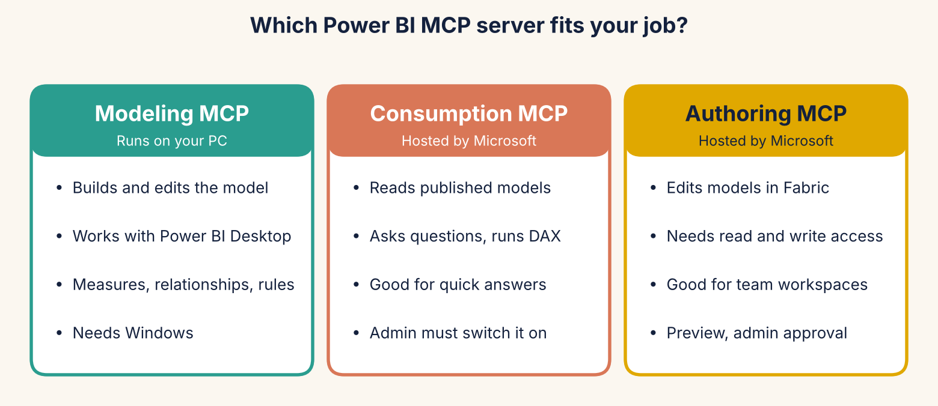
Pick the server by the job: build, ask, or edit in the cloud.
| Server | Where it runs | Best for | What you need |
| Modeling MCP | Your own PC | Building and editing a model in Power BI Desktop | Windows PC, Power BI Desktop, Claude Desktop or Claude Code |
| Consumption MCP | Microsoft cloud | Asking questions about published models | Admin approval, a Microsoft Entra app, read access |
| Authoring MCP | Microsoft cloud | Editing models in a Fabric workspace | Admin approval, a Microsoft Entra app, read and write access |
Here’s a simple way to choose. If you build models, start with the Modeling server. If you mostly want answers from data that’s already published, use the Consumption server. If your team works in Fabric workspaces and wants Claude to change models there, look at the Authoring server, but go slowly.
You may also find community-made servers on GitHub. Some add extras, like report building or checks for slow DAX. They can be handy, but they don’t come from Microsoft, so test them on a copy first.
What Claude can do with your Power BI model
Write and fix DAX
This is the most popular use. Say you have a Total Sales measure and want to compare it with last year. You can ask: “Add a year-over-year growth measure based on Total Sales.” Claude can check your date table first, then write something like this:
Sales YoY % =
VAR CurrentSales = [Total Sales]
VAR LastYearSales =
CALCULATE ( [Total Sales], SAMEPERIODLASTYEAR ( ‘Date'[Date] ) )
RETURN
DIVIDE ( CurrentSales – LastYearSales, LastYearSales )
Two small things to notice. DIVIDE avoids an error when last year’s sales are zero, and the variables keep the formula easy to read. If Claude uses the real names from your model, it probably looked at it.
Change many things at once
Renaming 50 measures to follow one naming style is dull work. Claude can do it in one go. The Modeling server supports bulk changes, and people who have tried it often call this the biggest time saver.
Document the model
Ask for a full write-up of your tables, columns and measures. Microsoft’s own examples include creating a Markdown document that describes a semantic model. Everyone wants good documentation, and nobody has time to write it.
Debug a number that looks wrong
Claude can read your measures and relationships, then explain why a result looks off.
Answer questions about your data
With the Consumption server, Claude can turn a plain question into a DAX query, run it against a published model, and explain what came back. For example: “What were our top five products by revenue last quarter?”
Work with Power BI Project files
If you save your work as a Power BI Project (.pbip), the model is stored as plain text files (TMDL). Claude can work with those directly, and Git can track every change.
How to connect Claude Desktop to the hosted Power BI server
The hosted servers need a bit of setup. Microsoft’s sign-in system doesn’t let apps like Claude register themselves, so you or your admin must create a small app record first. These steps follow Microsoft’s own guide:
- Ask your Power BI admin to turn on the tenant setting called Users can use the Power BI Model Context Protocol server endpoint (preview). Nothing works without it.
- In the Microsoft Entra admin center, open App registrations and create a new single-tenant app. Give it a clear name, such as Power BI MCP – Claude Desktop. Copy the Application (client) ID.
- Add a redirect address of the type Mobile and desktop applications. For Claude Desktop, use https://claude.ai/api/mcp/auth_callback. Type it exactly. One wrong character breaks the sign-in.
- Add permissions on the Power BI Service API. To ask questions, you need Dataset.Read.All and Workspace.Read.All. To edit models, you also need SemanticModel.ReadWrite.All. Give admin consent if your company requires it.
- In Claude Desktop, go to Settings, then Connectors, then Add custom connector. Enter the name (for example, Power BI), the server address from the table below, and your client ID.
- Sign in with your Microsoft work account when the browser opens, then test it with a question like: “What tables are in semantic model [your model ID]?”
| Server | Address |
| Consumption (ask questions) | https://api.fabric.microsoft.com/v1/mcp/powerbi |
| Authoring (edit models) | https://api.fabric.microsoft.com/v1/mcp/powerbi/authoring |
The local Modeling server is simpler. Install Microsoft’s open-source Power BI Modeling MCP Server, add it to your Claude Desktop or Claude Code settings, restart Claude, and open a model in Power BI Desktop. Then type: “Connect to the open Power BI Desktop file.”
Prompts you can copy today
Good prompts are short, clear, and say what Claude should not do. Try these:
| Goal | Prompt to try |
| Understand a model | Connect to my open Power BI file. Explain the tables and how they connect. |
| New measure | Create a measure for average order value using my existing Total Sales and Order Count measures. Explain it in one short paragraph. |
| Fix a number | My Profit Margin measure shows 140% for March. Check how it is built and tell me why it might be wrong. |
| Clean up | List every measure with no description. Suggest a one-line description for each. Don’t change anything yet. |
| Documentation | Write a Markdown document that explains this model to a new team member. |
Look at the last words in a few of those prompts: “don’t change anything yet.” Ask for a plan first, then ask for the change. It keeps you in charge.
Claude vs Copilot in Power BI: not a fight
People often ask which one to pick. The honest answer is that they do different jobs. Copilot lives inside Power BI and is aimed at people who make and read reports. Claude, connected through MCP, is aimed at people who build and look after models.
| Copilot in Power BI | Claude with MCP | |
| Main user | Report creators and report readers | Model builders and analysts |
| Strong at | Report pages, visuals, summaries, answering questions | DAX, bulk model changes, documentation, explaining logic |
| Where it works | Inside Power BI | In Claude, linked through an MCP server |
| Setup | Needs a paid capacity and admin settings | Needs an MCP server, a sign-in app for hosted servers, and admin approval |
| Visuals | Can build report pages | The Modeling server does not touch visuals |
The line is getting blurry, since Microsoft now offers Claude models inside some of its own Copilot tools. For now, a sensible plan is simple: Copilot for the people who read reports, Claude for the people who build them.
Limits and risks to know before you start
This is the part many guides skip, so let’s be direct.
- It’s still preview. The hosted servers and the Modeling server are both in public preview. Things can change or break.
- An admin has to say yes. The hosted servers need a tenant setting and an app registration. In a large company, that can take a while.
- The local server needs Windows. Power BI Desktop runs only on Windows.
- Models, not visuals. The Modeling server edits tables, measures and relationships. It doesn’t design your report pages.
- Your data leaves your computer. An MCP server is just a bridge. What Claude reads through it becomes part of your chat, so it goes to Anthropic like anything else you type. Check your company’s rules first.
- Claude can be wrong. A measure that runs is not always a measure that’s right. Compare totals against a number you already trust.
- Write access is powerful. Microsoft says to be careful when you connect an AI agent to a semantic model. The Modeling server asks for your approval before the first change and the first query. Read those prompts instead of clicking through.
One good thing: the hosted servers act as you. They use your sign-in, so Claude can only see what you’re already allowed to see.
A safe way to work with Claude and Power BI
Here is a simple routine that keeps risk low. Nothing fancy, just habits that stop small mistakes from growing.
- Start with a copy. Never point Claude at your only version of an important model.
- Begin read-only. Let it explore and explain before you let it edit.
- Ask for a plan. Have Claude list the changes it wants to make, then approve them.
- Check the numbers. Compare new results with a report you already trust.
- Save as a .pbip project and use Git. Every change gets a record, and you can roll back.
- Keep a prompt notebook. When a prompt works well, save it. Your team will thank you.
Who should try it first
The best starting group is people who write DAX every day. They’ll feel the time savings right away. BI leads with big, messy models come next, since bulk renaming and documentation pay off fast. Consultants who inherit other people’s models will like how quickly Claude can explain them.
Who should wait? Teams with strict data rules that don’t allow preview tools. That’s a fair choice. The tools will mature, and you can come back.
Frequently asked questions
Does Claude work with Power BI?
Yes, through MCP. There’s no built-in Claude button in Power BI. You connect Claude to a Power BI MCP server, and then it can read and work with your models.
Is it free?
Microsoft’s Modeling server is open source, and Power BI Desktop is free to download. You’ll still need a Claude account, and plan limits apply. The hosted servers depend on a Power BI or Fabric setup that your company pays for.
Can Claude build my dashboard?
It can build and fix the model underneath a dashboard. Microsoft’s Modeling server doesn’t design visuals. Some community tools try to go further, but they’re not from Microsoft, so test them with care.
Is my data safe?
The MCP server is only a bridge, but what Claude reads becomes part of your conversation and is sent to Anthropic. Check your company’s data rules, use a copy for testing, and don’t share anything you aren’t allowed to share.
Do I need to know DAX?
Not to get started. But you should know enough to read what Claude writes, because you’re the one who signs off on it. The good news is that Claude explains its work, so it’s also a decent teacher.
Does it work on a Mac?
Power BI Desktop only runs on Windows, so the local Modeling server needs a Windows PC. The hosted servers connect over the web, so they’re the option to look at on a Mac.
Final thoughts
Claude and Power BI together won’t replace your BI team. What they can do is take away the dull parts: the renaming, the first drafts of DAX, the missing documentation, the quick questions. That leaves more time for the work that needs judgment.
The sensible move is to start small. Pick one model, make a copy, connect Claude in read-only mode, and ask it to explain what it sees. If that goes well, try one measure. Then one clean-up. In a week you’ll know whether it fits your team, and you’ll have a short list of prompts that work.
Similar Article
- Microsoft Fabric vs Snowflake: A Detailed Comparison of Cloud Data Warehouse Solutions
- Microsoft Fabric vs Databricks: Features, Performance, Pricing, and Key Differences
- Microsoft Fabric Pricing Explained: Capacity Costs, Licensing Options, and Cost Optimization
- Microsoft Fabric Real-Time Intelligence Tutorial: Build Real-Time Data Analytics Solutions
- Fabric Notebook Toolkit Tutorial for Beginners With Examples
- Microsoft Fabric vs Power BI: Key Differences, Features, Pricing, and Which One to Choose
- Microsoft Fabric Dataflows Gen2 Tutorial for Beginners: A Simple Step-by-Step Guide