Learn Microsoft Fabric notebooks with Python and PySpark. Follow simple steps to load data, clean it, and save Delta tables in a lakehouse.
If you have ever opened a big CSV file in Excel and watched it freeze, you already know why notebooks are so useful. A notebook lets you write a few lines of code, run them, and see the result right away. Microsoft Fabric takes that idea and puts a lot of computing power behind it.
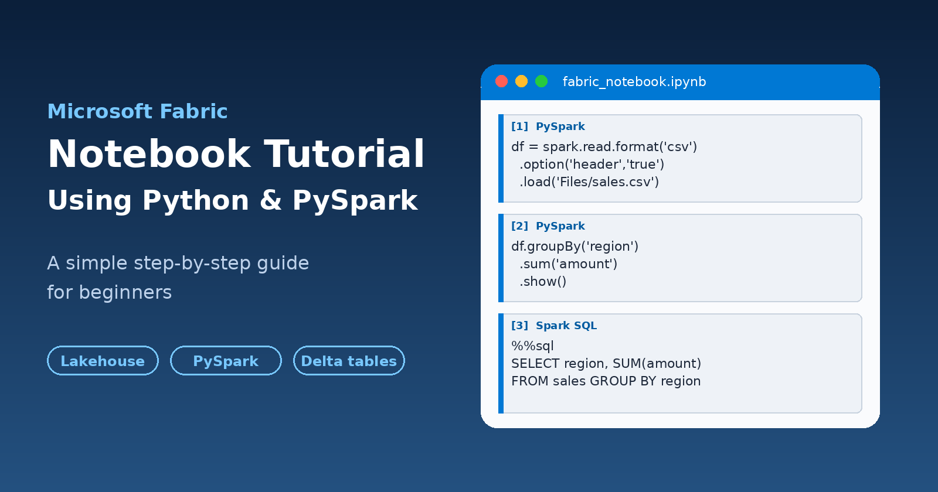
In this Microsoft Fabric notebook tutorial, I will show you how to work with Python and PySpark from scratch. You will create a lakehouse, load a file, clean the data, run a quick summary, and save the result as a table. Every step has code you can copy and run.
You do not need to be an expert. If you know a little Python, you will be fine. If you know none, that is okay too, because I explain each line in plain words.
Here is what you will learn:
- What a Fabric notebook is and how it works
- The difference between a Python notebook and a PySpark notebook
- How to create a lakehouse and attach it to a notebook
- How to read, clean, and summarize data with PySpark
- How to save your work as a Delta table
- How to use Spark SQL, pandas, and DuckDB in the same project
- Tips to avoid the mistakes most beginners make
What Is a Microsoft Fabric Notebook?
A Fabric notebook is a web page where you write code in small blocks called cells. You run one cell at a time, and the result shows up right under it. There is nothing to install on your computer. You open it in your browser, and it runs on Microsoft’s servers.
What makes it different from a normal Jupyter notebook is where it lives. A Fabric notebook sits inside a workspace, next to your lakehouse, your pipelines, and your reports. Your data is only a click away, so you spend less time on setup and more time on the actual work.
A notebook can use more than one language. You can write PySpark (Python for Spark), Spark SQL, Scala, and R. You can even mix them in one notebook, which I will show you later.
So, what is PySpark?
Spark is an engine that splits a big job into small pieces and runs them on many machines at the same time. PySpark is the Python way of talking to that engine. You write Python, and Spark does the heavy lifting in the background.
You might ask, why not just use pandas? Pandas is great, but it keeps all the data in the memory of one machine. When your file grows to millions of rows, that machine runs out of room. Spark does not have that problem because the work is shared.
Python Notebook or PySpark Notebook: Which One Should You Pick?
Fabric now gives you two kinds of notebooks to start with. A Python notebook runs plain Python on a small machine. A PySpark notebook runs on a Spark cluster. Microsoft has a guide that helps you choose, and the table below sums up the main points in simple words.
| Point | Python notebook | PySpark notebook |
| Best for | Small and medium data, quick tests, light reports | Large data, heavy joins, big daily jobs |
| Compute | A small machine (2 cores by default) | A Spark cluster that can grow |
| Languages | Python only | PySpark, Spark SQL, Scala, R |
| Ready-made tools | DuckDB and Polars come pre-installed | Spark is built in |
| Cost feel | Usually cheaper for small jobs | Makes sense when data is big |
| Version | You can pick from a few Python versions | Tied to the Fabric runtime you choose |
My rule of thumb is simple. Start with a Python notebook while you are learning or testing an idea. Move to PySpark when the data gets too big for one small machine, or when you need to run the same job on a large scale every day. In this tutorial, we will mostly use PySpark, and then I will show a quick Python notebook example near the end.
What You Need Before You Start
- A Microsoft Fabric account. A free trial works fine for learning.
- A workspace that has Fabric capacity assigned to it
- Permission to create items (a lakehouse and a notebook) in that workspace
- A small sample file, which I give you in Step 2
A quick note on the runtime. Fabric runs your notebook on something called a runtime, which is just a bundle of Spark, Python, and Delta Lake versions. Runtime 1.3 is the main one right now, and it comes with Spark 3.5 and Python 3.11. Runtime 2.0 was still in preview when I wrote this, so I would stay away from it for real work. Microsoft changes menus and names often, so your screen may look a little different from mine. The steps stay the same.
Step 1: Create a Workspace and a Lakehouse
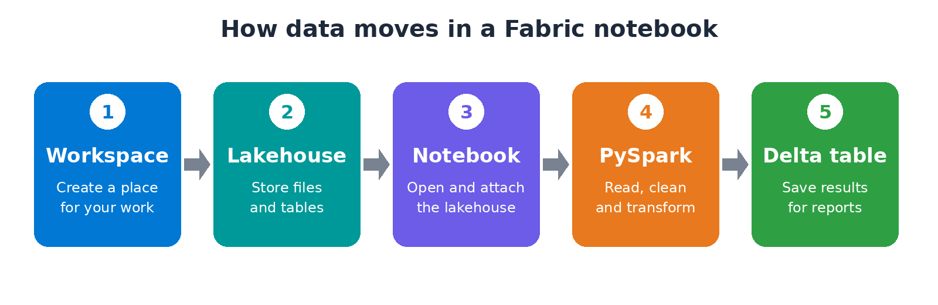
A lakehouse is the place where your files and tables live. Think of it as a smart folder. It has a Files area for raw files like CSV, and a Tables area for clean, structured data.
- Open the Fabric portal and go to your workspace. If you do not have one, create a new workspace first.
- Select New item and choose Lakehouse.
- Give it a clear name, such as SalesLakehouse, and select Create.
- Wait a few seconds. The lakehouse opens with an Explorer pane on the left side.
That is all. You now have a home for your data.
Step 2: Upload a Sample File
Let us use a tiny sales file so you can see every result clearly. Open a text editor, paste the lines below, and save the file as sales.csv.
order_id,order_date,region,product,quantity,price
1001,2026-01-05,North,Laptop,2,55000
1002,2026-01-06,South,Mouse,10,500
1003,2026-01-07,West,Keyboard,5,1200
1004,2026-01-09,North,Monitor,3,12000
1005,2026-01-10,East,Laptop,1,55000
1006,2026-01-12,South,Laptop,2,55000
1007,2026-01-15,West,Monitor,2,12000
1008,2026-01-15,East,Mouse,20,500
1009,2026-01-18,North,Mouse,,500
1003,2026-01-07,West,Keyboard,5,1200
I added two small problems on purpose. Order 1009 has no quantity, and order 1003 shows up twice. Real data is messy like this, so it is good practice.
In the lakehouse, hover over the Files folder, select the three dots, and choose Upload. Pick your sales.csv file. After a moment, it appears under Files.
Step 3: Create a Notebook and Attach the Lakehouse
- In the lakehouse, select Open notebook, then New notebook.
- Click the notebook name at the top and rename it to something clear, like Sales_Cleaning.
- Check the left side. Your lakehouse should show in the Explorer pane. This is called the default lakehouse.
- Check the language at the top. It should say PySpark (Python).
Why does the default lakehouse matter? Because it lets you use short paths like Files/sales.csv. If the lakehouse is not attached, you will get a lot of path errors, and it is the number one problem beginners run into.
Here is a nice shortcut. You can drag a table from the Explorer pane into a cell, and Fabric writes the code to load it for you. It is a good way to learn the syntax.
Step 4: Read the CSV File with PySpark
Click into the first cell and paste this code. Then press the run button on the left of the cell, or press Shift and Enter.
df = (
spark.read
.format(“csv”)
.option(“header”, “true”)
.option(“inferSchema”, “true”)
.load(“Files/sales.csv”)
)
display(df)
Let us go through it line by line.
- spark is the Spark session. Fabric creates it for you, so you do not need to build it.
- header = true tells Spark that the first row holds column names.
- inferSchema = true asks Spark to guess if a column is a number, text, or date.
- load(…) points to the file. The path is short because the lakehouse is attached.
- display(df) shows the data in a neat table. This one works in Fabric notebooks and gives you charts, too.
The first time you run a cell, it can take a minute or two. Fabric needs to start a Spark session. After that, cells run much faster.
Step 5: Look Around Before You Clean
Never clean data you have not looked at. Add a new cell and try these three lines.
df.printSchema()
print(df.count())
df.describe().show()
printSchema() lists each column and its type. count() tells you how many rows you have, which should be 10 here. describe() gives basic numbers like the average and the smallest and biggest values.
If something looks strange at this point, such as a date that came in as text, it is much easier to fix it now than after you save the table.
Step 6: Clean the Data
Now for the fun part. We will remove the duplicate row, drop the row with no quantity, turn the date text into a real date, and add a new column for the total amount.
from pyspark.sql import functions as F
clean_df = (
df.dropDuplicates()
.dropna(subset=[“quantity”])
.withColumn(“order_date”, F.to_date(“order_date”))
.withColumn(“amount”, F.col(“quantity”) * F.col(“price”))
)
display(clean_df)
Here is what each line does.
- dropDuplicates() removes rows that are exactly the same. Order 1003 now appears once.
- dropna(subset=[“quantity”]) removes rows that have no quantity. Order 1009 is gone.
- withColumn(“order_date”, …) changes the text into a proper date type.
- withColumn(“amount”, …) creates a new column by multiplying quantity and price.
You should now have 8 rows instead of 10. Dropping rows is not the only choice, by the way. You could also fill the missing quantity with a value like 1 using fillna. The right choice depends on your business. If you are not sure, ask the person who owns the data.
One more thing about PySpark that confuses new people. It is lazy. When you write a step like dropDuplicates, nothing runs yet. Spark only builds a plan. The work starts when you ask for a result, for example with display, show, count, or write. So do not worry if a cleaning cell finishes in a blink.
Step 7: Group and Summarize the Data
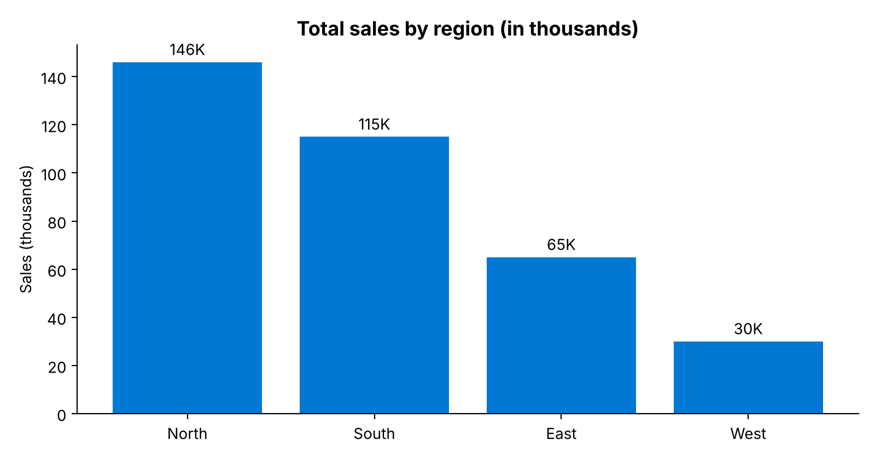
Let us find the total sales and the number of orders for each region.
summary = (
clean_df.groupBy(“region”)
.agg(
F.sum(“amount”).alias(“total_sales”),
F.count(“order_id”).alias(“orders”)
)
.orderBy(F.desc(“total_sales”))
)
display(summary)
You should see this result:
| region | total_sales | orders |
| North | 146000 | 2 |
| South | 115000 | 2 |
| East | 65000 | 2 |
| West | 30000 | 2 |
The North region leads the board, and West is the smallest. In the output of display, you can switch from the table view to a chart view with one click, and you will get something like this.
Step 8: Save the Result as a Delta Table
So far, everything lives only in memory. If the session ends, it is gone. Let us save the clean data as a table in the lakehouse.
clean_df.write.mode(“overwrite”).format(“delta”).saveAsTable(“sales_clean”)
Refresh the Tables section in the Explorer pane, and you will see a new table called sales_clean. Delta is the default table format in Fabric. It stores data in Parquet files and adds extras on top, like a change history, safe updates, and the ability to go back to an older version.
The word mode matters. It tells Spark what to do if the table already exists.
| Mode | What it does |
| overwrite | Replaces the old data with the new data |
| append | Adds the new rows to the end of the existing table |
| ignore | Does nothing if the table already exists |
| error | Stops with an error if the table already exists (the default) |
Be careful with overwrite. If you run it on the wrong table, the old data is replaced. For daily loads, append is usually the safer pick.
Step 9: Use Spark SQL in the Same Notebook
Maybe you like SQL more than Python. No problem. Fabric lets you switch the language of a single cell with a magic command. Put %%sql on the first line, and write SQL below it.
%%sql
SELECT region, SUM(amount) AS total_sales
FROM sales_clean
GROUP BY region
ORDER BY total_sales DESC
You get the same answer as before. This is helpful when a teammate knows SQL but not Python, because you can both work in one notebook. Here are the magic commands you can use.
| Magic command | What it does |
| %%pyspark | Runs the cell as PySpark (Python) |
| %%sql | Runs the cell as Spark SQL |
| %%spark | Runs the cell as Scala |
| %%sparkr | Runs the cell as R |
Using a Python Notebook with pandas and DuckDB
PySpark is not always the answer. For a small file like ours, a Python notebook is quicker to start and simpler to use. Create a new notebook, switch it to Python, and try this.
import pandas as pd
import duckdb
df = pd.read_csv(“/lakehouse/default/Files/sales.csv”)
print(df.groupby(“region”)[“quantity”].sum())
duckdb.sql(“SELECT region, COUNT(*) AS rows FROM df GROUP BY region”).show()
Two things to notice. First, the file path is different. In a Python notebook, you read the lakehouse like a normal folder on a disk, starting with /lakehouse/default/. Second, DuckDB can query a pandas DataFrame directly by its variable name, which feels a bit like magic the first time you see it.
If you have a small result in Spark and want to use pandas, you can call toPandas(). Only do this when the result is small, because it pulls all the data onto one machine.
Handy Tools: NotebookUtils
Fabric comes with a helper library called NotebookUtils. You may see old posts that call it mssparkutils. It was renamed, so use the new name in fresh work. It helps with things you would otherwise do by hand.
# List files in the Files folder
notebookutils.fs.ls(“Files”)
# Run another notebook and pass a value to it
notebookutils.notebook.run(“Sales_Cleaning”, 90, {“region”: “North”})
The first line lists your files. The second runs another notebook, waits up to 90 seconds, and passes a value to it.
Run Your Notebook in a Pipeline
A notebook is not just for exploring. You can run it as part of a data pipeline, using a Notebook activity. This is how teams run their work every day without anyone clicking a button.
The trick is a parameter cell. Put your changeable values, like a table name or a date, in the first cell. Mark that cell as a parameter cell from its menu. Then the pipeline can replace those values when it starts the notebook. Microsoft uses this same pattern in its own table maintenance tutorial, where a notebook gets the lakehouse, schema, and table name from the pipeline.
Tips to Make Your Notebooks Faster and Cleaner
- Filter early. Remove columns and rows you do not need before you join or group data.
- Pick the right format. Delta and Parquet are much faster than CSV for big data.
- Avoid toPandas() on large data. It can crash your session.
- Use Markdown cells. A few notes above each section help when you come back in a month.
- Stop your session when you finish. A running session uses capacity, and capacity is not free.
- Check the runtime. Runtime 1.3 supports the Native Execution Engine, which can make some queries run much faster than plain open-source Spark.
Common Errors and How to Fix Them
You will hit an error sooner or later. That is normal. Here are the ones I see most often.
| Error or problem | Likely fix |
| Table or view not found | The lakehouse is not attached. Add it in the Explorer pane, or use the full table name. |
| Path does not exist | Check the file name and folder. Files is case sensitive in many places. |
| ModuleNotFoundError | Run %pip install package_name in a cell, or add the package to an Environment. |
| Column not found | Look for extra spaces or different capital letters in the column name. |
| mssparkutils not working | Use notebookutils instead, and check that the session type is correct. |
| Session takes long to start | Capacity may be busy. Wait a minute, or try again later. |
Final Thoughts
Microsoft Fabric notebooks make big data work feel a lot less scary. You open a browser, attach a lakehouse, write a few lines of PySpark, and you have clean data in a Delta table, ready for reports. No servers to set up, and no software to install.
To recap, we created a lakehouse, loaded a CSV file, cleaned it, summed it up by region, and saved it as a table. We also tried Spark SQL and a Python notebook with pandas and DuckDB. That is the base skill set for most real projects.
My advice is to take your own data next. Use a small file from your work, repeat these steps, and break things on purpose. That is how it really sticks. When you feel ready, look at pipelines and scheduling to run your notebook on its own.
Frequently Asked Questions (FAQ)
Is a Microsoft Fabric notebook free to use?
You can try Fabric with a free trial. After the trial, notebooks use the capacity of your workspace, and that capacity is a paid resource. So the notebook itself has no separate price tag, but running it uses capacity you pay for.
What is the difference between Python and PySpark in Fabric?
Python is the language. PySpark is the Python tool for talking to Spark. In a Python notebook, your code runs on one small machine. In a PySpark notebook, Spark spreads the work over a cluster, so it handles much bigger data.
Do I need to install Spark to use PySpark in Fabric?
No. Fabric sets up Spark for you. The spark session is ready as soon as the notebook starts.
Which languages can I use in a Fabric notebook?
In a Spark notebook, you can use PySpark, Spark SQL, Scala, and R. A Python notebook supports Python only.
Can I use pandas in a Fabric notebook?
Yes. Pandas works in both kinds of notebooks. It is best for small data.
What is a Delta table?
A Delta table is the standard table format in Fabric. It stores data in Parquet files and adds a log that tracks changes. This gives you safe updates and the chance to view older versions of the data.
How do I run a notebook on a schedule?
The most common way is to add the notebook to a pipeline using a Notebook activity, and then schedule that pipeline. Use a parameter cell if you want the pipeline to pass in new values each time.
Similar Article
- Microsoft Fabric vs Snowflake: A Detailed Comparison of Cloud Data Warehouse Solutions
- Microsoft Fabric vs Databricks: Features, Performance, Pricing, and Key Differences
- Microsoft Fabric Pricing Explained: Capacity Costs, Licensing Options, and Cost Optimization
- Microsoft Fabric Real-Time Intelligence Tutorial: Build Real-Time Data Analytics Solutions
- Fabric Notebook Toolkit Tutorial for Beginners With Examples
- Microsoft Fabric vs Power BI: Key Differences, Features, Pricing, and Which One to Choose
- Microsoft Fabric Dataflows Gen2 Tutorial for Beginners: A Simple Step-by-Step Guide