The Power Apps data row limit can now go up to 10,000. See what changed, how to set it, and when to keep it at 500.
If you build canvas apps in Power Apps, you have seen the yellow warning triangle and the blue wavy line under a formula. Those warnings are about delegation. And they are tied to one small setting that causes a lot of confusion: the data row limit.
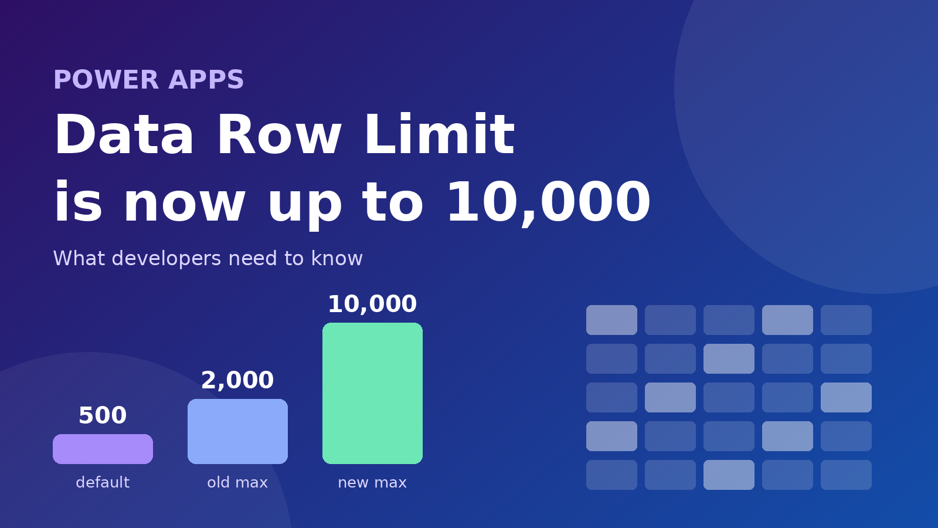
For years, that limit started at 500 rows and stopped at 2,000. Microsoft’s current documentation now says you can raise it to 10,000. That is a big jump. It can save you some work, but it can also slow your app down or hide bugs if you use it in the wrong way.
In this guide I will explain what the limit really does, what changed, how to turn it up, and when you should leave it alone. I will keep it simple, and I will say clearly where the facts are solid and where they are not.
What Is the Data Row Limit in Power Apps?
Start with how Power Apps handles a formula such as Filter or Sort. If the data source can do the work itself, Power Apps hands the job over. The data source filters the rows and sends back only the answer. This is called delegation, and it works well even when a table has millions of rows.
But some formulas cannot be handed over. A data source may not understand them. When that happens, Power Apps pulls a batch of records to the device and does the work there. The size of that batch is the data row limit. The default is 500.
Here is the part that catches people. Those are the first 500 records in the data source. They are not the first 500 records that match your formula. Microsoft gives a simple example: if you run a non-delegable Filter over a table with a million records, only the first 500 are checked. If the row you need is number 501, the app will not find it, and it will not show an error.
Two more facts help here:
- The limit is one setting for the whole app. It affects only the queries that cannot be delegated.
- It does not change how many rows your data source can hold. A SharePoint list or a Dataverse table can be far bigger than 10,000 rows.
- Collections, imported Excel data and tables in context variables are already in memory, so delegation does not apply to them.
What Changed: From 2,000 to 10,000
Microsoft first let makers raise the limit in 2018. The feature started in the experimental settings, and the top value was 2,000. Most tutorials you will find online still say 2,000, and for a long time they were right.
Now the main Microsoft Learn article on delegation says you can change the limit to a maximum of 10,000 records, and its “Changing the limit” section says to pick any value from 1 to 10,000. That page shows a last update of 7 October 2026. A related change in Microsoft’s public docs repository on GitHub, dated 21 September 2026, describes the “new 10,000-record maximum” for non-delegable queries. It also lines up the notes about UpdateIf and RemoveIf with the configurable limit.
Here is the simple before-and-after view:
| Item | Older guides | Microsoft Learn now |
| Default value | 500 | 500 |
| Lowest value | 1 | 1 |
| Highest value | 2,000 | 10,000 |
| Where to find it | Experimental features, later Advanced settings | Settings, then General |
One honest note. I could not find a big announcement post from Microsoft with a release date. The docs are the best source we have. Also, some recent third-party posts still say the top value is 2,000 and that the box will not accept more. That may simply be old advice. It may also mean the change reaches different environments at different times. Microsoft does not say. So the safest move is to open your own app and test it.
How to Change the Data Row Limit (Step by Step)
The steps are short. This follows Microsoft’s own instructions.
- Open your canvas app in Power Apps Studio.
- Select Settings at the top of the screen.
- On the General tab, find Data row limit.
- Type the number you want. The docs say you can use any value from 1 to 10,000.
- Close the panel, save the app, and test the screens that use large tables.

Figure 1: Screenshot of the Data row limit box in the app settings. Your screen may look a little different.
If the box will not take a number above 2,000, your environment may not have the change yet. Check again later, and do not build your design around 10,000 until you have seen it work.
Should You Set It to 10,000? A Simple Way to Decide
A bigger number sounds better. It is not always better. Microsoft warns that as you raise the limit, the app can get slower, especially with wide tables that have many columns. Every extra row must travel over the network and sit in the device’s memory.
This table is my suggested rule of thumb. It is advice, not an official rule, so adjust it for your own app.
| Your situation | Suggested setting | Why |
| Small list, under 500 rows, will not grow | Leave at 500 | Everything already fits. Nothing to gain. |
| Reference list of 500 to 2,000 rows that rarely changes | 2,000 | Enough room, and the load stays small. |
| Table of 2,000 to 10,000 rows and a formula that cannot be delegated | Raise it, then test speed | This is where the new maximum helps. Watch load time on a phone. |
| Table over 10,000 rows, or one that keeps growing | Do not rely on the limit | Fix the formula so it delegates. A bigger limit only delays the problem. |
| You are still building the app | 1 | Microsoft suggests this. Bugs show up early, because you only see one record. |
The last row is a smart trick. Setting the limit to 1 while you build makes any formula that cannot delegate return a single record. That is easy to spot. It saves you from the nasty surprise of a demo app that works on 50 rows and fails on 50,000.
Which Data Sources and Functions Delegate?
The best way to use the new limit is to need it less. If your formulas delegate, the limit hardly matters. Microsoft lists these popular sources as delegable: Microsoft Dataverse, SharePoint, SQL Server and Salesforce. Each connector page lists exactly what it supports.
Now the functions. This is a short summary from Microsoft’s article:
| Group | Functions |
| Usually delegable | Filter, Search, First, LookUp, Sort, SortByColumns, Sum, Average, Min, Max, Count, CountRows |
| Not delegable | FirstN, Last, LastN, Choices, Concat, Collect, ClearCollect, GroupBy, Ungroup |
| Can block delegation inside a filter | If, Lower, Upper, Left, Mid, Len, Text, Value, Mod, *, /, and & |
Some of the delegable ones depend on what the data source supports, so always trust the warning in Studio over any list. A formula marked with a blue underline is not being delegated.
Notice that Collect and ClearCollect are on the not-delegable list. That means the data row limit also decides how many rows they can pull in one go. With a higher limit, bigger collections become possible. They also use more memory, so test on a real device before you ship.
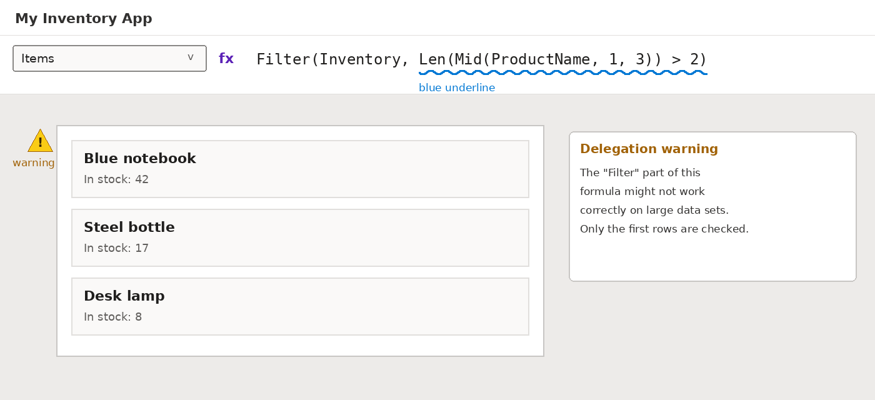
Figure 2: Screenshot of a delegation warning, shown as a yellow triangle and a blue underline.
Common Problems and How to Fix Them
- Records are missing and there is no error. Check for a blue underline. The formula is probably not delegating, so only part of the table is searched. Rewrite it with a delegable function.
- The app opens slowly after you raise the limit. Lower the number, or load less data on the first screen. Wide tables hurt the most, so pick only the columns you need.
- Totals look wrong. A function such as Average that cannot delegate only works on the rows it received. A user may take a partial answer as the full one.
- It worked in testing but fails in real use. Your test data was probably small. Test with a data set close to the real size.
- You think the limit equals your data size. It does not. It only controls non-delegable queries.
A Simple Testing Routine
Use this short routine each time you work with a large table:
- Set the data row limit to 1 in your development copy.
- Open every screen and look for places that show one record, or numbers that look wrong.
- Change those formulas to delegable ones.
- Raise the limit to the smallest number that covers your real needs, not the biggest one allowed.
- Test again with real-size data, on a phone and on a slow connection.
- Check the app again every few months, because tables grow.
What If You Have More Than 10,000 Rows?
The new maximum is not a fix for big data. If a table is larger than 10,000 rows, or will be soon, the answer is the same as before. Make the query delegable. A few ways to do that:
- Filter on a column the data source understands, such as a date, a status or a number, so the data source does the heavy work.
- Load data in smaller pieces by using a delegable column, instead of one big pull.
- For complex joins, ask your database team for a view on the server. Microsoft suggests this when a query needs to join more than 20 tables.
- Keep lookups to two levels. That is the maximum Microsoft supports in a query.
Key Takeaways
- The default data row limit is still 500.
- Microsoft’s docs now say the top value is 10,000, up from 2,000.
- The limit only affects formulas that cannot be delegated.
- A higher limit can slow your app, mostly with wide tables.
- Set the limit to 1 while you build, so problems show up early.
- Delegation is still the real fix for large data.
Frequently Asked Questions
What is the maximum data row limit in Power Apps now?
Microsoft’s delegation article says you can set it to a maximum of 10,000. The default stays at 500. Older guides and some blogs still say 2,000, so check your own app to be sure.
Does a higher limit remove delegation warnings?
No. The warning tells you a formula is not being delegated. A higher limit only changes how many rows are checked locally. The formula still cannot see the rest of the table.
Will setting the limit to 10,000 make my app slower?
It can. Microsoft says performance may drop as you raise the number, especially for wide tables with many columns. Use the smallest value that works, and test on a real phone.
Why can I only type 2,000 in my app?
There are two likely reasons. Your environment may not have the change yet, or the advice you followed may be out of date. Check Microsoft’s delegation article, try again later, and plan your app to work even at the lower limit.
Similar Article
- Microsoft Fabric vs Snowflake: A Detailed Comparison of Cloud Data Warehouse Solutions
- Microsoft Fabric vs Databricks: Features, Performance, Pricing, and Key Differences
- Microsoft Fabric Pricing Explained: Capacity Costs, Licensing Options, and Cost Optimization
- Microsoft Fabric Real-Time Intelligence Tutorial: Build Real-Time Data Analytics Solutions
- Fabric Notebook Toolkit Tutorial for Beginners With Examples
- Microsoft Fabric vs Power BI: Key Differences, Features, Pricing, and Which One to Choose
- Microsoft Fabric Dataflows Gen2 Tutorial for Beginners: A Simple Step-by-Step Guide