If you build apps with Microsoft Power Apps, you’ve hit a red error banner at least once. Most of the time, the message on screen doesn’t tell you much. It just says something failed, and you’re left guessing what to do next.
The good news is that almost every Power Apps error falls into one of a few buckets: a formula mistake, a data source problem, a delegation limit, a connection hiccup, or a performance issue. Once you know which bucket you’re in, the fix is usually quick.
This guide walks through 25 of the most common Power Apps errors, grouped by type, with plain-English explanations and fixes you can try right away. No jargon, just what to click and what to check.
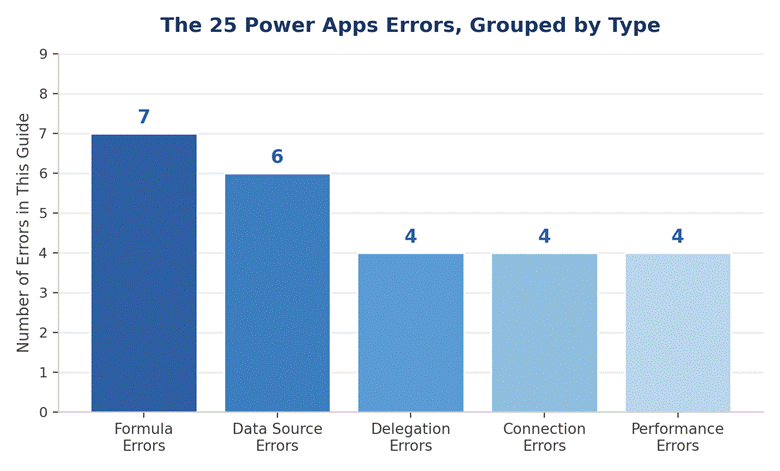
A quick look at how the 25 errors in this guide break down by type.
Quick Reference: All 25 Errors at a Glance
Short on time? Scan the table below to find your error, then jump to the full explanation further down the page.
| Error | Common Cause |
| Name isn’t valid | You typed a formula that Power Apps doesn’t recognise |
| Invalid argument type | A function got the wrong kind of value, like text instead of a number |
| Incompatible types for comparison | You’re comparing two different data types |
| The function has some invalid arguments | Wrong number of items inside a function |
| Cannot find the value or column | A field name was renamed, removed, or spelled wrong |
| Behavior function in a non-behavior property | A function like Patch is placed on the wrong property |
| This formula has a missing or extra bracket | Brackets don’t line up in the formula bar |
| Data source could not be found | The connection or table was removed or renamed |
| The requested operation is invalid | You tried an action the data source doesn’t allow |
| This app contains data sources that aren’t valid | A source was deleted from the backend but not the app |
| Column doesn’t exist | The screen is looking for a field that was removed |
| Item not found / record no longer exists | The record was deleted by someone else |
| This table isn’t loading right now | A temporary sync or permissions problem |
| Delegation warning (blue underline) | Power Apps can’t send the whole filter to the data source |
| Only part of this data is shown | More than 500 (or 2,000) records match your query |
| Sorting isn’t supported on this column | The column type can’t be sorted at the server |
| Cannot delegate this part of the formula | A nested or complex condition can’t be pushed to the source |
| Connection is not valid / expired | A connector’s login token has timed out |
| Failed to establish a connection | Network, firewall, or gateway issue |
| You don’t have permission | The user’s role or the data source security is blocking access |
| Too many requests | The app is calling a connector faster than its limit allows |
| App is running slowly | Too many controls, images, or unneeded formulas on one screen |
| App takes a long time to open | Large OnStart formula or big collections loading at launch |
| Gallery flickers or scrolls badly | Too many nested galleries or live formulas inside a gallery |
| App crashes or goes blank on a phone | Memory limits on mobile devices with heavy screens |
1. Formula Errors (the most common group)
Formula errors show up the moment you write a bad expression in the formula bar. Power Apps checks your formula as you type, so these are usually the easiest errors to catch early.
1. “Name isn’t valid”
Why it happens: You typed a control, screen, or column name that Power Apps doesn’t recognise. This often happens after you rename a control or delete it.
How to fix it: Click on the red-underlined part of the formula. Power Apps will suggest the closest matching name. If a control was renamed, update every formula that still refers to the old name using Find and Replace in the tree view.
2. “Invalid argument type”
Why it happens: A function expected a number, date, or table, but got something else, like text.
How to fix it: Check the exact function syntax on Microsoft’s formula reference and match each argument’s data type. Wrapping a value in Value(), Text(), or DateValue() often solves this.
3. “Incompatible types for comparison”
Why it happens: You used =, <, or > to compare two values that aren’t the same type, such as a number and a piece of text.
How to fix it: Convert both sides to the same type before comparing. For example, use Value(TextInput1.Text) = ThisItem.Amount instead of comparing text directly to a number.
4. “The function has some invalid arguments”
Why it happens: A function was given too few or too many arguments, or the arguments are in the wrong order.
How to fix it: Open the function in the formula bar and check the argument list against the reference documentation. Most Power Apps functions show a small tooltip with the expected arguments as you type.
5. “Cannot find the value or column”
Why it happens: A column name in your formula doesn’t match the actual column in the data source, often because it was renamed after the app was built.
How to fix it: Refresh the data source in the Data pane, then check the column name again. Column names with spaces need square brackets, like [Order Date].
6. “Behavior function in a non-behavior property”
Why it happens: Functions such as Patch, Navigate, or Collect were placed on a property like Text or Fill, which only allows read-only formulas.
How to fix it: Move the function to a property that supports behavior, such as OnSelect, OnVisible, or OnChange. If you need a value shown on screen, calculate it separately and only trigger the action on a real event.
7. “This formula has a missing or extra bracket”
Why it happens: Brackets, parentheses, or curly braces don’t match up somewhere in a long formula.
How to fix it: Use the built-in formula bar formatting (Ctrl + Shift + F on Windows) to auto-indent the formula. This makes mismatched brackets much easier to spot, especially in long nested formulas.
2. Data Source Errors
These errors happen when Power Apps can’t read or write data the way your app expects. They’re common after someone edits the backend table, list, or database without updating the app.
8. “Data source could not be found”
Why it happens: The connection, SharePoint list, or table the app relies on was renamed, moved, or deleted.
How to fix it: Go to View > Data sources, remove the broken connection, and add it back. Then re-check every screen that used it, since some formulas may need to be reconnected manually.
9. “The requested operation is invalid”
Why it happens: The app tried to do something the data source doesn’t support, such as writing to a read-only column or a view with filters applied.
How to fix it: Check the source’s permissions and column settings. If it’s a SharePoint view, point the app at the full list instead of a filtered view.
10. “This app contains data sources that aren’t valid”
Why it happens: One or more sources were deleted or renamed at the backend, but the app still references them.
How to fix it: Open Data sources, delete any source marked with a warning icon, and reconnect it under its current name.
11. “Column doesn’t exist”
Why it happens: A screen or gallery references a column that was removed from the table.
How to fix it: Check the Items or Default property of the control and update the column reference. It also helps to refresh the data source so Power Apps re-reads the current schema.
12. “Item not found” or “record no longer exists”
Why it happens: Someone else deleted the record while your app still had it open, usually in multi-user apps.
How to fix it: Wrap update actions in an IfError() or use Patch with error checking, and refresh the gallery after every save so stale records don’t linger on screen.
13. “This table isn’t loading right now”
Why it happens: A temporary sync issue, an expired permission, or a throttled connector.
How to fix it: Wait a minute and refresh. If it keeps happening, check the data source’s permission settings and confirm your account still has access.
3. Delegation Errors and Warnings
Delegation is the process where Power Apps asks the data source to do the filtering and sorting, instead of pulling every record into the app first. When a formula can’t be delegated, you’ll see a blue warning triangle, not always a hard error, but it can quietly cause missing data.
14. Delegation warning (blue underline in the formula bar)
Why it happens: The function or condition you used isn’t supported by the data source for server-side filtering.
How to fix it: Check Microsoft’s delegation list for your data source. Where possible, swap unsupported functions for delegable ones, such as replacing complex text functions with StartsWith().
15. “Only part of this data is shown”
Why it happens: Your gallery or dropdown is pulling more records than the delegation limit (500 by default).
How to fix it: Raise the limit in Settings > Upcoming features > Data row limit for testing, but for production apps, fix the underlying formula so it delegates properly instead of relying on a higher limit.
16. “Sorting isn’t supported on this column”
Why it happens: The column type, such as a calculated or lookup column, can’t be sorted at the server.
How to fix it: Sort by a plain text, number, or date column instead, or create a helper column in the data source specifically for sorting.
17. “Cannot delegate this part of the formula”
Why it happens: A nested condition, like an And() inside an Or(), is too complex for the data source to translate.
How to fix it: Break the formula into simpler, separate filters, or use a view or query at the data source level that already applies part of the logic.
4. Connection and Permission Errors
Connection errors are usually outside the app itself. They point to something happening between Power Apps and the outside service, like an expired login or a network block.
18. “Connection is not valid” or “expired”
Why it happens: The login token for a connector, such as Outlook or SQL Server, has timed out.
How to fix it: Go to the Data pane, select the connection, and choose Edit connection or Refresh. You may need to sign in again.
19. “Failed to establish a connection”
Why it happens: A network issue, firewall rule, or an on-premises data gateway that’s offline.
How to fix it: Check that the data gateway is running if you use one. On a company network, ask IT whether Power Apps traffic is being blocked.
20. “You don’t have permission to access this data source”
Why it happens: The user’s role, or the security settings on the data source itself, is blocking access.
How to fix it: Confirm the user has the right role in the app (Share settings) and separately has permission on the underlying SharePoint site, database, or Dataverse table.
21. “Too many requests” or throttling errors
Why it happens: The app is calling a connector faster than its request limit allows, often from a formula running inside a gallery.
How to fix it: Move data calls out of repeating controls where possible, use collections to cache data, and avoid calling the same connector inside OnChange events that fire often.
5. Performance and Loading Errors
Not every problem shows a red banner. Sometimes the app just feels slow, freezes, or crashes, especially on phones. These issues are still worth fixing, since they drive users away just as fast as a hard error.
22. App is running slowly
Why it happens: Too many controls, images, or formulas that recalculate constantly are on one screen.
How to fix it: Split large screens into smaller ones, compress images before adding them, and move formulas out of properties that update on every screen refresh.
23. App takes a long time to open
Why it happens: A heavy OnStart formula is loading large collections or making several data calls before the first screen appears.
How to fix it: Move non-essential logic out of OnStart and into the screen’s OnVisible property, so the app opens fast and loads extra data after the first screen is visible.
24. Gallery flickers or scrolls badly
Why it happens: Nested galleries, or formulas placed directly inside gallery templates, recalculate for every single row.
How to fix it: Move calculations to a collection built once in OnStart or OnVisible, and reference the collection inside the gallery instead of recalculating live.
25. App crashes or goes blank on a phone
Why it happens: Mobile devices have less memory, so heavy screens that run fine on a laptop can crash the Power Apps mobile player.
How to fix it: Test on an actual phone early, reduce the number of controls per screen, and turn off unused media or unnecessary galleries on mobile layouts.
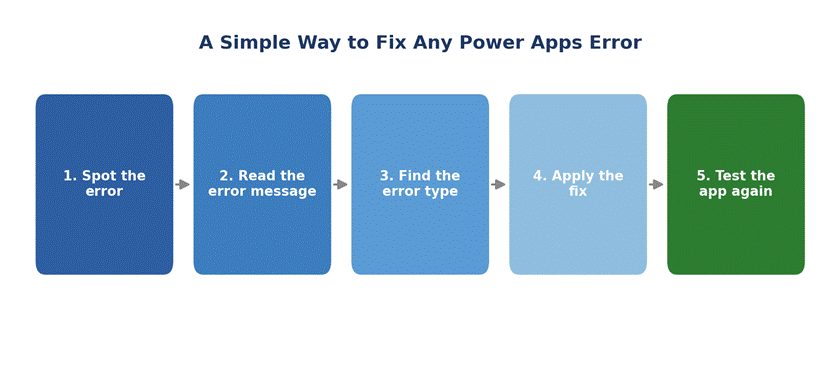
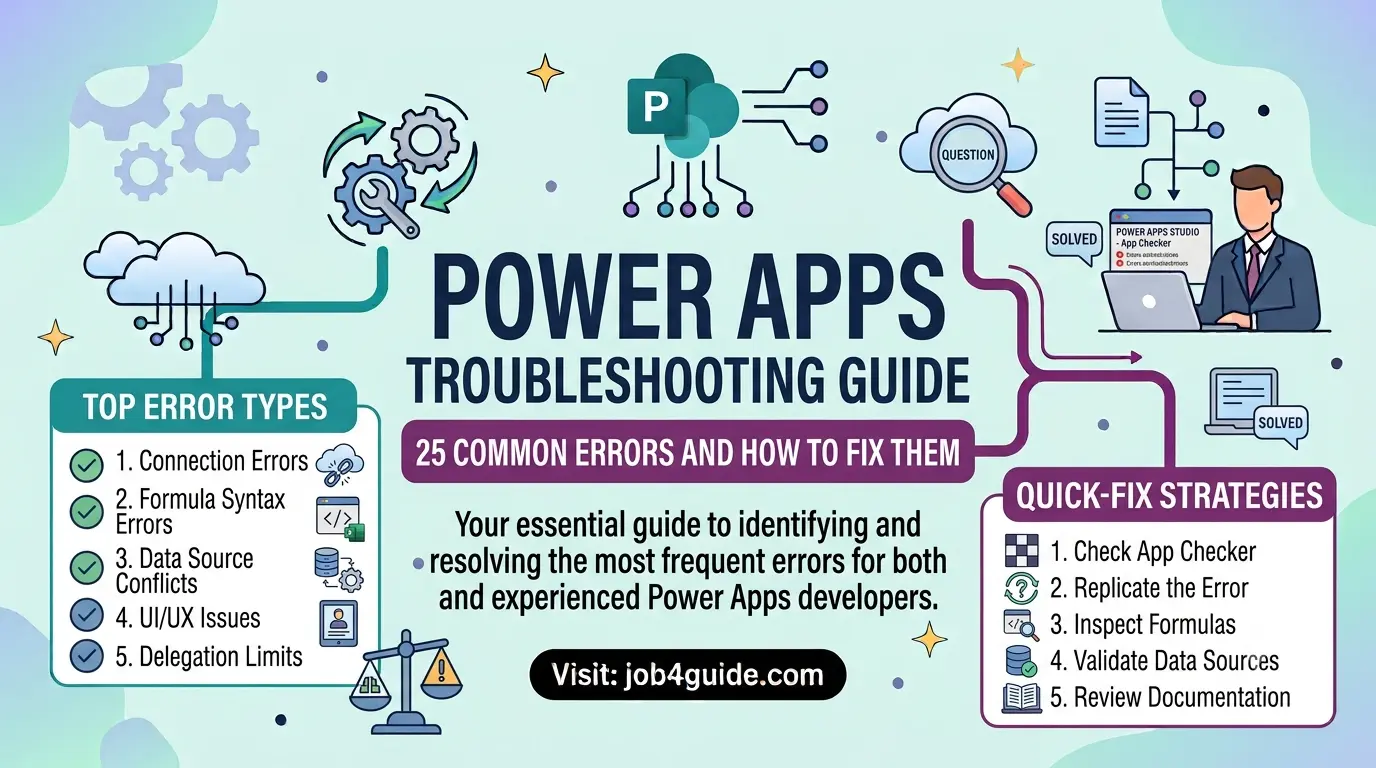
Whatever the error, this five-step routine works almost every time.
General Tips That Prevent Most Power Apps Errors
A lot of errors never happen if you build with a few habits in mind. Here’s what experienced app makers do differently:
- Name your controls clearly (submitBtn, custEmailInput) instead of leaving defaults like Button1. It makes formulas easier to read and fix.
- Check the error list panel (View > App checker) after every big change, not just when something breaks.
- Save a copy of your app before major edits, so you can roll back if a change causes a wave of new errors.
- Test with real data volumes, not just five sample rows. Delegation and performance problems often only show up at scale.
- Keep an eye on the data source schema. If someone on your team renames a column, your app will not know until you refresh it.
- Use collections to store data you check often, instead of calling the data source again and again.
Frequently Asked Questions
Why does my Power Apps error message not explain what went wrong?
Power Apps error messages are often generic because the same message can come from many different causes. That’s exactly why grouping errors by type, like this guide does, helps more than reading the message alone.
How do I see all the errors in my app at once?
Open View in the top ribbon, then select App checker. It lists every current error and warning, with a link that jumps straight to the problem control or formula.
What’s the difference between an error and a delegation warning?
An error stops a formula from working. A delegation warning still lets the app run, but it silently limits how much data is checked, which can lead to missing results without any red banner.
Can I fix Power Apps errors without knowing how to code?
Yes. Most fixes involve renaming a field, adjusting a formula using the built-in suggestions, or changing a setting in the Data pane. Power Apps is built for low-code use, and its formula bar gives hints as you type.
Why did my app suddenly break without me changing anything?
This usually means something changed outside the app, like a renamed SharePoint column, an expired connection, or a permission change made by an admin. Check your data sources first.
How can I stop my app from being slow on phones?
Reduce the number of controls per screen, compress images, avoid nested galleries, and move heavy formulas out of OnStart. Testing on a real phone early catches most of these issues before users do.
Final Thoughts
Every Power Apps builder runs into these errors sooner or later. The trick isn’t avoiding them completely, it’s knowing which bucket an error belongs to, so you can fix it in minutes instead of guessing for an hour.
Bookmark this guide, and the next time a red banner pops up, come back and match it to the list above. Most of the time, the fix is smaller than the error message makes it sound.