
A slow Power App is a Power App people stop using. Here’s a practical, no-nonsense checklist for making your apps load faster and run smoother — no coding background required.
Nobody likes waiting for an app to load. If your Power Apps take too long to open, or a screen freezes for a second every time someone taps a button, people notice. This happens more often than most app builders expect. A Power App that feels slow doesn’t just annoy the people using it — it can push them straight back to spreadsheets and email, which sort of defeats the whole point of building the app.
The good news is that most slow Power Apps share the same handful of problems. Once you know what to look for, you can usually fix them without rebuilding anything from scratch. Below are 15 practical ways to speed up your Power Apps. These are things you can check today, in an app you’ve already built.
Common Causes of Slow Power Apps
Before jumping into the fixes, it helps to know what usually causes the slowdown in the first place.
| Common Cause | Why It Slows Things Down |
| Too many controls on one screen | Each control needs memory and time to load and render |
| Loading all data at app start | Users wait through one long loading screen before doing anything |
| Non-delegable formulas | The app pulls far more records than it needs to work with locally |
| Large, unoptimized images | Every extra megabyte has to be downloaded before the screen shows |
| Nested galleries | One gallery inside another multiplies the number of formulas running |
| Repeated formula calculations | The same lookup or filter runs again and again for no reason |
| Unused data connections | Every connector is checked and loaded, even ones nobody uses anymore |
The 15 Tips
1. Cut Down on Screens and Controls
Every control on a screen — every label, button, icon, or gallery — takes memory and processing power to load and render. A screen with 200 controls will always load slower than a screen with 40, even if both show roughly the same information. Many Power Apps end up with dozens of hidden controls stacked on top of each other, simply because it was quicker to hide a control than to delete it. Over time, this quietly slows the whole app down.
What to do:
- Go through each screen and ask whether every control still needs to be there.
- Delete controls you no longer use instead of just hiding them.
- Combine similar controls, or use one gallery instead of several doing similar jobs.
2. Load Data at the Same Time With Concurrent()
Many Power Apps load data step by step, one data source after another. If your OnStart formula loads Users, then Orders, then Products, the app waits for each step to finish before starting the next one. That adds up fast, especially with a few data sources.
The Concurrent() function lets Power Apps load several things at the same time instead of one after another. It’s one of the easiest changes to make, and it usually gives one of the biggest visible improvements.
Before: Set(varUsers, …); Set(varOrders, …); Set(varProducts, …)
After: Concurrent(Set(varUsers, …), Set(varOrders, …), Set(varProducts, …))
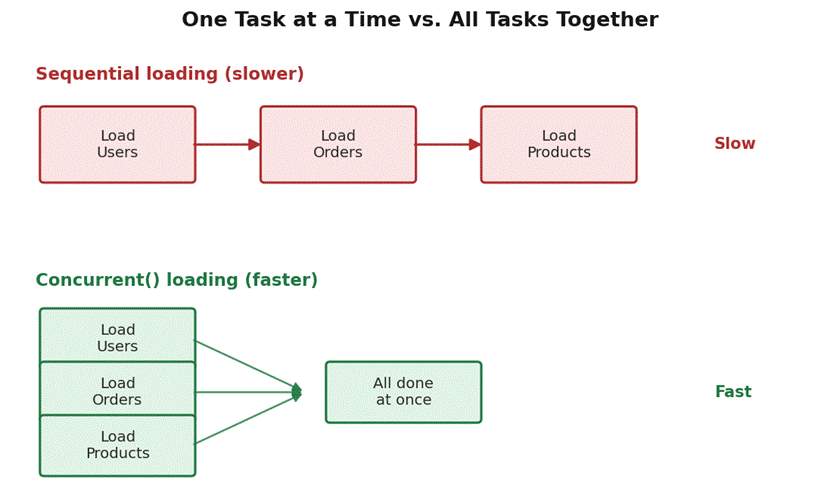
Loading data one step at a time versus loading it all together with Concurrent().
3. Don’t Load Everything in App OnStart
It’s tempting to load all your data the moment the app opens, so everything feels ‘ready’ for the user. But that means people stare at a loading screen before they can do anything at all — even if they only need one small piece of that data right away.
Instead, load only what the first screen actually needs in OnStart. Load the rest when the user navigates to the screen that needs it, using that screen’s OnVisible property. Spreading the loading work out like this makes the app feel faster from the very first tap.
4. Watch Out for Delegation Warnings
Power Apps can only process a limited number of records locally — usually 500 by default, or up to 2,000 if you raise the limit in settings. When a formula can’t be handled directly by your data source, Power Apps ends up pulling data down and filtering it on the device instead. This is called a delegation problem, and it’s one of the most common reasons apps slow down as the data grows.
A small blue warning triangle under a formula in Power Apps Studio means a delegation warning. Don’t ignore it.
| Function | Usually Delegable? | Notes |
| Filter | Yes | Works well with most data sources on simple conditions |
| Sort / SortByColumns | Yes | Works fine on standard, indexed columns |
| Search | Depends | Not always delegable on text columns, especially on SharePoint |
| CountRows(Filter(…)) | No | Counting happens locally after the filter runs |
| Left() / Right() / Mid() | No | Text functions are rarely delegable — avoid on large sources |
5. Filter Data Before You Pull It In
This is closely tied to delegation, but it deserves its own spot on the list. Never pull an entire table into the app and then filter it afterward with a collection or gallery filter. Filter it at the source instead. If you only need last month’s orders, filter for that when you query the data, not after you’ve already loaded three years of records into memory.
6. Use Collections to Store Data You Use Often
If your app pulls the same lookup list again and again — like a list of departments, categories, or statuses — you’re wasting time re-fetching data that barely changes. Load it once into a collection when the app starts, and reference the collection from then on. Collections live in memory, so reading from them is much faster than making a fresh call to the data source every time.
7. Turn Off Screen Transitions
Power Apps lets you add a transition effect, like a fade or push, between screens. These look nice, but they add a small delay to every single screen change. On a small app that’s barely noticeable. On an app people open dozens of times a day, it adds up. Go to the screen transition settings and set them to ‘None’ if speed matters more than the visual flourish.
8. Compress Images Before Adding Them
Large, high-resolution images are one of the most overlooked reasons apps run slowly. A single photo taken on a phone can easily be 4 to 5 MB. Add ten of those to your app, and you’ve added 40 to 50 MB of extra weight that has to load every single time someone opens the app.
Resize images to the size they’ll actually display at, and compress them before uploading. Aim for images under 200 KB where possible. Use PNG for icons and logos, and JPEG for photos.
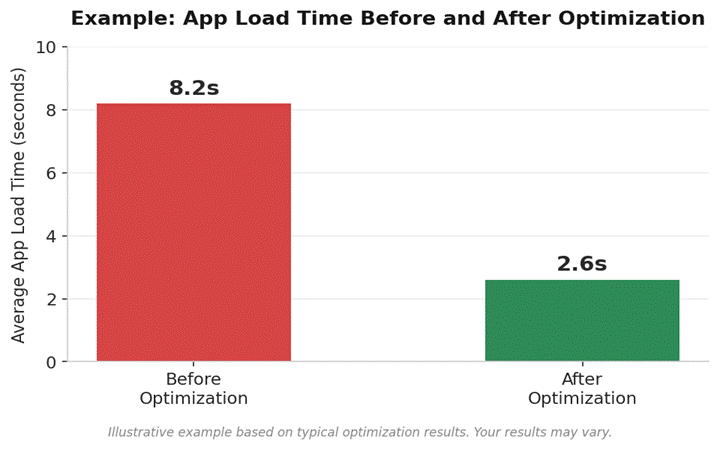
Small changes like image compression and delegation fixes can add up to a noticeably faster app.
9. Limit Nested Galleries
A gallery inside another gallery — a nested gallery — is a common way to show grouped data, like orders inside customers. The problem is that nested galleries multiply the amount of work Power Apps has to do. If the outer gallery shows 20 customers and each one shows 10 orders, that’s 200 sets of formulas running at once. Where possible, flatten the structure or load pre-grouped data instead of nesting galleries inside each other.
10. Use Variables Instead of Repeating the Same Formula
If five different controls on a screen all run the same LookUp() or Filter() formula, Power Apps recalculates that formula five separate times. Instead, run the formula once, store the result in a variable, and have all five controls reference that variable. It’s a small change, but it adds up quickly across a busy screen.
11. Select Only the Columns You Need
When you pull data from a source with a lot of columns — SharePoint and Dataverse are common examples — Power Apps often brings back every column, even if your app only actually uses three of them. Use the ShowColumns() function to select only the columns you need. This cuts down the amount of data traveling over the network every single time the app runs that query.
12. Clean Up Unused Data Connections
Every connector your app references gets checked and loaded when the app starts, even ones you’re no longer using. If you tested a connection to an old database or service months ago and never removed it, it’s still adding overhead in the background. Go to File > App settings and remove any data source or connector you don’t actively use anymore.
13. Test With Power Apps Monitor
Power Apps includes a built-in tool called Monitor that shows exactly what’s happening behind the scenes while your app runs — which formulas take the longest, which network calls are slowest, and where the real delays are hiding. You’ll find it under the Advanced Tools menu in Power Apps Studio. Run it once while using your app normally, and you’ll usually spot the slowest part within a few minutes.
14. Keep Your Data Source Organized
If you’re using SharePoint, make sure the columns you filter and sort by often are indexed. An indexed column helps SharePoint find matching records much faster, especially once a list passes a few thousand items. In Dataverse, this kind of optimization is largely handled automatically, which is one reason larger apps often perform better on Dataverse than on SharePoint.
15. Update Power Apps and Your Device Regularly
This one’s easy to overlook. Microsoft regularly ships performance improvements to the Power Apps player and Studio. If you’re using an outdated version of the mobile app, or an older browser, you might be missing fixes that would otherwise make your app noticeably faster. Keep the Power Apps mobile app and your browser updated, and encourage your users to do the same.
Quick Reference: All 15 Tips at a Glance
| Tip | Effort | Impact |
| 1. Cut down on screens and controls | Medium | High |
| 2. Use Concurrent() to load data together | Low | High |
| 3. Don’t load everything in OnStart | Low | High |
| 4. Fix delegation warnings | Medium | High |
| 5. Filter data at the source | Low | High |
| 6. Use collections for common data | Low | Medium |
| 7. Turn off screen transitions | Low | Low |
| 8. Compress images before uploading | Low | Medium |
| 9. Limit nested galleries | Medium | Medium |
| 10. Use variables instead of repeat formulas | Low | Medium |
| 11. Select only needed columns | Low | Medium |
| 12. Remove unused data connections | Low | Low |
| 13. Test with Power Apps Monitor | Low | High |
| 14. Index your data source columns | Medium | High |
| 15. Keep app and device updated | Low | Low |
Frequently Asked Questions
Why is my Power App still slow even though I don’t have much data?
Data size isn’t the only factor. Delegation issues, too many controls, nested galleries, and loading everything in OnStart can all slow an app down even when the data source itself is small. Check your formulas and screen structure before assuming it’s a data problem.
Does internet speed affect Power Apps performance?
Yes — a slow or unstable connection will make any app feel sluggish, since Power Apps needs to talk to your data source over the network. That said, even on a great connection, a poorly built app will still be slow. Internet speed is only part of the picture.
Is Dataverse faster than SharePoint for Power Apps?
For larger apps with a lot of data and more complex relationships, Dataverse is usually faster, because it’s built for this kind of workload and handles delegation more consistently. For smaller, simpler apps, SharePoint works just fine.
How do I find out exactly what’s slowing my app down?
Use Power Apps Monitor, found under Advanced Tools in Studio. It shows you which formulas and network calls are taking the longest while you actually use the app, so you’re not guessing.
Will reducing the number of screens actually help?
Generally, yes. Fewer screens with more focused content tend to load faster and use memory more efficiently than one giant screen trying to do everything. It’s less about the raw screen count and more about how much each individual screen has to load.
Can formulas alone make an app slow, even with fast internet?
Yes. Formulas that recalculate too often, aren’t delegable, or repeat the same lookup multiple times can slow an app down regardless of connection speed, because the delay happens on the device while it processes the formulas — not just over the network.
Final Thoughts
You don’t need to rebuild your Power App from scratch to make it faster. Most performance problems come down to a small list of habits: loading too much too soon, ignoring delegation warnings, repeating formulas, or letting unused connections and oversized images sit around in the background.
Work through the 15 tips above one at a time. Start with Concurrent() and delegation warnings, since those two usually give the biggest improvement for the least effort. Then check back in with Power Apps Monitor to see how much you’ve actually improved. A faster app isn’t just nicer to use — it’s more likely to actually get used, which is the whole point of building one in the first place.