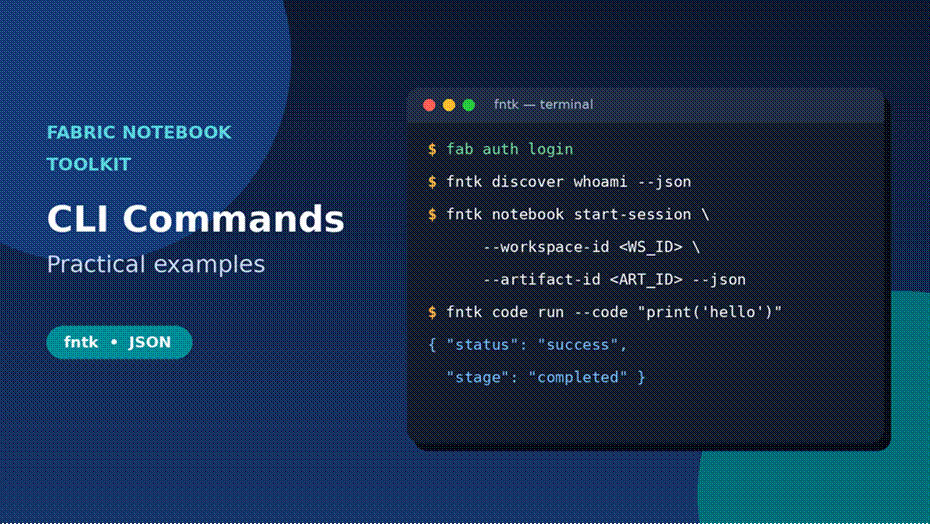
Learn the main Fabric Notebook Toolkit CLI commands with simple syntax, options and copy-ready examples for sessions, code, cells, Spark and logs.
If you work with notebooks in Microsoft Fabric, you’ve probably clicked through the browser more times than you’d like. Open the notebook, wait for the session, run a cell, check the output, and do it all again. It works, but it’s slow, and it’s hard to automate.
The Fabric Notebook Toolkit CLI helps with that. It’s a command line tool called fntk. With it you can start sessions, run code, edit cells and watch Spark jobs without leaving your terminal. In this guide, I’ll go through the Fabric Notebook Toolkit CLI commands one group at a time. You’ll see the syntax, the main options, and examples you can copy and try.
One thing to know first: the tool is still in alpha. At the time of writing, the latest version on PyPI is 0.0.1a11, released on October 9, 2026. Commands and options can change, so always double-check with –help on your own machine.
What Is the Fabric Notebook Toolkit (fntk)?
The Fabric Notebook Toolkit is a Python package published by Microsoft. Its short name is fntk. The project describes itself as a runtime interface for Microsoft Fabric notebooks. It covers session management, code execution and Spark monitoring, and every command can return clean JSON.
That JSON part matters. A person can read plain text, but scripts and AI coding helpers need a steady, predictable format. Because fntk gives the same JSON layout each time, it’s easy to plug into a script. It’s also built to work with agent tools like GitHub Copilot CLI, Codex and Claude Code.
Here’s what you can do with it:
- Find your workspaces, notebooks and lakehouses
- Start, check and stop notebook sessions
- Run code and get the result back
- Read, add, change and delete notebook cells
- Look inside Spark jobs and download logs
- Manage files in the notebook resource folder
What You Need Before You Start
- Python 3.10 to 3.13. The package says it needs at least 3.10 and below 3.14.
- A Fabric account that can open the workspace and notebook you want to use.
- The Fabric CLI login. fntk reuses the login from the Fabric CLI (fab).
- Your workspace ID and notebook ID. You can get them from fntk itself, as shown below.
How to Install and Sign In
Installing takes one line:
pip install fabric-notebook-toolkit
Because it’s an alpha release, you may want to pin the exact version so nothing changes under you:
pip install fabric-notebook-toolkit==0.0.1a11
Next, sign in and check who you are:
fab auth login
fntk discover whoami –json
fntk uses whatever account the Fabric CLI is signed in with. If you log out or switch accounts, the next fntk command picks up the change. That’s handy, but it also means a wrong login is the first thing to check when something fails.
How fntk Commands Are Built
Every command follows the same pattern:
fntk <group> <command> [options] –json
The group is the area you work in, like notebook or code. The command is the action, like start-session or run. Options come after, and –json asks for machine-friendly output.
Two built-in help commands are worth remembering:
fntk help # short overview for people
fntk help –json # full list of groups, commands and workflows
Options you will use again and again
| Option | What it does |
| –workspace-id | The ID of the Fabric workspace |
| –artifact-id | The ID of the notebook |
| –livy-id | The ID of a Livy (Spark) session. list-livy-sessions shows it. |
| –app-id | The ID of a Spark application, used by monitor and logs commands |
| –code | The code text to run, used with code run |
| –json | Return the result as JSON |
| –output-file | Save raw notebook JSON to a file (used with notebook get-content) |
| –token | Give your own Microsoft Entra ID token instead of the local login |
| –client-name, –client-version | Tell fntk which tool is calling it, for example github-copilot-cli |
All Command Groups at a Glance
fntk has ten groups. This table shows each one and what it is for.
| Group | Commands | Used for |
| discover | whoami, list-workspaces, list-notebooks, list-lakehouses, get-capacity, spark-settings | Finding your resources |
| notebook | create, delete, get-content, put-content, start-session, get-session, list-sessions, delete-session, restart-kernel, interrupt-kernel, set-lakehouse, get-lakehouse, list-livy-sessions | Notebooks and sessions |
| code | run, get-result, cancel, cancel-all, ping | Running code |
| cell | list, get, update, append, insert, delete, get-output, set-language, set-parameter | Editing cells |
| monitor | list-apps, get-diagnostic, get-stages, get-progress, get-executors, get-environment, get-sql, get-resources, get-advice, and more | Watching Spark jobs |
| logs | get-driver, get-executor, list-executors, get-livy, get-cell | Downloading logs |
| resource | list, get, put, mkdir, delete, usage | Resource folder files |
| server | start, stop, status | Local helper process |
| init | options only | Installing agent skills |
| skill | list, get | Reading built-in skills |
Practical Examples, Step by Step
To keep the examples short, I’ll store the two IDs in shell variables. Replace the values with your own.
export WS_ID=”your-workspace-id”
export ART_ID=”your-notebook-id”
1. Find your workspaces and notebooks
Start with the discover group. It tells you what you can reach, so you don’t have to hunt for IDs in the browser.
fntk discover list-workspaces –json
fntk discover list-notebooks –workspace-id $WS_ID –json
fntk discover list-lakehouses –workspace-id $WS_ID –json
2. Start a notebook session
A session is the running environment for your notebook. You need one before you can run code.
fntk notebook start-session –workspace-id $WS_ID –artifact-id $ART_ID –json
Once it is running, these commands help you look after it:
fntk notebook get-session –workspace-id $WS_ID –artifact-id $ART_ID –json
fntk notebook list-sessions –workspace-id $WS_ID –artifact-id $ART_ID –json
fntk notebook restart-kernel –workspace-id $WS_ID –artifact-id $ART_ID –json
fntk notebook interrupt-kernel –workspace-id $WS_ID –artifact-id $ART_ID –json
fntk notebook delete-session –workspace-id $WS_ID –artifact-id $ART_ID –json
restart-kernel gives you a fresh Python state. interrupt-kernel stops what’s running without wiping variables. When you’re finished, run delete-session so the session doesn’t sit there using resources.
You can also attach a lakehouse with set-lakehouse and read the current one with get-lakehouse. Run fntk notebook set-lakehouse –help to see the exact options it takes.
3. Run code
This is the command most people reach for first.
fntk code run –workspace-id $WS_ID –artifact-id $ART_ID –code “print(‘hello’)” –json
For a short job, you get the answer right away. For a long one, the other code commands help: get-result fetches a result, cancel stops one run, cancel-all stops everything, and ping checks that the connection is alive.
4. Read and edit cells
The cell group works like create, read, update and delete for the cells in your notebook.
fntk cell list –workspace-id $WS_ID –artifact-id $ART_ID –json
fntk cell get-output –workspace-id $WS_ID –artifact-id $ART_ID –json
Both commands also need to know which cell you mean, so check fntk cell get –help for how to point at one. The same goes for update, append, insert and delete. There are two nice extras here too: set-language changes a cell’s language, and set-parameter marks a cell as the parameters cell.
5. Back up and restore a whole notebook
Want a quick copy of a notebook as JSON? Use get-content with –output-file:
fntk notebook get-content –workspace-id $WS_ID –artifact-id $ART_ID –output-file my-notebook.json
put-content goes the other way and uploads notebook JSON. Check fntk notebook put-content –help for the input option. Taking a backup before a big edit is a habit I’d recommend, especially with an alpha tool.
6. Watch Spark jobs
When a job feels slow, the monitor group shows what Spark is doing. First list the applications, then dig into one:
fntk monitor list-apps –workspace-id $WS_ID –artifact-id $ART_ID –livy-id <LID> –json
fntk monitor get-diagnostic –workspace-id $WS_ID –artifact-id $ART_ID –app-id <APP> –json
fntk monitor get-stages –workspace-id $WS_ID –artifact-id $ART_ID –app-id <APP> –json
Other commands in this group show progress, executors, the environment, SQL queries, resources and advice. If you are not sure where to start, get-advice is a good first stop.
7. Download logs
fntk logs get-driver –workspace-id $WS_ID –artifact-id $ART_ID –livy-id <LID> –app-id <APP> –json
Use list-executors to see the executors, get-executor for one executor log, get-livy for the Livy log and get-cell for the log of a single cell.
8. Work with resource files
Every notebook has a resource folder for small files like config or helper scripts. The resource group manages it with list, get, put, mkdir and delete. The usage command shows how much space you’re using.
fntk resource list –workspace-id $WS_ID –artifact-id $ART_ID –json
The Whole Workflow in One Picture
Put the steps together and a typical run looks like this. Sign in, find the notebook, start a session, run code, then check Spark and the logs if something looks off.
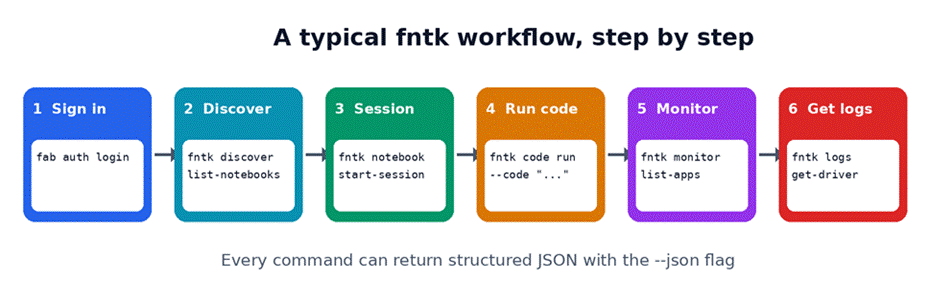
A simple fntk workflow from sign-in to logs.
How to Read the JSON Output
Most commands with –json return the same shape. Here is a shortened example:
{
“status”: “success”,
“stage”: “completed”,
“progress”: 1.0,
“message”: “Found 14 notebooks”,
“data”: { … },
“next_actions”: [ … ],
“error”: null,
“trace_id”: “fntk-a1b2c3d4e5f6”,
“elapsed_ms”: 234
}
The real answer sits in data. If something goes wrong, look at error. The trace_id is useful when you need to report a problem.
One field I like a lot is next_actions. It tells you what to run next, and each item has a type:
| Type | Meaning | Fields |
| once | Run it one time | command, description |
| poll | Keep trying until a condition is met | command, retry_after, max_retries, stop_condition |
| conditional | Run it only if a condition is true | command, stop_condition |
There’s one small exception. notebook get-content –output-file writes the raw notebook JSON to your file and returns only status and file.
The Optional Local Daemon
For long-running work, fntk can run a small background process on your machine. It uses WebSockets and handles async runs.
fntk server start –json # starts on 127.0.0.1:19876
fntk server status –json
fntk server stop –json
It only listens on your own computer (localhost) and uses a per-user auth file. If you upgrade fntk and see the error DAEMON_AUTH_UPGRADE_REQUIRED, stop the daemon and start it again. Also note that closing your local connection does not cancel Spark jobs already running in Fabric.
Setting Up AI Helpers with fntk init
The init command installs a ready-made skill called fabric-notebook-workflow for your coding agent, and sets up the Fabric Skills plugin too.
# GitHub Copilot CLI, current project
fntk init
# all three agents, no questions, JSON output
fntk init –agent copilot codex claude -y –json
# install the skill for your user account
fntk init –global -y
# refresh after upgrading fntk
fntk init –update-skills -y
| Flag | Default | What it does |
| –agent NAME [NAME …] | copilot | Pick agents: copilot, codex or claude |
| -g, –global | off | Install for your user, not just this project |
| -y, –yes | off | Skip questions and use defaults |
| –skip-fntk-skill | off | Do not install the bundled skill |
| –skip-fabric-skills | off | Do not install the Fabric Skills plugin |
| –update-skills | off | Refresh skills that are already installed |
| –output {text,json} / –json | text | Choose the output format |
You can read any built-in skill with fntk skill list and fntk skill get <skill-id>.
Settings and Privacy
fntk keeps a small config file at ~/.fntk/config.json. Two settings are documented:
- log_level is info by default.
- server_port is 19876 by default.
Telemetry is on by default in a mode called isolated, and it does not need an opt-in. If you don’t want it, set an environment variable before you start fntk:
export FNTK_TELEMETRY_RUNTIME=off # turns off both local and remote telemetry
export FNTK_TELEMETRY_DISABLED=1 # turns off remote telemetry only
Common Problems and Quick Fixes
| Problem | What to try |
| Commands fail with login errors | Run fab auth login again, then fntk discover whoami –json to confirm the account. |
| SESSION_CONTEXT_MISMATCH | The session belongs to a different account. Sign in with the right one and start a new session. |
| DAEMON_AUTH_UPGRADE_REQUIRED | Run fntk server stop, then fntk server start. |
| Install fails | Check your Python version. fntk needs 3.10 to 3.13. |
| init warns about a missing agent CLI | It is only a warning. The other steps still finish. Install that agent tool and run init again. |
| You are not sure about an option | Add –help to the command, or run fntk help –json. |
Tips From Using It
- Save your IDs in variables so commands stay short and you make fewer typing mistakes.
- Always add `–json` in scripts. Plain text output is meant for people and may change.
- Clean up sessions. Run delete-session when you are done.
- Pin the version and test first. It is an alpha tool, so try it on a test notebook before anything important.
- Run `fntk init –update-skills -y` after each upgrade so your agent skills match the new version.
fntk vs the Fabric CLI (fab)
People often mix these two up, so here’s the difference. They are separate tools, and they work well together. In fact, fntk uses your fab login.
| Fabric Notebook Toolkit (fntk) | Fabric CLI (fab) | |
| Install | pip install fabric-notebook-toolkit | pip install ms-fabric-cli |
| Style | Groups and commands, like fntk code run | File system style, like fab ls and fab cd |
| Best for | Live sessions, running code, cells, Spark monitoring | Managing items, import and export, running jobs |
| Output | Steady JSON with –json | Normal CLI text |
| Notebook run example | fntk code run … –code “…” | fab job run “ws.Workspace/ETL.Notebook” |
A simple rule: use fab to move and manage items, and use fntk when you want to work inside a running notebook.
Frequently Asked Questions
What is the Fabric Notebook Toolkit CLI?
It’s a command line tool named fntk. It lets you manage Fabric notebook sessions, run code, edit cells, watch Spark jobs and download logs from a terminal.
How do I install it?
Run pip install fabric-notebook-toolkit. You need Python 3.10 to 3.13. Then sign in with fab auth login.
Do I need the Fabric CLI too?
You need to be signed in through it. fntk reuses the Fabric CLI login, so fab auth login is the first step.
Does it work on Windows, Mac and Linux?
The package is marked as OS independent, so it is not tied to one system.
How can I see every command?
Run fntk help for a short overview or fntk help –json for the full list, including workflows. Add –help to any single command for its options.
Is it ready for production?
Not yet. It is a pre-release alpha, so commands may change. Test it first and pin the version.
Does fntk collect data?
Telemetry is on by default in isolated mode. You can turn it off with FNTK_TELEMETRY_RUNTIME=off before you start the tool.
Final Thoughts
The Fabric Notebook Toolkit CLI turns a lot of browser clicking into a few short commands. Sign in with fab auth login, find your notebook with discover, start a session, run code, and use monitor and logs when something looks wrong. Add –json and you can plug all of it into scripts or AI helpers.
Since it’s still in alpha, treat it as a fast-moving tool. Start with a test notebook, keep the version pinned, and check fntk help after each upgrade. If you do that, you’ll get most of the benefit with very little risk.