Microsoft Fabric Dataflows Gen2 Tutorial for Beginners: A Simple Step-by-Step Guide
If you work with data, you know the boring part. Files show up messy. Dates are in the wrong format. Names have extra spaces. Somebody typed “N/A” in a number column. You fix it all by hand, and next week you do the same thing again.
Dataflows Gen2 in Microsoft Fabric is made for this exact problem. You set up your cleaning steps one time, pick a place to store the result, and let Fabric repeat the work on a schedule. You don’t have to write code.
What you will learn
- What Dataflow Gen2 is and when to use it
- How Gen2 is different from Gen1
- How to get data, clean it, and load it into a Lakehouse
- How to refresh on a schedule and make it faster
- Mistakes to avoid, so you save time
What Is Dataflow Gen2 in Microsoft Fabric?
A dataflow is a saved set of steps. It pulls data from one place, changes it, and puts it in another place. “Gen2” is the newer version, and it lives inside Microsoft Fabric.
It runs on Power Query. That’s the same tool many people already know from Excel and Power BI. You click through a visual screen, and Power Query writes the steps for you. Microsoft says you can connect to hundreds of data sources and use more than 300 built-in transformations.
Here’s an easy way to think about it. Picture a prep table in a kitchen. Raw food comes in. You wash it, chop it, and sort it. Then it goes on the right shelf. Dataflow Gen2 does that with your data.
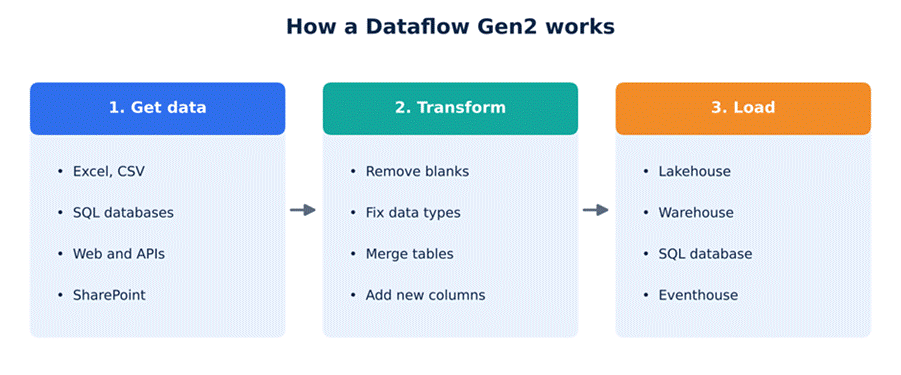
Figure 1: The three stages of every dataflow.
Why Beginners Like Dataflow Gen2
- No code needed. Most steps are just a click.
- Reusable. Build it once and refresh it again and again.
- Lots of sources. Files, databases, web pages, and more.
- Lots of places to send data. A Lakehouse, a Warehouse, and other options.
- Familiar. If you’ve used Power Query in Excel or Power BI, you’re already halfway there.
- Fast on big loads. A feature called Fast Copy can cut the wait a lot (more on that soon).
It isn’t perfect for every job, though. We’ll talk about that near the end.
What You Need Before You Start
- A Fabric workspace. Dataflow Gen2 only works in Fabric, so your workspace needs a Fabric capacity (paid or trial).
- Permission to create items. If you can’t see “Dataflow Gen2” in the New menu, ask your admin.
- A small sample file. A CSV or Excel file with sales rows is perfect. Keep it small at first.
- A Lakehouse. This is where the clean data will land. We’ll make one in Step 1.
| Tip: Practice with a file of 50 to 100 rows first. It loads fast, and you can see every change right away. |

Dataflow Gen1 vs Gen2: What Is Different?
You’ll see both names online. Gen1 is the older kind, from Power BI. Gen2 is the newer kind, and it’s the one Microsoft points new projects toward. Here is a quick side-by-side.
| Feature | Gen1 | Gen2 |
| Where it lives | Power BI service | Microsoft Fabric |
| Send data to other destinations | No, it keeps data in its own storage | Yes (Lakehouse, Warehouse, and more) |
| Fast Copy for big loads | No | Yes |
| Scheduled refresh | Yes | Yes |
| Data lineage view | Yes | Yes |
| Works with an on-premises gateway | Yes | Yes |
| Use with other Fabric items | Needs extra setup | Built in |
In one Microsoft test, Gen2 ran about 2.9 times faster than Gen1 on the same job, and that was before turning on Fast Copy. One test is only one test, so your results will be different. Also, some people in the Fabric community report that Gen2 can use more capacity on very small, simple jobs. If your task is tiny, Gen1 may still be enough. For anything new, Gen2 is the safer pick.
A Quick Tour of the Dataflow Editor
Open a new dataflow and you’ll see five main areas. Knowing them saves a lot of confusion later.
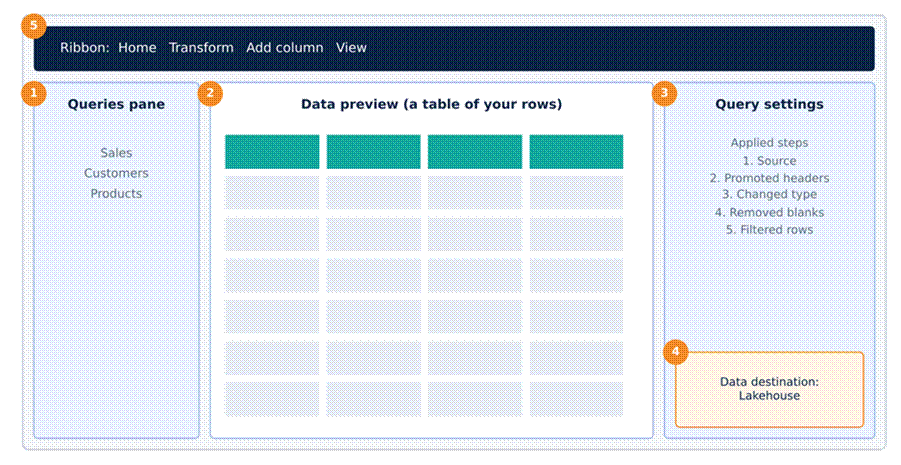
Figure 2: The main parts of the editor (a simplified drawing).
- Queries pane. The list of tables you’re working on.
- Data preview. A live look at your rows. It updates after each step.
- Query settings. Shows the name of your query and the “Applied steps” list. You can click any step to see the data at that point.
- Data destination. Sits near the bottom of the settings area. This is where you pick the place the result will go.
- Ribbon. The menu on top with Home, Transform, and Add column tabs.
Menus change from time to time, so your screen may look a bit different from the drawing. The ideas stay the same.
Step-by-Step: Build Your First Dataflow Gen2
We’ll take a messy sales file, clean it, and load it into a Lakehouse table. Follow along with your own sample file.
Step 1: Create a Lakehouse
Open your Fabric workspace. Click New item, choose Lakehouse, and name it something like SalesLakehouse. It takes a few seconds.
Step 2: Create the dataflow
Back in the workspace, click New item again and pick Dataflow Gen2. Give it a clear name, such as df_sales_clean. Good names matter. In a few months you’ll have dozens of these.
Step 3: Get your data
Click Get data and choose Text/CSV (or Excel). Upload your file or paste a link, then continue. Fabric shows a preview of your rows. If it looks right, create the query.
Step 4: Check headers and data types
Look at the first row. If it holds real data instead of column names, use Use first row as headers. Then check the small icon next to each column name. It tells you if Power Query sees text, a number, or a date. A date stored as text will cause trouble later, so fix it now.
Step 5: Clean the data
Now do the real work. Here are four common fixes:
- Remove blank rows: Home tab, Remove rows, Remove blank rows.
- Trim extra spaces: select the text columns, then Transform tab, Format, Trim.
- Replace bad values: select a column, use Replace values, and swap “N/A” for null (empty).
- Fix data types: click the icon next to a column name and choose the right type.
Step 6: Add a new column
Say you want a Total for each sale. Go to the Add column tab, pick Custom column, name it Total, and type this formula: [Quantity] * [Price]. Click OK, and the new column appears.
Step 7: Choose a data destination
Find Add data destination in the settings area and choose Lakehouse. Sign in if Fabric asks. Pick your SalesLakehouse, type a table name like Sales_Clean, and choose an update method. For now, pick Replace. Check the column mapping, then save the settings.
Step 8: Publish and run
Click Publish (or Save and run). Fabric saves your dataflow and starts the first refresh. Small files finish in under a minute.
Step 9: Check the result
Open your Lakehouse and refresh the page. You should see a new table called Sales_Clean under Tables. Click it to preview your clean rows. That’s it. You built a working dataflow.
What is happening behind the scenes?
Every click you made turned into a line of Power Query code, called M. You don’t need to read it. But if you’re curious, open the Advanced editor and take a look. Here’s a simplified example:
let
Source = Csv.Document(File.Contents(“sales.csv”), [Delimiter=”,”]),
Headers = Table.PromoteHeaders(Source),
Types = Table.TransformColumnTypes(Headers, {{“Quantity”, Int64.Type}, {“Price”, type number}}),
NoBlanks = Table.SelectRows(Types, each [Quantity] <> null),
WithTotal = Table.AddColumn(NoBlanks, “Total”, each [Quantity] * [Price], type number)
in
WithTotal
Common Transformations You Will Use Every Day
Most beginner projects use the same handful of moves. Keep this table nearby. The menu names are close to what you’ll see, but they can shift a little between updates.
| What you want to do | Where to look | Example |
| Remove empty rows | Home, Remove rows | Delete blank lines in a sales file |
| Trim spaces | Transform, Format | ” Ravi ” becomes “Ravi” |
| Change a data type | Icon next to column name | Text to Date |
| Split a column | Transform, Split column | Full name into first and last |
| Join two tables | Home, Merge queries | Add customer city to each sale |
| Stack tables | Home, Append queries | Combine January, February and March |
| Group and total | Transform, Group by | Total sales for each city |
| Keep certain rows | Filter arrow on a column | Show only 2026 orders |
| Swap values | Transform, Replace values | “N/A” becomes empty |
Data Destinations and Update Methods
A big plus of Gen2 is that you choose where the data goes. Common choices include a Fabric Lakehouse, a Warehouse, an Eventhouse, and an Azure SQL database. Microsoft adds to this list over time, so check the official docs for the latest.
You also choose how new data meets old data:
| Update method | What it does | Good for |
| Replace | Clears the old data and loads everything fresh | Small tables you rebuild each time |
| Append | Adds new rows under the old ones | Logs and daily additions (watch for duplicates) |
One more word you’ll hear is staging. Sometimes Fabric parks your data in a holding area first and then moves it to the final spot. Some destinations need this. It can add a little time on small jobs, so don’t be surprised if a tiny file takes longer than you’d guess.
How to Refresh Your Dataflow
Building the dataflow is half the job. The other half is keeping the data fresh. You have three simple options:
- Refresh now. Click it any time to run the dataflow by hand. Great for testing.
- Scheduled refresh. Open the dataflow settings and pick a time, like every morning at 6 AM.
- Inside a pipeline. Add the dataflow as a step in a Fabric pipeline so it runs after another task, such as a file copy.
After your first scheduled run, open the refresh history. Make sure it says Succeeded. A job that fails quietly for two weeks is a bad surprise.
Make It Faster With Fast Copy
Fast Copy is a Gen2 feature for moving large amounts of data. It uses Fabric’s own back end to move data in parallel, instead of the slower standard path. Here’s what Microsoft saw in one test with Parquet files:

Figure 3: Microsoft’s example test. Your own numbers will depend on your data.
That’s a big gap. Still, Fast Copy only works when a few things line up:
- Turn it on in the dataflow Options, under the Scale tab, with Allow use of fast copy connectors.
- Use a source that supports it.
- Watch the small indicators in the Applied steps list. They show which steps can use Fast Copy.
- If you use an on-premises gateway, it needs version 3000.214.2 or newer.
Here’s the catch. If a step can’t be pushed back to the source (this is called query folding), it can switch Fast Copy off for that query. A smart fix is to split the work in two. The first query only loads the raw data using Fast Copy. A second query then does the cleaning.
| Heads up: The Require fast copy setting forces the feature on. If Fast Copy can’t be used, the refresh stops instead of falling back to the slow way. Use it only when you really need it. |
Incremental Refresh in Plain Words
Normally every refresh reads all of your data again. That’s fine for small tables. For a table that grows by thousands of rows a day, it’s a waste. Incremental refresh reads only the new or changed rows.
To use it, you need a column you can trust, like a modified date. If that column is wrong, your data will be wrong too. Start without it. Add it later when a refresh gets slow.
Best Practices That Save Time
- Name things clearly. Use names like df_sales_clean, not Dataflow 1.
- Filter early. Remove rows and columns you don’t need near the top of your steps. Less data means faster work.
- Fix data types early. Wrong types cause errors that show up much later.
- Keep each dataflow focused. One job per dataflow is easier to fix than one giant one.
- Split raw and clean. Load the raw data in one query and clean it in another. Fast Copy will thank you.
- Use parameters. For things that change, like a file path or a date, a parameter beats editing steps by hand.
- Check refresh history. Look at it once a week, even when things seem fine.
- Write short notes. Rename steps in plain words so future you understands them.
Common Mistakes Beginners Make
- Loading everything. Pulling in every column “just in case” slows things down. Keep only what you need.
- Skipping the destination. Without one, the data isn’t saved where other Fabric items can reach it.
- Using Append by mistake. Each refresh adds the same rows again, and your totals double. If you want a fresh copy, use Replace.
- Forgetting about types. A date stored as text won’t sort or filter the way you expect.
- Testing on huge files. Always start small, then scale up.
- Building one giant query. A long chain of steps is hard to read and hard to fix. Break it up.
When Dataflow Gen2 Is Not the Best Tool
Dataflow Gen2 is great for low-code cleaning. But Fabric has other tools, and the right choice depends on the job.
| Your job | Better fit |
| Clean and reshape data with clicks, no code | Dataflow Gen2 |
| Copy lots of data from A to B with no changes | Pipeline Copy activity (or Fast Copy) |
| Run several tasks in order, with checks | Fabric pipeline |
| Heavy logic or very large transformations in code | Notebook (Python or Spark) |
Many teams use them together. A pipeline might copy the files in, a dataflow might clean them, and a report might read the result.
Frequently Asked Questions
Is Dataflow Gen2 free?
No. It runs on Fabric capacity, so you need a paid capacity or a trial. Check what your organization already has before you buy anything.
Do I need to know coding to use Dataflow Gen2?
No. You can do most things with clicks. Knowing a little Power Query M helps later, but it isn’t required.
What is the difference between a dataflow and a pipeline?
A dataflow cleans and reshapes data. A pipeline moves data and controls the order of tasks. A pipeline can even run a dataflow as one of its steps.
Can I use Dataflow Gen1 and Gen2 together?
Yes. They can exist side by side. Still, Microsoft points new work toward Gen2, so it’s the better choice for new projects.
Why is my Fast Copy not working?
The usual reasons are a source that isn’t supported, a step that can’t be pushed to the source, or an old gateway version. Check the indicators in the Applied steps list.
Where does my data go after the dataflow runs?
It goes to the destination you chose, such as a Lakehouse table. Without a destination, it stays in the dataflow’s own storage.
How often can I refresh a dataflow?
You can run it by hand or set a schedule. The limits depend on your setup and capacity, so check the settings page and Microsoft’s docs.
Can I use Dataflow Gen2 with Power BI?
Yes. Load your data into a Lakehouse or Warehouse, then build your Power BI report from that table.
Final Thoughts
Dataflow Gen2 takes the repeat work out of data cleaning. You build the steps once, choose a destination, and let Fabric handle the rest. Start small. Use a sample file, follow the nine steps above, and check the result in your Lakehouse.
Once that feels easy, try a schedule. After that, try Fast Copy or incremental refresh. Each new skill builds on the last one. In a week or two, the messy files that used to eat your afternoon will clean themselves.
Similar Article
- Microsoft Fabric vs Snowflake: A Detailed Comparison of Cloud Data Warehouse Solutions
- Microsoft Fabric vs Databricks: Features, Performance, Pricing, and Key Differences
- Microsoft Fabric Pricing Explained: Capacity Costs, Licensing Options, and Cost Optimization
- Microsoft Fabric Real-Time Intelligence Tutorial: Build Real-Time Data Analytics Solutions
- Fabric Notebook Toolkit Tutorial for Beginners With Examples
- Microsoft Fabric vs Power BI: Key Differences, Features, Pricing, and Which One to Choose