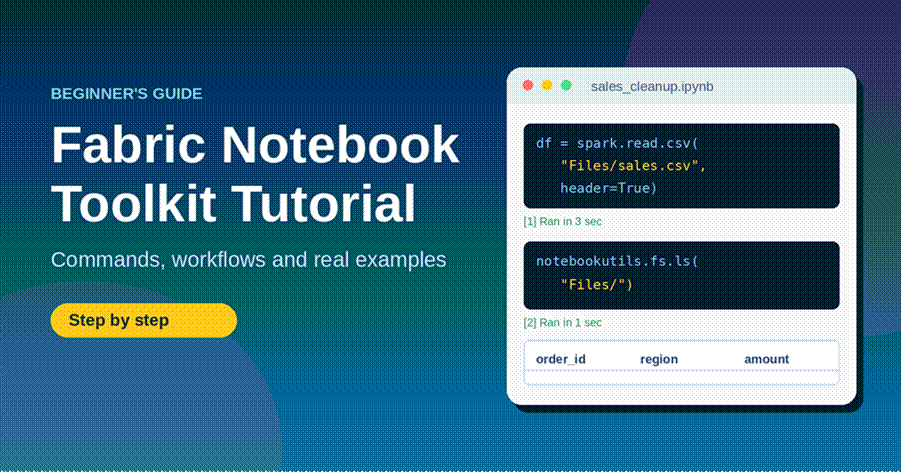
Learn how to use Fabric Notebook Toolkit step by step. Simple commands, clear workflows and real examples for beginners using Microsoft Fabric notebooks.
If you are searching for how to use Fabric Notebook Toolkit, this guide is for you. I wrote it for people who are new to Microsoft Fabric. We will start with your very first notebook, learn the most useful commands, and finish with three small projects you can copy today.
One quick note before we begin. “Fabric Notebook Toolkit” is not an official product name from Microsoft. When people use this phrase, they usually mean two things that work together: Fabric notebooks, where you write and run code, and NotebookUtils, a helper package that comes built in. This guide covers both, so you get the full picture.
What Is the Fabric Notebook Toolkit?
Microsoft Fabric is an online platform where teams store, clean and study data. A notebook is a web page made of small blocks called cells. Some cells hold code. Some hold plain text or notes. When you run a code cell, the result shows right below it. It feels a bit like a lab diary for your data.
Fabric notebooks are mainly used to build Apache Spark jobs and machine learning tests. Data engineers use them to bring in and tidy up data. Data scientists use them to build models. Analysts use them to look around and find answers. You can mix Python (PySpark), Scala, SparkR and SQL in the same notebook.
Here is what sits inside the toolkit:
- The notebook editor. Write code, add notes and see charts in one place.
- The Lakehouse explorer. Browse your tables and files without leaving the page.
- NotebookUtils. Short commands for files, secrets and running other notebooks.
- Copilot. An AI helper that can suggest code and help fix errors.
- Team tools. Comments, version history and live co-editing.
What You Need Before You Start
- A Fabric workspace that has Fabric capacity. Many accounts can start a trial, so check what your own account allows.
- A lakehouse. This is the place in Fabric where your tables and files live. You can make one in a minute.
- Basic Python or SQL. You do not need to be an expert.
- A small CSV file to practice with. A sales file with columns like order_id, region and amount is perfect.
How to Use Fabric Notebook Toolkit: Your First Notebook
Almost every notebook job you will ever build follows the same five steps. Keep this picture in mind. We will walk through each step below.
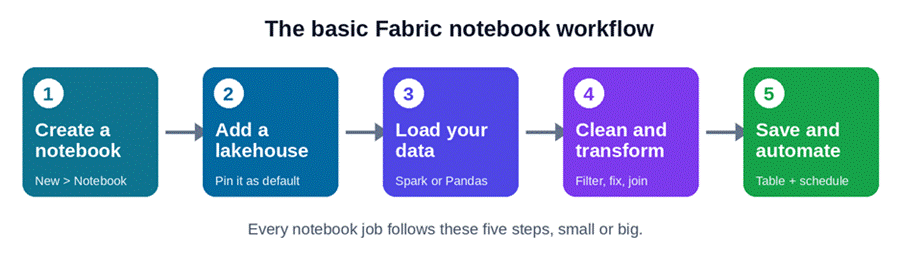
Figure 1: The basic Fabric notebook workflow
- Create the notebook. Open your workspace, choose New, then pick Notebook. You can also start from the Data Engineering home page or the Create hub.
- Add a lakehouse. In the Lakehouse explorer, select Add lakehouse. Pick an existing one or make a new one, then pin it as your default. A pinned lakehouse is attached to your notebook, so you can read and write with short paths.
- Upload your file. Put your CSV in the Files section of the lakehouse.
- Write and run your first cell. Use the code below. Press the run button next to the cell.
- Let it save. Fabric saves your work on its own by default. If you prefer to save by hand, go to Edit, then Save options, then Manual. After that, Ctrl+S saves your changes.
df = spark.read.format(“csv”).option(“header”, “true”).load(“Files/sales.csv”)
df.show(5)
The path starts with Files/ because your default lakehouse is attached. If you see a table with five rows, you are in business.
Tip: After you pin a new default lakehouse, restart your session. It is an easy step to forget, and the file-path errors that follow can be confusing.
Already have notebooks from somewhere else? You can import .ipynb, .py, .scala and .sql files from your computer, and Fabric turns each one into a new notebook.
Meet NotebookUtils: Your Built-In Helper
NotebookUtils is the part of the toolkit that saves the most time. It comes with every Fabric notebook, so there is nothing to install. It works in PySpark (Python), Scala and SparkR notebooks, and also in Fabric pipelines.
You may see older code that uses mssparkutils. Don’t worry. That is the old name. Microsoft renamed it to notebookutils. Old code still works, but the old name will be retired one day, so use the new name in everything you write now. NotebookUtils needs Spark 3.4 (Runtime 1.2) or newer.
To see everything it can do, run these two lines:
notebookutils.help()
notebookutils.fs.help()
| Module | Name in code | What it helps you do |
| File system | notebookutils.fs | List, copy, move, read and delete files and folders |
| Notebook run | notebookutils.notebook | Run other notebooks, chain them, or run several at once |
| Notebook management | notebookutils.notebook | Create, get, update, delete and list notebooks with code |
| Credentials | notebookutils.credentials | Get access tokens and read secrets from Azure Key Vault |
| Lakehouse | notebookutils.lakehouse | Create and manage lakehouses and tables |
| Runtime context | notebookutils.runtime | See details about the current session, like the notebook name and workspace |
| Session | notebookutils.session | Stop the session or restart the Python interpreter |
Table 1: The main NotebookUtils modules
Practical Commands You Will Use Every Day
1. Work with files
The fs module is where most beginners start. These commands cover about 90 percent of daily file work.
# See what is inside a folder
for f in notebookutils.fs.ls(“Files/”):
print(f.name)
# Make a new folder
notebookutils.fs.mkdirs(“Files/clean”)
# Peek at the first 500 bytes of a file
print(notebookutils.fs.head(“Files/sales.csv”, 500))
# Copy a file
notebookutils.fs.cp(“Files/sales.csv”, “Files/clean/sales_backup.csv”)
# Delete a folder and everything inside it
notebookutils.fs.rm(“Files/old_stuff”, True)
Be careful with the last one. Setting recurse to True wipes the whole folder. Run ls on that folder first, every single time.
2. Run one notebook from another
This one is a game changer. Instead of one giant notebook with hundreds of lines, split the work into small notebooks. Then call them one by one.
result = notebookutils.notebook.run(“Clean_Sales”, 300, {“run_date”: “2026-10-13”})
print(result)
Here, 300 is the time limit in seconds. The curly brackets pass a value into the other notebook. For that value to land, the called notebook needs a parameter cell with a variable named run_date. You can mark a cell as a parameter cell from the cell’s menu.
The called notebook can also send a message back when it finishes:
notebookutils.notebook.exit(“42 rows cleaned”)
Whatever text you put inside exit comes back as result in the first notebook.
3. Keep secrets safe
Never type a password into a notebook. Anyone who can open the notebook can read it. Store it in Azure Key Vault and fetch it only when you need it.
password = notebookutils.credentials.getSecret(“https://my-vault.vault.azure.net/”, “db-password”)
Swap in your own vault address and secret name. You can also use getToken in the same module to get an access token for an Azure service.
4. Check where you are
ctx = notebookutils.runtime.context
print(ctx)
This is handy for logs. When a job fails at 2 a.m., a printed notebook name and workspace make it much easier to find the problem.
5. Switch language with magic commands
A magic command is a short line that starts with a percent sign. It tells the cell what to do. Three you will use often:
- %%sql runs the whole cell as SQL.
- %%pyspark runs the cell as Python with Spark.
- %pip install package-name adds a Python library for your current session.
%%sql
SELECT region, SUM(amount) AS total
FROM sales_clean
GROUP BY region
ORDER BY total DESC
Real-World Example 1: Clean a Messy Sales File
Say your team sends you a weekly sales CSV. It has blank rows, region names typed three different ways, and amounts saved as text. Here is how to tidy it up in one notebook.
from pyspark.sql import functions as F
raw = spark.read.format(“csv”).option(“header”, “true”).load(“Files/sales.csv”)
clean = (raw
.dropna(subset=[“order_id”])
.withColumn(“region”, F.initcap(F.trim(F.col(“region”))))
.withColumn(“amount”, F.col(“amount”).cast(“double”))
.dropDuplicates([“order_id”]))
clean.write.mode(“overwrite”).format(“delta”).saveAsTable(“sales_clean”)
print(clean.count(), “rows saved”)
Let’s break that down in plain words:
- dropna removes rows that have no order ID.
- trim and initcap fix extra spaces and capital letters, so ” NORTH” and “north” both become “North”.
- cast turns the amount from text into a number, so you can add it up.
- dropDuplicates removes orders that appear twice.
- saveAsTable saves the result as a table in your lakehouse, so SQL and other Fabric tools can use it.
Now run the %%sql cell from the section above. You should see clean totals for each region. One notebook, one tidy table. Next week, drop in the new file and run it again.
Real-World Example 2: Chain Notebooks Into a Daily Job
Now let’s say you have three notebooks: Load_Sales, Clean_Sales and Build_Report. You want them to run in that order every morning. Make a fourth notebook, call it Master, and add this:
steps = [“Load_Sales”, “Clean_Sales”, “Build_Report”]
for name in steps:
out = notebookutils.notebook.run(name, 600, {“run_date”: “2026-10-13”})
print(name, “->”, out)
if out != “OK”:
raise Exception(f”{name} failed: {out}”)
Each small notebook ends with notebookutils.notebook.exit(“OK”) when all goes well. If any of them returns something else, the Master stops right there, and the log tells you which step broke. After that, you can schedule the Master notebook or place it inside a Fabric pipeline. If some steps don’t depend on each other, look at runMultiple in the same module. It can run several notebooks at once.
Know who your notebook runs as
This part is easy to miss, and it matters. A notebook runs under a different identity depending on how it starts:
| How it starts | Which identity it uses |
| You press Run, or use the REST API | You |
| A pipeline activity | The last person who modified the pipeline |
| A schedule | The person who created or last updated the schedule |
Table 2: The identity behind each type of run
Why care? If someone with fewer permissions edits your pipeline, your notebook may suddenly fail to read data. Microsoft also suggests checking who last changed a notebook before you run it, and using version history to review code you did not write. A good habit is to keep separate dev, test and production workspaces.
Work With Your Team Inside a Notebook
Fabric notebooks are built for more than one person. Here is what you get:
- Live co-editing. Several people can work in one notebook at the same time. You see their cursors and their run output.
- Cell comments. Select some code, add a comment and tag a colleague. They get an email with a link straight to that cell.
- Version history. The system saves a checkpoint about every five minutes, and you can add your own. You can compare any checkpoint with the current notebook and restore it. At the time of writing, Microsoft lists this feature as a preview.
- Sharing and modes. Share a notebook with Share, Edit or Run permission. Depending on those rights, a person can open it in Develop, Run only, Edit or View mode.
- Resources folder. Keep small files like code modules or images next to the notebook. The limits are 500 MB in total, 100 MB per file and 100 items.
- Copilot. When a cell fails, Fix with Copilot shows up below it with a short summary and a suggested fix. You can approve the change before it is applied.
Simple Rules That Save You Time
- One notebook, one job. Small notebooks are easier to test, fix and reuse.
- Put things that change in one place. Dates, file names and paths belong in a single parameter cell at the top.
- Print a short message after each big step. When a run fails, the log shows exactly where it stopped.
- Keep exit messages short. Use them for words like “OK” or a row count. Save big results in a table instead.
- Name notebooks in order. Something like 01_Load_Sales and 02_Clean_Sales keeps a long job easy to read.
- Test on a small slice first. Try df.limit(100) before you run on millions of rows.
- Read Copilot’s code before you run it. It is a good first draft, but the notebook runs with your permissions, not Copilot’s.
Common Mistakes and How to Fix Them
| Mistake | What happens | Easy fix |
| Forgetting to restart after pinning a lakehouse | File paths fail or point to the wrong place | Restart the session |
| Using mssparkutils in new code | It works today, but the name will be retired | Use notebookutils instead |
| Running rm with recurse and no check | A whole folder disappears | Run ls first and read the list |
| Typing a password into a cell | Anyone with access can read it | Use credentials.getSecret |
| Running a notebook you did not review | It runs with your permissions | Check who last changed it and read the version history |
| Using relative paths in a high concurrency session | Reading and writing with that path does not work | Use the full path to your file |
Table 3: Common beginner mistakes
Frequently Asked Questions
Is Fabric Notebook Toolkit an official Microsoft product?
No. It is a popular way of describing Fabric notebooks together with the built-in NotebookUtils package. Microsoft’s own pages call the parts by their real names: Fabric notebooks and NotebookUtils.
Which languages can I use in a Fabric notebook?
NotebookUtils works in PySpark (Python), Scala and SparkR notebooks. You can also run SQL in a cell with the %%sql magic command.
What is the difference between mssparkutils and notebookutils?
They are the same tool with two names. Microsoft renamed mssparkutils to notebookutils. Old code keeps working, but new features come only to notebookutils, so use that name for anything new.
Can I import my Jupyter notebooks into Fabric?
Yes. Fabric reads standard .ipynb files. It also turns .py, .scala and .sql files into new notebooks.
Can I run a notebook on a schedule?
Yes. You can set a schedule, add the notebook to a Fabric pipeline, or start it through the Job Scheduler API. Remember that each way of starting it runs under a different identity.
Do I have to save my notebook by hand?
No. Fabric saves automatically by default. If you want control, switch to manual saving and use Ctrl+S.
Final Thoughts
You now know how to use Fabric Notebook Toolkit from the first click to a full daily job. Start small. Create a notebook, attach a lakehouse, and run the cleaning example on your own file. Once that works, split your steps into separate notebooks and chain them with notebookutils.notebook.run. That single habit will make your work easier to fix, easier to share and much easier to trust.