Learn how to install Fabric Notebook Toolkit with pip. Covers Python needs, sign-in, settings and fixes for common errors. Simple steps.
If you work with Microsoft Fabric notebooks, you may have wished you could control them from a terminal. That is exactly what the Fabric Notebook Toolkit lets you do. It adds a command called fntk. With it you can start a notebook session, run code, watch Spark jobs, and pull logs without opening a browser tab.
The tool is brand new, so good install guides are hard to find. This one is built from the official package page and the Fabric CLI docs. By the end, you will have the toolkit installed, signed in, and tested. You will also get a list of errors you might hit, and how to fix each one.
What Is Fabric Notebook Toolkit?
Fabric Notebook Toolkit (short name: fntk) is a Python package published by Microsoft. The package page describes it as a runtime interface for Microsoft Fabric notebooks. In plain words, it is a set of terminal commands that talk to your Fabric notebooks for you.
Every command can return clean JSON. That makes it easy for scripts, and for AI coding agents, to read the result and decide what to do next. Here is what the command groups cover:
| Command group | What it does |
| discover | Finds your workspaces, notebooks, lakehouses and capacity. Also shows who you are signed in as. |
| notebook | Creates and deletes notebooks. Starts, lists and ends sessions. Restarts or interrupts the kernel. |
| code | Runs code in a notebook session and gets the result back. |
| cell | Lists, reads, adds, edits and deletes single notebook cells. |
| monitor | Shows Spark app details like stages, progress, executors and tips. |
| logs | Downloads driver, executor and session logs. |
| resource | Manages files in the notebook resource folder. |
| server | Starts or stops an optional local helper process. |
| init | Sets up skills for AI coding agents. |
Heads up: This is an alpha release. The package page warns that it may not be stable enough for production work. Commands can change between versions. At the time of writing, the newest version is 0.0.1a11, released on October 9, 2026.
Prerequisites: What You Need Before Installing
You do not need much. Most people already have everything except the Fabric CLI. Check this table first, because a missing piece here is the cause of most install trouble later.
| Requirement | Details | How to check |
| Python | Version 3.10 up to 3.13. Version 3.14 is not supported yet. | python –version |
| pip | Comes with Python. | pip –version |
| Fabric access | A Microsoft account that can open your Fabric workspace. | Sign in at the Fabric website |
| Fabric CLI (fab) | Used to sign in. The toolkit reads your Fabric CLI login. | fab –version |
| Operating system | Windows, macOS or Linux. The package is not tied to one system. | Any terminal works |
| Azure CLI (optional) | The toolkit tries it first when it asks for an access token. | az –version |
| AI coding agent (optional) | GitHub Copilot CLI, Codex or Claude Code. Only needed for fntk init. | Skip it if you do not use one |
One more thing: you need permission to use the notebooks you want to control. The toolkit can only do what your Fabric account is allowed to do.

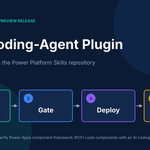
The whole install in five steps.
Fabric Notebook Toolkit Installation: Step by Step
Step 1: Check Your Python Version
Open a terminal and run this:
python –version
On Mac and Linux you may need to type python3 –version instead. If you see 3.9 or lower, or 3.14 or higher, install Python 3.12. It sits safely in the middle of the supported range.
Step 2: Create a Virtual Environment
This step is optional, but I would not skip it. A virtual environment keeps the toolkit away from your other Python projects. It also avoids the “externally managed environment” error that new Linux and Mac setups often show.
Windows:
python -m venv .venv
.venv\Scripts\activate
macOS and Linux:
python3 -m venv .venv
source .venv/bin/activate
Your prompt should now start with (.venv). That means it worked.
Step 3: Install the Fabric CLI
The toolkit uses your Fabric CLI login, so install the CLI first. Microsoft’s own guide says the CLI needs Python 3.10 or higher.
pip install ms-fabric-cli
fab –version
If fab –version prints a number, you are good.
Step 4: Install Fabric Notebook Toolkit
Now the main command:
pip install fabric-notebook-toolkit
Every release so far is marked as a pre-release, and pip still picks the newest one. If you want the same version on every computer in your team, pin it:
pip install fabric-notebook-toolkit==0.0.1a11
Step 5: Confirm the Install Worked
fntk help
fntk help –json
The first command prints a readable overview. The second prints a full list of commands in JSON, which is what AI agents read. If either one works, the toolkit is installed.
Step 6: Sign In to Fabric
Run the Fabric CLI login. Pick “Interactive with a web browser” when asked, and finish the sign-in in your browser.
fab auth login
fntk discover whoami –json
The second command asks the toolkit who you are. If it shows your account, sign-in is working. The toolkit always follows your current Fabric CLI login. If you sign out or switch accounts, the next command uses the new state.
For automation, such as a build pipeline, the Fabric CLI also supports a service principal:
fab auth login -u <client_id> -p <client_secret> –tenant <tenant_id>
Tip: Never paste a client secret straight into a script you share. Keep it in a secret store or in your pipeline’s secret settings.
Step 7 (Optional): Set Up Skills for AI Agents
If you use an AI coding agent, fntk init installs a skill called fabric-notebook-workflow. It also sets up the separate Fabric Skills plugin for the agents you pick. If you do not use agents, skip this step.
# Project install for GitHub Copilot CLI (the default)
fntk init
# All three supported agents, no questions asked
fntk init –agent copilot codex claude -y –json
# Install the workflow skill for your whole user account
fntk init –global -y
| Option | Default | What it does |
| –agent | copilot | Picks the agent hosts: copilot, codex, claude. |
| -g, –global | off | Installs the skill in your home folder, not just this project. |
| -y, –yes | off | Skips prompts and uses defaults. |
| –skip-fntk-skill | off | Does not install the bundled workflow skill. |
| –skip-fabric-skills | off | Does not install the Fabric Skills plugin. |
| –update-skills | off | Refreshes skills and plugins you installed before. |
| –json | off | Prints JSON and skips prompts. |
Good to know: Older alpha versions also scanned your Git repo for Fabric workspace folders and wrote instructions for each one. The newest version says that part is temporarily unavailable. If an older tutorial mentions it and your copy does not do it, this is why.
Here is the whole thing in one place, so you can copy it:

Every command from steps 2 to 6.
Configuration: Settings You Can Change
The toolkit works without any setup. Still, a few settings are worth knowing about.
The Config File
Settings live in a file at ~/.fntk/config.json. Two flags are listed on the package page:
| Flag | Default | What it controls |
| log_level | info | How much detail the toolkit writes to its logs. |
| server_port | 19876 | The port used by the optional local helper process. |
The Optional Local Helper
For long connections and background runs, the toolkit can start a small local process. It only listens on your own computer (127.0.0.1) and is protected by a per-user key file.
fntk server start –json
fntk server status –json
fntk server stop –json
Most people never need this. Turn it on only if a long job keeps dropping. Also note that closing the local connection does not cancel a Spark job that is already running in Fabric.
Usage Data (Telemetry)
This one surprises people. According to the package page, telemetry is on by default, with no opt-in. You can turn it off by setting an environment variable before you start the toolkit:
# macOS and Linux
export FNTK_TELEMETRY_RUNTIME=off
# Windows PowerShell
$env:FNTK_TELEMETRY_RUNTIME = “off”
Setting FNTK_TELEMETRY_DISABLED=1 is a lighter choice. It stops only the remote sending and keeps local files. If your terminal colors look odd in a log file, set NO_COLOR=1 to get plain text.
Test Your Setup With a Real Run
Do a short run to prove everything works from start to end. First list your workspaces, then the notebooks in one of them:
fntk discover list-workspaces –json
fntk discover list-notebooks –workspace-id <WS_ID> –json
Copy the workspace ID and the notebook ID from the results. The notebook ID goes in the –artifact-id option. Then start a session and run one line of code:
fntk notebook start-session –workspace-id <WS_ID> –artifact-id <ART_ID> –json
fntk code run –workspace-id <WS_ID> –artifact-id <ART_ID> –code “print(‘hello’)” –json
Each JSON answer has the same shape. These are the fields to look at first:
- status tells you if the command worked.
- message is a short plain sentence about the result.
- data holds the real answer, such as the list of notebooks.
- next_actions suggests what to run next, which agents love.
- error stays empty when things go well, and explains the problem when they do not.
- trace_id is the number to quote if you ever ask for help.
How to Update or Remove the Toolkit
# Update
pip install –upgrade fabric-notebook-toolkit
# If you used fntk init, refresh the skills too
fntk init –update-skills -y
# Remove
pip uninstall fabric-notebook-toolkit
Because the tool changes fast, read the release history on its PyPI page before you update a team setup.
Common Errors and How to Fix Them
Most problems come from Python, your PATH, or the sign-in. Find your message in this table:
| What you see | Likely cause | Fix |
| fntk is not recognized, or command not found | The folder with the command is not on your PATH, or the virtual environment is not active. | Activate the environment again. Close and reopen the terminal. Or run python -m pip install fabric-notebook-toolkit with the right Python. |
| pip says no matching version, or says the Python version is not supported | Your Python is older than 3.10 or newer than 3.13. | Install Python 3.12 and make a fresh virtual environment. |
| externally-managed-environment | Your system Python is locked by the operating system. | Use a virtual environment as shown in Step 2. |
| fab is not found | The Fabric CLI is not installed in this environment. | Run pip install ms-fabric-cli and check with fab –version. |
| Sign-in or token errors | You are signed out, or signed in with the wrong account. | Run fab auth login again, then fntk discover whoami –json. |
| DAEMON_AUTH_UPGRADE_REQUIRED | You upgraded the toolkit while the old helper process was still running. | Run fntk server stop –json, then fntk server start –json. |
| SESSION_CONTEXT_MISMATCH | The session belongs to a different signed-in account. | Sign in with the account that started it, or start a new session. |
| Port already in use | Another program is using port 19876. | Change server_port in ~/.fntk/config.json, then start the helper again. |
| SSL or proxy errors while installing | A company firewall is blocking pip. | Ask your IT team for the proxy settings, then set them for pip. |
Still stuck? Run the failing command again with –json. The error field and the trace_id usually point to the real cause.
Quick Tips for a Smooth Setup
- Use one virtual environment for each project.
- Pin the version in team scripts while the tool is in alpha.
- Add –json to any command you plan to automate.
- Run fntk discover whoami –json after every account change.
- Test in a practice workspace before you point it at real data.
Frequently Asked Questions
Is Fabric Notebook Toolkit the same as the Fabric CLI?
No. They are two separate tools. The Fabric CLI (fab) manages Fabric items and handles sign-in. The toolkit (fntk) focuses on notebook sessions, code runs, Spark monitoring and logs. The toolkit uses your Fabric CLI login.
Which Python version do I need?
Python 3.10 to 3.13. Python 3.14 is not supported yet.
Does it work on Windows, Mac and Linux?
Yes. The package is listed as operating system independent, so the same pip command works on all three.
Do I need an AI agent to use it?
No. You can run every command by hand. The fntk init step only matters if you want an AI coding agent to use the toolkit for you.
Is it ready for production?
Not yet. It is an alpha release, and the package page says it may not be stable for production use. Try it in a test workspace first and pin the version.
How do I turn off usage data?
Set FNTK_TELEMETRY_RUNTIME=off before you start the toolkit. See the configuration section above for the exact commands.
Why does the fntk command not work right after I installed it?
Usually the virtual environment is not active, or the terminal was open before the install. Activate the environment, or open a new terminal window, and try again.
Final Thoughts
Installing the Fabric Notebook Toolkit takes only a few minutes once your Python version is right. Check Python, make a virtual environment, install the Fabric CLI, install the toolkit, and sign in. Then run fntk discover whoami –json to be sure it all works.
Since the tool is still in alpha, expect changes. Keep this guide close, pin your version, and check the PyPI page for news before each update.