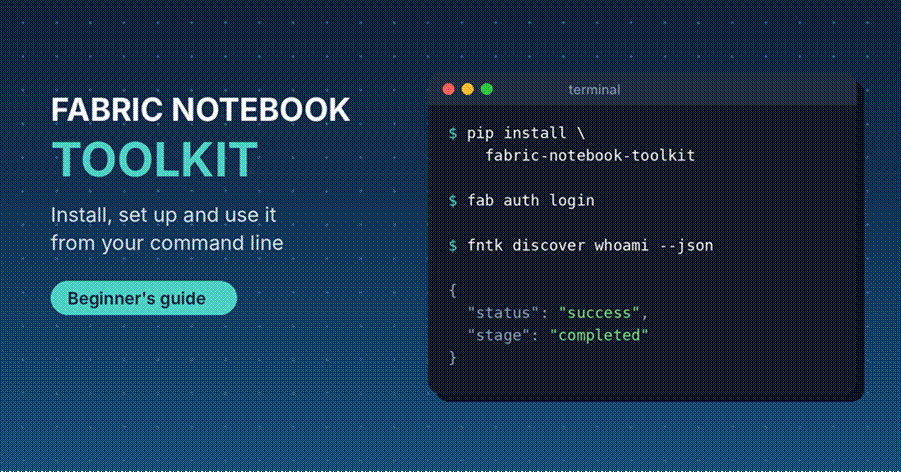
Learn what the Fabric Notebook Toolkit (fntk) is, how to install it, set it up, and run your first commands in Microsoft Fabric notebooks.
If you work with notebooks in Microsoft Fabric, you probably spend a lot of time clicking around in the browser. Start a session here, run a cell there, open the Spark monitor in another tab. The Fabric Notebook Toolkit gives you a different way to do the same jobs. You type short commands in a terminal instead.
This guide explains what the Fabric Notebook Toolkit is, what you need before you install it, how to set it up, and how to run your first commands. It is written for beginners, so you can follow along even if you have never used a command line tool before.
Good to know: the toolkit is still in alpha. The newest version when this guide was written was 0.0.1a11, released on October 9, 2026. Things can change fast, so check the official PyPI page before you depend on it for important work.
What Is the Fabric Notebook Toolkit?
The Fabric Notebook Toolkit is a command line tool for Microsoft Fabric notebooks. Its short name is fntk. The PyPI page lists Microsoft Corporation as the author. It is built so that both people and AI coding helpers can run notebook tasks from outside the Fabric website.
In simple words, it lets you manage notebooks and run code in them without opening the Fabric portal. Here is what it can do:
- Find your workspaces, notebooks and lakehouses
- Create, delete, download and upload notebooks
- Start, check and delete notebook sessions
- Run a piece of code and get the result back
- Read and edit single cells in a notebook
- Watch Spark jobs and download driver and executor logs
- Manage files in a notebook’s resource folder
Most commands can print their answer as JSON. JSON is a tidy, structured format that scripts can read easily. That is the main reason the toolkit works so well with helpers like GitHub Copilot CLI, Codex and Claude Code. You can still use it by hand, because the commands are short and easy to read.
Who Should Use It?
The toolkit is a good fit if you are one of these people:
- A data engineer who runs Fabric notebooks every day and wants to script the boring parts
- A developer who likes to stay in the terminal or a code editor
- A team lead who wants an AI helper to run and check notebook code
- Anyone who needs a quick way to look at Spark jobs and logs
How It Differs From Other Fabric Tools
Fabric already has a few tools with similar names, and people mix them up all the time. This table shows how they are different.
| Tool | Where it runs | Best used for |
| notebookutils | Inside a Fabric notebook | Working with files, secrets and chaining notebooks while your code is running |
| Fabric CLI (fab) | Your terminal | Browsing and managing Fabric items like files and folders, and starting jobs |
| Fabric Notebook Toolkit (fntk) | Your terminal | Starting sessions, running code, editing cells and checking Spark from outside the notebook |
These tools work together well. In fact, the toolkit uses your Fabric CLI sign-in, which you will see in the setup part below.
What You Need Before You Install
Check this list first. It saves a lot of trouble later.
| Requirement | Details |
| Python | Version 3.10, 3.11, 3.12 or 3.13. Version 3.14 and newer are not supported yet. |
| pip | The Python package installer. It comes with Python. |
| Fabric access | An account that can open a Fabric workspace with at least one notebook. |
| Fabric CLI | Used for signing in. If the fab command is missing, install it with pip install ms-fabric-cli. |
| A terminal | Any operating system works. PyPI lists the toolkit as OS independent. |
To see which Python version you have, run this:
python –version
How to Install the Fabric Notebook Toolkit
To Install the Fabric Notebook Toolkit, it will take about two minutes. Follow these steps in order.
- Open your terminal (Terminal on Mac, PowerShell or Command Prompt on Windows).
- Make sure your Python version is 3.10 to 3.13.
- Create a virtual environment. This keeps the toolkit separate from your other Python projects.
python -m venv .venv
# Mac or Linux
source .venv/bin/activate
# Windows
.venv\Scripts\activate
Now install the package and check that it works:
pip install fabric-notebook-toolkit
fntk help
If fntk help prints an overview of the commands, you are done with the install. If pip says it cannot find the package, try pip install –pre fabric-notebook-toolkit, because every release so far is marked as a pre-release.
How to update it later
The toolkit changes quickly, so update it now and then. Afterwards, refresh any skills you installed with fntk init.
pip install –upgrade fabric-notebook-toolkit
fntk init –update-skills -y
How to Set Up the Fabric Notebook Toolkit
Setup is short. You sign in once and then check that the toolkit can see your account.
Step 1: Sign in with the Fabric CLI
The toolkit does not have its own login. It uses whoever is signed in to the Fabric CLI right now.
fab auth login
fntk discover whoami –json
The second command shows which account the toolkit sees. If you sign out or switch accounts later, the next commands use the new account. The toolkit also stops a running operation if it notices that you signed out or changed accounts, which is a good safety feature.
Step 2 (optional): Add skills for your AI helper
Skip this step if you plan to type the commands yourself. If you use an AI coding helper, run fntk init. It installs a small workflow skill called fabric-notebook-workflow and sets up the Fabric Skills plugin for the helpers you choose.
# Default: GitHub Copilot CLI, current project
fntk init
# All three supported helpers, no questions asked
fntk init –agent copilot codex claude -y –json
# Install the workflow skill for your whole user account
fntk init –global -y
| Flag | What it does |
| –agent | Picks the helpers to set up: copilot, codex or claude. Copilot is the default. |
| -g or –global | Installs the skill for your whole user account, not only the current project. |
| -y or –yes | Skips the questions and uses the defaults. |
| –skip-fntk-skill | Does not install the built-in workflow skill. |
| –skip-fabric-skills | Does not install the Fabric Skills plugin. |
| –update-skills | Refreshes skills and plugins you installed earlier. |
| –json | Prints the result as JSON. It also skips the questions. |
You can look at the built-in skills any time with fntk skill list and fntk skill get <skill-id>.
Step 3 (optional): Check the config file
The toolkit keeps its settings in ~/.fntk/config.json. There are only two settings right now.
| Setting | Default | What it does |
| log_level | info | How much the toolkit writes to its log |
| server_port | 19876 | The port used by the optional local server |
Basic Usage: Your First Notebook Session
Now for the fun part. Every command below needs a workspace ID, and most need a notebook ID too. The toolkit calls the notebook ID the artifact-id. You do not have to guess these values, because the discover commands list them for you.
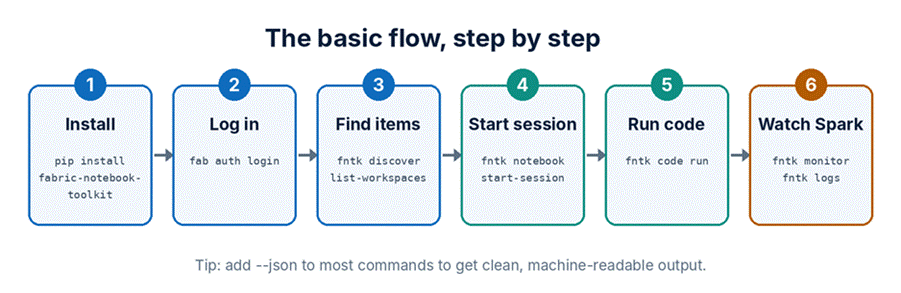
The basic flow from install to Spark monitoring.
1. Find your workspace and notebook
fntk discover list-workspaces –json
fntk discover list-notebooks –workspace-id <WS_ID> –json
Copy the IDs you need from the answer. Keep them in a small text file, since you will paste them often.
2. Start a session
fntk notebook start-session –workspace-id <WS_ID> –artifact-id <ART_ID> –json
A session is a running copy of your notebook that can accept code. It may take a short while to start.
3. Run some code
fntk code run –workspace-id <WS_ID> –artifact-id <ART_ID> –code “print(‘hello’)” –json
Start with print(‘hello’). If you see the word hello come back, your whole setup works. Then you can try real code.
4. Watch Spark and download logs
fntk monitor list-apps –workspace-id <WS_ID> –artifact-id <ART_ID> –livy-id <LID> –json
fntk monitor get-diagnostic –workspace-id <WS_ID> –artifact-id <ART_ID> –app-id <APP> –json
fntk logs get-driver –workspace-id <WS_ID> –artifact-id <ART_ID> –livy-id <LID> –app-id <APP> –json
You can get the Livy ID from fntk notebook list-livy-sessions. The monitor commands show what Spark is doing, and the logs commands download the driver or executor logs when something goes wrong.
All command groups at a glance
| Group | What it is for | Example commands |
| discover | Finding things | whoami, list-workspaces, list-notebooks, list-lakehouses, get-capacity, spark-settings |
| notebook | Notebooks and sessions | create, delete, get-content, put-content, start-session, list-sessions, restart-kernel, set-lakehouse |
| code | Running code | run, get-result, cancel, cancel-all, ping |
| cell | Editing single cells | list, get, update, append, insert, delete, get-output |
| monitor | Spark monitoring | list-apps, get-diagnostic, get-stages, get-executors, get-sql, get-advice |
| logs | Downloading logs | get-driver, get-executor, list-executors, get-livy, get-cell |
| resource | Resource folder files | list, get, put, mkdir, delete, usage |
Not sure what a command needs? Run fntk help for a readable overview. Run fntk help –json to get a full list that a script or AI helper can read.
How to Read the JSON Answer
Most commands with –json return the same shape of answer. Once you know it, every command feels familiar.
| Field | Meaning |
| status | Did it work? For example success. |
| stage | Where the task is, for example completed. |
| progress | A number from 0 to 1. A value of 1.0 means finished. |
| message | A short sentence, like “Found 14 notebooks”. |
| data | The real result of your command. |
| next_actions | Commands the toolkit suggests you run next. |
| error | Details if something went wrong. It is empty (null) when all is fine. |
| trace_id and elapsed_ms | An ID for this run and how long it took in milliseconds. |
The next_actions field is the clever part. Each suggestion has a type. once means run it one time. poll means keep trying until a condition is met. conditional means run it only if a condition is true. This is why an AI helper can follow the toolkit’s lead without much extra guidance.
Optional: The Local Server
For long running work, the toolkit can start a small helper server on your own computer. You do not need it for simple tasks.
fntk server start –json
fntk server status –json
fntk server stop –json
The server only listens on your own machine (127.0.0.1, port 19876 by default). One thing to remember: closing the connection on your computer does not cancel Spark jobs that are already running in Fabric.
A Note on Data Collection
According to the PyPI page, the toolkit collects usage data by default, and you do not have to opt in. If you work with sensitive data, decide about this before your first run.
- To turn off both kinds of telemetry, set FNTK_TELEMETRY_RUNTIME to off before you start the toolkit.
- To turn off only the remote sending, set FNTK_TELEMETRY_DISABLED to 1.
- To see the current state, run fntk telemetry status –json.
# Mac or Linux
export FNTK_TELEMETRY_RUNTIME=off
# Windows PowerShell
$env:FNTK_TELEMETRY_RUNTIME = “off”
Common Problems and Easy Fixes
| Problem | Likely reason | What to do |
| fntk: command not found | The virtual environment is not active | Activate it again, or open a new terminal in your project folder |
| pip cannot find the package | Your Python version is outside 3.10 to 3.13, or pip skips pre-releases | Switch Python version, or add –pre to the install command |
| fab: command not found | The Fabric CLI is not installed | Run pip install ms-fabric-cli |
| Commands stop after you switch accounts | The Fabric CLI login changed | Run fab auth login again and test with fntk discover whoami –json |
| DAEMON_AUTH_UPGRADE_REQUIRED | You upgraded the toolkit while an old server was running | Run fntk server stop, then fntk server start |
| SESSION_CONTEXT_MISMATCH | The session belongs to a different signed-in account | Sign in with the original account, or start a fresh session |
| AI helper uses old instructions | Skills were not refreshed after an upgrade | Run fntk init –update-skills -y |
Tips to Get the Most Out of It
- Practice in a test workspace. The toolkit is alpha software, so keep your first experiments away from production notebooks.
- Pin the version in team projects. For example pip install fabric-notebook-toolkit==0.0.1a11. That way a new release won’t surprise anyone.
- Always run the hello test first. If print(‘hello’) works, problems later are almost always in your own code, not your setup.
- Refresh skills after every upgrade. One command, fntk init –update-skills -y, keeps your AI helper in sync.
Frequently Asked Questions
What is the Fabric Notebook Toolkit used for?
It is used to manage Microsoft Fabric notebooks from the command line. You can start sessions, run code, edit cells, watch Spark jobs and download logs without opening the Fabric website.
Is the Fabric Notebook Toolkit free?
You can install the package from PyPI with pip. Its license is listed as Microsoft Software License Terms, so read it before using the toolkit at work. You also need access to Microsoft Fabric itself, which is a separate service with its own plans.
Is it ready for production use?
Not yet. PyPI marks every release as a pre-release and says it may not be stable for production use. Use it for learning, testing and light automation for now.
Which Python version do I need?
Python 3.10, 3.11, 3.12 or 3.13. Python 3.14 and newer are not supported at the moment.
Do I need an AI coding helper to use it?
No. The commands work fine when you type them yourself. The fntk init step is only for people who want GitHub Copilot CLI, Codex or Claude Code to use the toolkit.
How is it different from the Fabric CLI?
The Fabric CLI (fab) works like a file explorer for Fabric items. The Fabric Notebook Toolkit goes deeper into notebooks, with live sessions, cell editing and Spark monitoring. The toolkit also uses your Fabric CLI sign-in.
Does it work on Windows, Mac and Linux?
Yes. PyPI lists the toolkit as OS independent, and the setup steps are the same apart from how you activate the virtual environment.
Final Thoughts
The Fabric Notebook Toolkit is a handy way to control Fabric notebooks without leaving your terminal. Install it with one pip command, sign in with fab auth login, and test it with a simple print(‘hello’). From there you can add sessions, cell edits and Spark monitoring one step at a time.