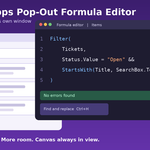
Learn how the new Power Apps pop-out formula editor works, how to open it, and simple tips to write Power Fx formulas faster with more space.
If you build canvas apps, you know this feeling. A formula starts small. Then it grows. A few weeks later you open the formula bar and see a wall of text that covers half your screen. You scroll up and down, you squint, and you lose track of which bracket belongs to which function.
Power Apps now has a simple fix. You can open the formula bar in its own window. This is the Power Apps pop-out formula editor, and it gives you more room to read, write and fix Power Fx formulas. In this guide, you will learn what it is, how to open it, what tools come with it, and how to use it well.

What Is the Power Apps Pop-Out Formula Editor?
Power Apps Studio has a formula bar at the top of the screen. You pick a property, such as Text or OnSelect, and then type a formula for it. The pop-out formula editor works the same way, but it opens in a separate browser window.
Microsoft’s documentation says the separate editor follows the control you select in Studio. It comes with the property list, IntelliSense, formatting tools, find and replace, error messages and line numbers. So this is not a weaker copy of the formula bar. It is the same set of tools with more space around it.
Power Fx is the formula language behind all of this. It is open source, it is low-code, and it is based on Excel. If you can write a formula in Excel, you already know the basic idea.
Quick facts
| Item | Details |
| What it is | A separate window for writing and editing Power Fx formulas |
| Where you find it | The Open formula bar in new window button on the right side of the formula bar |
| Main benefit | More room for long formulas, and the canvas stays visible |
| Good for | Long formulas, tricky logic, and people with two monitors |
Why Microsoft Added It
The formula bar has changed a lot over the last few years. In March 2023, Microsoft introduced a new Power Fx editor as an experimental feature. It was built on the Monaco code editor component, which brought better speed and clearer error marks. By November 2023, the improved formula bar was on by default for new apps.
Even then, the team knew people wanted more. In the first announcement, Microsoft said customers had asked for line numbers, block collapsing, and a dockable or full-screen editor. The new editor has line numbers, and the separate window goes a long way toward the request for more space.
Makers asked for this on their own, too. One well-known Power Apps blogger put a pop-out code editor on a 2023 wish list. His reason was easy to understand. When you expand the formula bar to edit a long block, it covers the app. You cannot see what your code is changing.
How to Open the Pop-Out Formula Editor
The steps are short. Here is how to do it:
- Open your canvas app in Power Apps Studio.
- Select a control or a screen on the canvas.
- Use the property list on the left side of the formula bar to pick the property you want to edit, such as Text, Items or OnSelect.
- Select the Open formula bar in new window button on the right side of the formula bar.
- Drag the new window to where you want it. Many people will put it on a second monitor.
- Keep clicking controls in Studio. The editor follows the control you select, so you can change its properties without going back and forth.
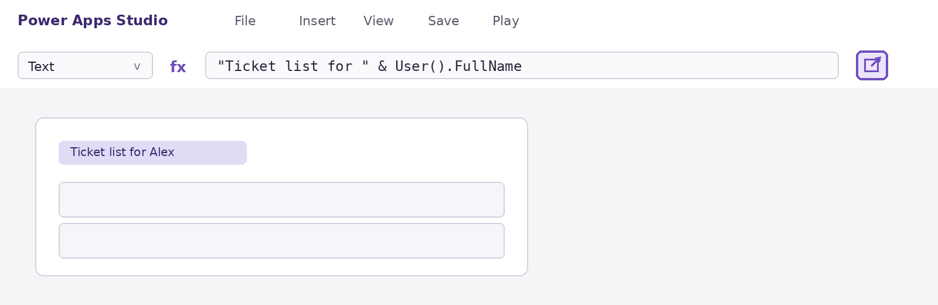
Figure 1: Screenshot of the button that opens the formula bar in a new window.
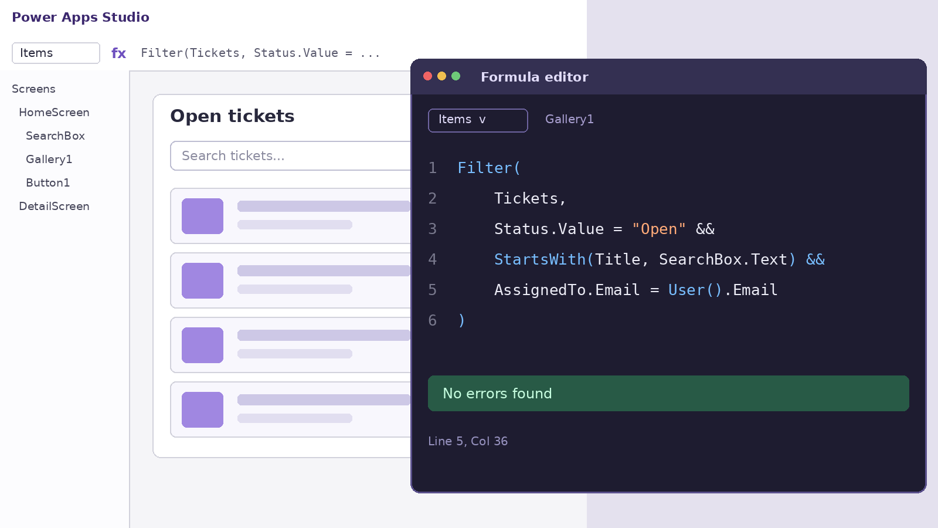
Figure 2: Screenshot of the pop-out editor beside the app canvas.
One small reminder: in Power Apps you do not start a formula with an equals sign, like you do in Excel. Anything you type in the formula bar is treated as a formula. That is also true in the pop-out window.
What Tools You Get Inside the Editor
Here is a simple look at what the separate editor includes and why each part helps.
| Tool | What it does | Why it helps |
| Property list | Lets you switch between properties of the selected control | You do not have to leave the editor to change what you are editing |
| IntelliSense | Gives autocomplete hints, color for the code, and error messages as you type | Fewer typing mistakes and faster writing |
| Formatting tools | Help you lay out a long formula so it is easy to read | You can follow the logic without hunting for brackets |
| Find and replace | Searches inside the formula and changes matches | Quick fixes when a name changes |
| Error display | Shows problems in the formula | You can fix mistakes before you go back to the canvas |
| Line numbers | Number every line | Easy to point to a line when you review a formula with a teammate |
Find and replace
Long formulas often repeat the same name many times. When you rename a control or a table, you do not want to fix each spot by hand. Find and replace helps here.
Microsoft’s page on this tool says you can open it from the formula bar, or use keyboard shortcuts. Press Ctrl+F to find, or Ctrl+H to find and replace, while your cursor is inside the formula.
- Match case only finds text with the same capital letters.
- Match whole word only finds the full word, not parts of longer names.
- Use regular expression lets you search for patterns.
- Find in selection searches only the part of the formula you highlighted.
- Replace changes one match, and Replace all changes every match.
A safe habit: use the next match arrow to look at a few results first. Then use Replace all. It takes ten extra seconds and can save you a long cleanup.
Copilot help with formulas
Power Apps also has Copilot features for formulas. In the formula bar you can ask Copilot to explain a formula in plain words, or to explain just the part you selected. You can also describe what you want in plain language, or in a code comment, and Copilot tries to write the formula.
There are limits. Microsoft says Copilot only recognizes default properties, and comment-based help works with general Power Fx functions, not app-specific ones such as Navigate(). The formula creation feature is also marked as preview, and the languages you can use depend on your environment and browser. Always read a suggested formula before you keep it.
A Simple Example: Cleaning Up a Long Formula
Here is a formula many apps use. It shows open tickets that match a search box and belong to the current user. This is how it often looks when it is squeezed into one line:
Filter(Tickets, Status.Value = “Open” && StartsWith(Title, SearchBox.Text) && AssignedTo.Email = User().Email)
It works, but it is hard to read, and it gets worse each time you add a rule. In the pop-out editor, you have room to spread it out, one idea per line:
Filter(
Tickets,
Status.Value = “Open” &&
StartsWith(Title, SearchBox.Text) &&
AssignedTo.Email = User().Email
)
Now each rule has its own line. If a user says “I can see tickets that are not mine,” you know exactly where to look. Line numbers also make it easy to say “check line 5” in a team chat.
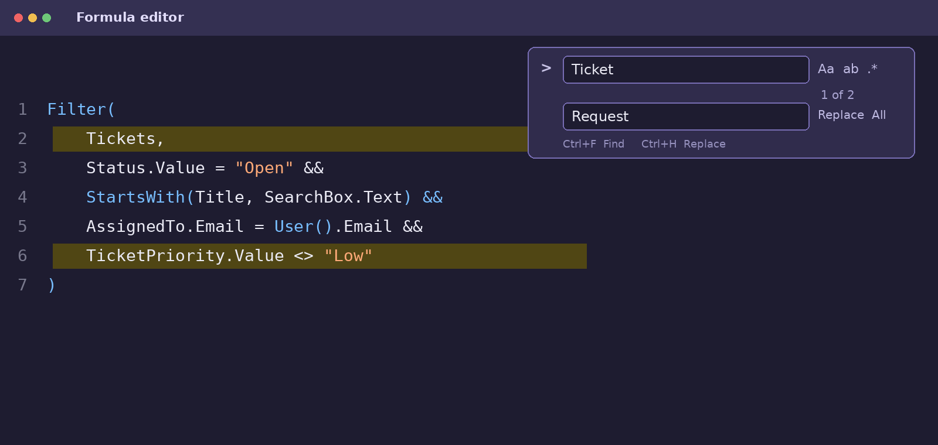
Figure 3: Screenshot of find and replace in action.
Pop-Out Editor vs. the Normal Formula Bar
You now have three ways to work on a formula. This table shows how they compare.
| Way to edit | Space | Canvas in view? | Best for |
| Normal formula bar | Small | Yes | Short formulas, like a label text |
| Expanded formula bar (drag it down) | Medium | Partly. It can cover the app | Medium formulas you want to check fast |
| Pop-out formula editor | Large | Yes, if you move the window | Long formulas and tricky logic |
Tips to Write Power Fx Formulas More Easily
Try the tips that fit your style.
- Use two screens. Keep Power Apps Studio on one screen and the editor on the other. You can change a formula and look at the result without moving windows around.
- Put one idea on each line. Short lines are easier to read than one very long line.
- Add short comments. A few words above a hard part will help you when you open the app again in three months.
- Check the errors first. Before you go back to the canvas, look at the error messages in the editor.
- Use Find before Replace all. Look at the matches before you change them.
Things to Know Before You Start
- Check the status in your environment. Microsoft’s help pages describe the button as part of Power Apps Studio. A review published in mid-October 2026 listed the pop-out formula bar among preview features for canvas apps. Features can reach different regions at different times, so what you see may not match what a friend sees.
- It is an editing tool. It changes where you write formulas, not what the formulas are. Still, try it on a copy of an important app first.
- Older apps may need a setting. Microsoft has said the improved formula bar is on by default for new apps. For older apps, open Settings, then Upcoming features, then Preview, and check the Power Fx formula bar switch.
- Read the full guide for details. Microsoft has a separate article called “Use the pop-out formula bar” with steps, editing tools, sync behavior and fixes for common problems. This post does not cover those finer points.
Frequently Asked Questions
What is the pop-out formula editor in Power Apps?
It is a separate window for writing and editing Power Fx formulas in canvas apps. It follows the control you select in Power Apps Studio and includes the property list, IntelliSense, formatting tools, find and replace, errors and line numbers.
How do I open the pop-out formula editor?
Open your app in Power Apps Studio, select a control, and click the Open formula bar in new window button on the right side of the formula bar. Then move the window wherever you like.
Can I use it on a second monitor?
Yes. Microsoft says you can move the window to another monitor and keep the canvas visible. This is one of the best ways to use it.
I cannot see the button. What should I do?
First, refresh the browser and reopen the app in edit mode. If you work on an older app, check the Power Fx formula bar switch under Settings, Upcoming features, Preview. Features can roll out to regions at different times, so it may also take a little while to appear for you. If it still does not show, check Microsoft’s pop-out formula bar article or ask in the Power Apps community.
Final Thoughts
The Power Apps pop-out formula editor is a small change that solves a real daily problem: not enough room. It gives you a bigger space to write, keeps your canvas in view, and brings the same helpful tools you already use, from IntelliSense to find and replace.
If your formulas are getting long, try it on your next app. Open the window, spread out your formula, add a few comments, and see how much easier it feels to read your own work.
Similar Article
- Microsoft Fabric vs Snowflake: A Detailed Comparison of Cloud Data Warehouse Solutions
- Microsoft Fabric vs Databricks: Features, Performance, Pricing, and Key Differences
- Microsoft Fabric Pricing Explained: Capacity Costs, Licensing Options, and Cost Optimization
- Microsoft Fabric Real-Time Intelligence Tutorial: Build Real-Time Data Analytics Solutions
- Fabric Notebook Toolkit Tutorial for Beginners With Examples
- Microsoft Fabric vs Power BI: Key Differences, Features, Pricing, and Which One to Choose
- Microsoft Fabric Dataflows Gen2 Tutorial for Beginners: A Simple Step-by-Step Guide