Learn what Fabric notebooks are, how to create one, and how to load, clean, save and chart your data with simple code you can copy today.
If you work with data, you have probably heard about Microsoft Fabric by now. And if you have opened it even once, you have seen the word notebook all over the place.
So what is it? And do you really need to learn it?
Short answer: yes, if you want to do more than click around in reports. A notebook lets you write a few lines of code, run them, and see the result right away. You can clean messy files, build tables, draw charts and even train a small machine learning model, all in one page.
In this guide, I will walk you through Fabric notebooks step by step. No heavy words, no confusing theory. You will see real code examples, a few handy tables and answers to the questions people ask most.
What Are Microsoft Fabric Notebooks?
A Fabric notebook is a web page where you write code in small blocks called cells. You run one cell at a time. The answer shows up right under the cell.
Think of it like a school notebook, but smarter. On one page you can keep your notes, your code and your results together. That makes it easy to explain your work to someone else.
Fabric notebooks run inside your browser. There is nothing to install on your computer. They also sit next to your data, inside something called a Lakehouse. A Lakehouse is just a place in Fabric where you keep your files and tables.
Under the hood, Fabric uses Apache Spark. Spark is a tool that can process very large data by splitting the work across many machines. You do not need to set that up. Fabric does it for you.
Why Should You Use Fabric Notebooks?
There are other ways to work with data in Fabric, like Dataflows and pipelines. So why pick notebooks? Here are the main reasons:
- Full control. Code can do things that point-and-click tools cannot, like complex rules or custom checks.
- Fast on big data. Spark handles millions of rows without a fuss.
- Many languages. Use Python, SQL, Scala or R in the same notebook.
- Easy to share. Your teammates can open the same notebook, read your notes and run it themselves.
- Connected to everything. A notebook can read from a Lakehouse, write tables and feed Power BI reports.
- Can be scheduled. Set it to run every morning so your data is always fresh.
Languages You Can Use in a Fabric Notebook
You can choose one main language for the notebook. You can also switch language for a single cell. Here is a quick look:
| Language | Best for | Simple example |
| PySpark (Python) | Cleaning and changing data, most beginners start here | df.filter(df.Price > 20) |
| Spark SQL | Asking questions to tables, like a report query | SELECT * FROM sales_clean |
| Scala | Teams that already use Scala for Spark | val df = spark.read.csv(…) |
| SparkR (R) | Stats work for people who love R | df <- read.df(…) |
If you are new, start with PySpark and Spark SQL. They cover about 90 percent of what most people need.
How to Create Your First Notebook in Fabric
Let’s build one now. It takes about two minutes.
- Go to the Fabric website and sign in with your work or school account.
- Open a workspace. If you do not have one, create it from the left menu.
- Click New item, then pick Notebook.
- Give it a clear name, like “Sales analysis”.
- On the left side, click Add data items and attach a Lakehouse. Create a new one if you need to.
- Click into the first cell and write your code. Press the small play button, or hit Shift + Enter, to run it.
The first run may take a few seconds while Fabric starts a session in the background. After that, cells run fast.
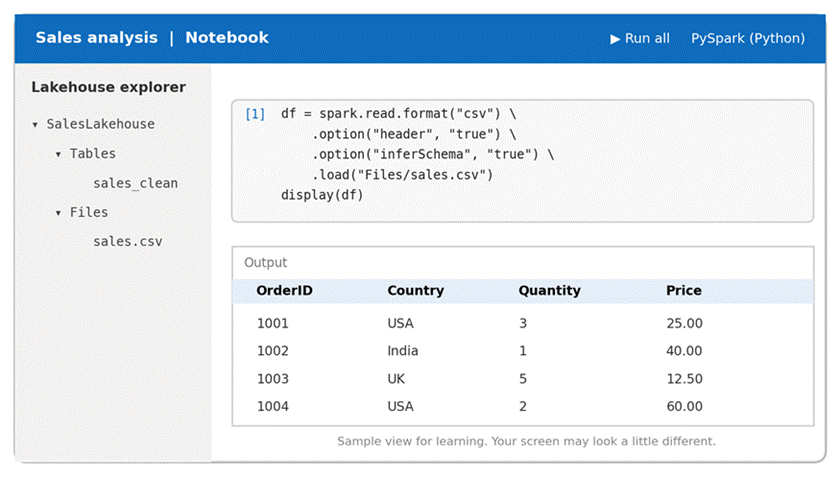
Figure 1: A simple view of a notebook with the Lakehouse on the left and code on the right.
The Main Parts of the Screen
- Lakehouse explorer (left): shows your files and tables. You can drag a table into a cell to get ready-made code.
- Cells (center): where you write code or plain text notes.
- Top toolbar: run buttons, language picker and session settings.
- Output (under each cell): tables, text or charts from your code.
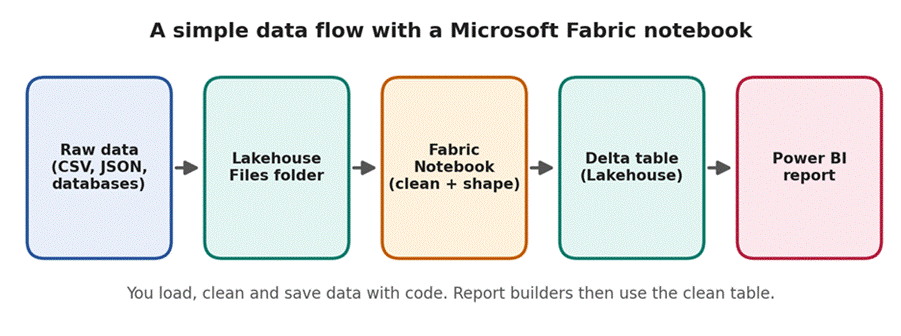
Figure 2: How a notebook fits into a normal data workflow.
Fabric Notebook Examples You Can Copy
For these examples, imagine you have a file called sales.csv in the Files section of your Lakehouse. It has these columns: OrderID, Country, Quantity, Price and OrderDate.
Example 1: Read a CSV File
This is the first thing almost everyone does.
df = (spark.read
.format(“csv”)
.option(“header”, “true”)
.option(“inferSchema”, “true”)
.load(“Files/sales.csv”))
display(df)
The header option tells Spark that the first row holds column names. The inferSchema option lets Spark guess if a column is a number or text. The display command shows a nice table, and you can even switch it to a chart view.
Example 2: Clean the Data
Real data is messy. You get repeated rows, blank values and dates stored as plain text. Here is a short way to fix that:
from pyspark.sql.functions import col, to_date
df_clean = (df
.dropDuplicates()
.dropna(subset=[“OrderID”])
.withColumn(“OrderDate”, to_date(col(“OrderDate”)))
.withColumn(“Total”, col(“Quantity”) * col(“Price”)))
display(df_clean)
Here we remove repeated rows, drop rows with no order number, turn the date text into a real date, and add a new column called Total.
Example 3: Save the Result as a Table
Now let’s keep this clean data so others can use it. We save it as a Delta table. Delta is the default table format in Fabric, and it works well with Power BI.
df_clean.write.mode(“overwrite”).format(“delta”).saveAsTable(“sales_clean”)
Refresh the Lakehouse explorer and you will see sales_clean under Tables. That is it. Your clean data is now ready for reports.
Small tip: “overwrite” replaces the old table each time. If you want to add new rows instead, use “append”. Mixing these up is a very common mistake.
Example 4: Ask Questions with SQL
Not a Python fan? No problem. Start the cell with %%sql and write normal SQL:
%%sql
SELECT Country, SUM(Total) AS Revenue
FROM sales_clean
GROUP BY Country
ORDER BY Revenue DESC
This gives you the total sales for each country, from highest to lowest. It looks just like a report.
Example 5: Draw a Chart
You can turn a small result into a Python chart with matplotlib. First, we group the data. Then we convert it to a pandas table, which is fine for small results.
import matplotlib.pyplot as plt
result = (df_clean.groupBy(“Country”)
.sum(“Total”)
.withColumnRenamed(“sum(Total)”, “Revenue”)
.orderBy(“Revenue”, ascending=False)
.toPandas())
plt.bar(result[“Country”], result[“Revenue”])
plt.title(“Revenue by country”)
plt.ylabel(“Revenue ($)”)
plt.show()
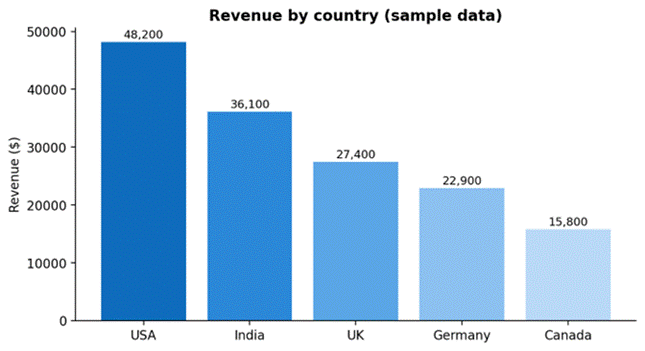
Figure 3: The kind of chart this code makes (sample numbers).
Watch out: toPandas() pulls all the data into one machine. Only use it after you have shrunk the data with a group or filter.
Magic Commands: Small Shortcuts, Big Help
Magic commands start with a % sign. They change how a cell works. These are the ones you will use most:
| Command | What it does |
| %%pyspark | Runs the cell as Python code |
| %%sql | Runs the cell as Spark SQL |
| %%spark | Runs the cell as Scala |
| %%sparkr | Runs the cell as R |
| %pip install name | Installs a Python package for the current session |
| %run notebook_name | Runs another notebook first, so you can reuse its code |
| %%configure | Changes session settings, like how much memory to use |
| %lsmagic | Lists all the magic commands you can use |
Handy Built-in Tools (notebookutils)
Fabric gives you a small toolbox called notebookutils. You do not need to import anything. It helps with files, secrets and running other notebooks.
# See what is inside the Files folder
notebookutils.fs.ls(“Files”)
# Run another notebook and wait up to 90 seconds
notebookutils.notebook.run(“Clean_Sales_Data”, 90)
# Stop the notebook and send back a message
notebookutils.notebook.exit(“All done”)
You may also see older code that uses mssparkutils. It still works in many places, but notebookutils is the newer name, so use that in fresh notebooks.
How to Run a Notebook Automatically
Writing code once is nice. Having it run by itself is better. You have two easy choices:
- Schedule it: open the notebook, go to the Run tab or the notebook settings, and set a time, like every day at 6 AM.
- Use a pipeline: add a Notebook activity to a Data pipeline. This is great when you need steps in order, like copy the data first, clean it next, then refresh the report.
Before you schedule anything, run the notebook by hand from top to bottom. If it fails when you press Run all, it will fail at 6 AM too.
Fabric Notebook vs Other Options
People often ask how this compares to tools they already know. This table gives a simple picture:
| Feature | Fabric Notebook | Local Jupyter Notebook |
| Setup | None. Open the browser and start | Install Python and tools yourself |
| Data size | Handles large data with Spark | Limited by your own computer |
| Data access | Direct link to Lakehouse | You must move files around |
| Teamwork | Share inside the workspace | Share files by email or Git |
| Scheduling | Built in | Needs extra tools |
| Cost | Uses your Fabric capacity | Free on your own machine |
If your data is small and you just want to test an idea, a local notebook is fine. If your data lives in Fabric, the Fabric notebook saves you a lot of time.
Best Practices for Better Notebooks
These are small habits that make a big difference:
- Keep cells short. One job per cell. It is much easier to fix problems this way.
- Add notes. Use text cells to explain what each part does. Future you will say thanks.
- Use clear names. “df_clean” is better than “df2”. “Sales_Clean_Daily” is better than “Notebook 1”.
- Avoid toPandas() on big data. Filter and group first.
- Do not hard-code secrets. Never paste passwords into a cell. Use a key vault instead.
- Test with a small sample. Try your code on the first 1,000 rows, then run it on everything.
- Stop the session when done. An idle session can keep using your capacity.
Common Mistakes Beginners Make
- Forgetting to attach a Lakehouse, then wondering why the file path fails.
- Running cells out of order and getting strange results. When in doubt, use Run all.
- Using “overwrite” when they meant “append”, and losing old data.
- Writing a path like “/Files/sales.csv” when the relative path “Files/sales.csv” is what works.
Frequently Asked Questions
What is a Microsoft Fabric notebook used for?
It is used to read, clean, change and study data with code. People also use it to build tables for reports, draw charts and train machine learning models.
Do I need to know coding to use Fabric notebooks?
A little helps. But you can start with basic SQL or copy simple PySpark examples like the ones above. Most people learn fast because they see the result after every step.
Is a Fabric notebook the same as a Jupyter notebook?
They look and feel alike. Both use cells and show output under the code. The big difference is that Fabric notebooks run in the cloud on Spark and connect directly to your Lakehouse.
Is Microsoft Fabric free?
Microsoft offers a free trial for Fabric, and after that you need a paid capacity. Prices change, so check the official Microsoft page for the latest details.
Which language should a beginner pick?
PySpark is a good first choice. If you already know SQL, start with %%sql cells and add Python slowly.
Can I use Fabric notebooks with Power BI?
Yes. Save your clean data as a Delta table in the Lakehouse. Then connect Power BI to it and build your report.
Can I run one notebook from another?
Yes. Use the %run command or notebookutils.notebook.run(). This is a nice way to reuse cleaning steps.
Why is my first cell slow to run?
Fabric has to start a Spark session first. That can take a few seconds. Later cells run faster in the same session.
Final Thoughts
Fabric notebooks may look scary at first, but the idea is simple. You write a few lines, press run, and see what happens. Then you fix, change and try again.
Start small. Open a notebook, load one CSV file, clean two or three columns and save a table. That single win will teach you more than hours of reading.
Once you are happy with that, try SQL cells, add a chart and then schedule your notebook to run each morning. Step by step, you will build real skills that companies are looking for right now.
Got a favorite trick or a problem you got stuck on? Try it in your own notebook today. The best way to learn Fabric is to use it.