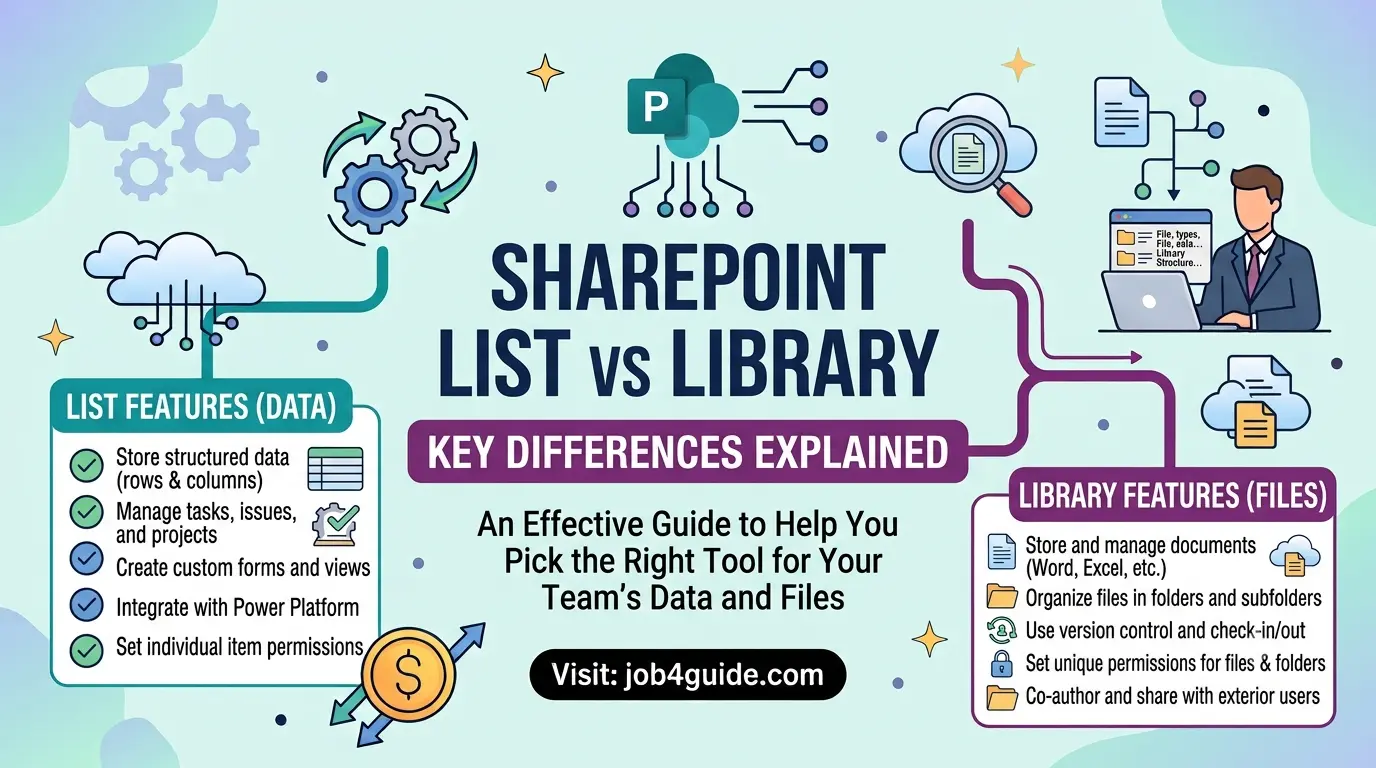
A effective guide to help you pick the right tool for your team’s data and files.
If you use Microsoft SharePoint at work, you have probably seen two buttons when you go to add something new: “List” and “Library.” They look similar. Both live inside a SharePoint site. Both have columns, filters, and views. So it is easy to ask, what is the real difference, and which one should I use?
This guide answers that question in plain words. No jargon, no confusing IT talk. By the end, you will know exactly when to pick a list and when to pick a library, and you will avoid the mistakes that trip up most new SharePoint users.
What Is a SharePoint List?
A SharePoint list is a table of information. Think of it like a spreadsheet that lives on your SharePoint site instead of on your computer. Each list has columns (like “Name,” “Due Date,” or “Status”) and rows, called items. Every item is one entry, such as one task, one contact, or one order.
A list does not usually hold files. It holds data. Some common examples of lists are:
- Task list – who is doing what, and by when.
- Issue tracker – bugs or problems, who owns each one, and its status.
- Contact list – names, emails, and phone numbers for a team or client.
- Event calendar – meetings, holidays, or deadlines.
- Inventory log – items in stock, quantity, and location.
You can still attach a file to a list item if you need to (SharePoint allows this), but the list itself is built around structured data, not documents.
What Is a SharePoint Library?
A SharePoint library (often called a document library) is a place to store, organize, and share files. This includes Word documents, Excel sheets, PDFs, photos, videos, and PowerPoint slides. A library looks a bit like a folder on your computer, but with extra features.
Some things a library can do that a normal folder cannot:
- Keep version history – you can see and restore older versions of a file.
- Check-in / check-out – lock a file so two people don’t overwrite each other’s work.
- Co-authoring – let several people edit the same file at the same time.
- Metadata columns – add extra info to a file, like “Department” or “Review Date,” so it’s easier to sort and find.
- Approval flow – require a manager to approve a file before it goes live.
In short: if what you are storing is a file people open and edit, it belongs in a library.
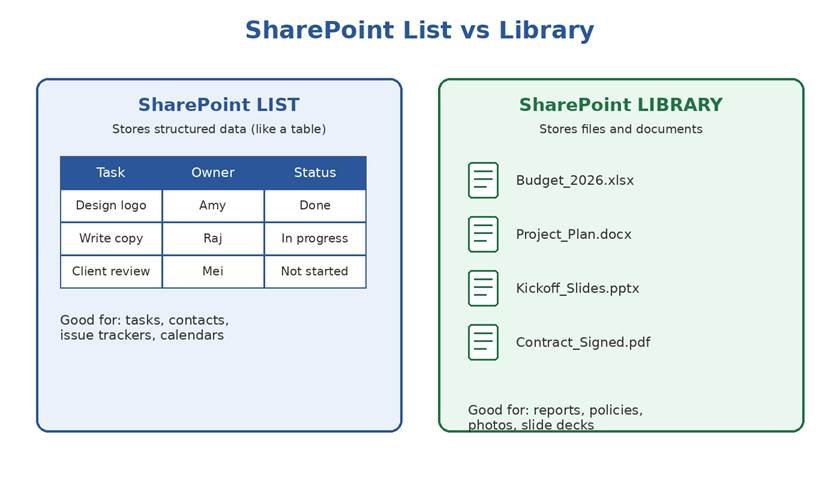
A simple side-by-side view: a list stores rows of data, a library stores files.
SharePoint List vs Library: The Key Differences
Here is a quick side-by-side comparison table you can refer back to:
| Feature | List | Library |
| Main purpose | Store data in rows and columns | Store and manage files |
| Best for | Tasks, contacts, trackers, calendars | Documents, PDFs, photos, slides |
| Version history | Tracks changes to item data | Tracks changes to the actual file |
| Attachments | Optional, files can be attached to an item | The file itself is the main item |
| Check-out feature | Not usually needed | Yes, locks the file for one editor |
| Co-authoring | Not applicable | Yes, in Word, Excel, and PowerPoint online |
| Views and filters | Yes, group and sort by any column | Yes, group and sort by any column |
| Approval workflow | Yes, on items | Yes, on files before publishing |
| Set up speed | Fast, just add columns | Fast, just start uploading files |
When Should You Use a List?
Choose a list when your main goal is to track information, not files. Ask yourself: “Am I recording facts, status, or numbers?” If yes, a list is the right tool. Good use cases include:
- A project tracker where each row is a task with an owner and a due date.
- A help-desk log where each row is one support ticket.
- A room booking system where each row is one booking.
- A staff directory where each row is one employee.
Lists shine because you can build custom views. For example, you could show only tasks that are “Overdue,” or group contacts by department, without changing the underlying data.
When Should You Use a Library?
Choose a library when your main goal is to store, share, or collaborate on files. Good use cases include:
- A shared folder for HR policies and forms.
- A place for a marketing team to store logos, brochures, and photos.
- A spot to hold signed contracts and invoices.
- A shared space for a team to co-edit a report or proposal in real time.
Because libraries track file versions, you can always roll back to an earlier draft if a mistake is made. This alone saves many teams from lost work.
Can You Use a List and a Library Together?
Yes, and many teams do exactly that. A common setup is to keep a task list for tracking project work, and a linked document library for the files that belong to those tasks. For example, a marketing team might have:
- A list called “Campaign Tasks” with columns for owner, deadline, and status.
- A library called “Campaign Assets” holding the actual images, ad copy, and reports.
You can even add a hyperlink column in the list that links straight to the matching file in the library. This gives you the best of both: clear tracking and organized files, without cramming everything into one place.
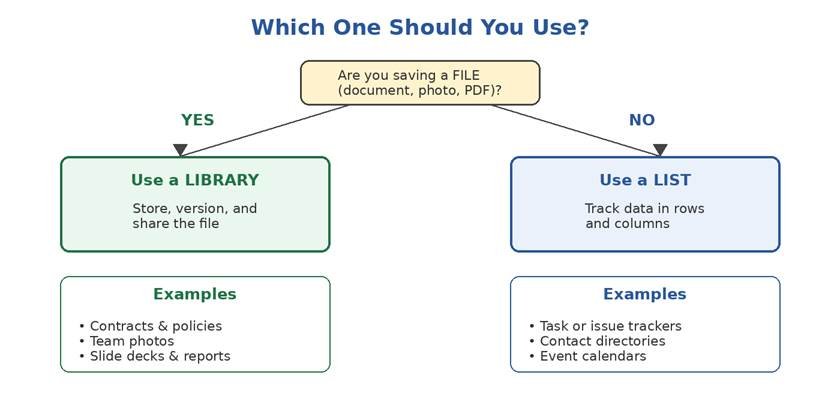
A quick way to decide: are you saving a file, or tracking data?
Common Mistakes People Make
Here are a few mix-ups that happen often, and how to avoid them:
- They upload documents as attachments to a list, then wonder why version history and co-authoring don’t work properly. Fix: move real documents into a library.
- They try to build a big spreadsheet-style tracker inside a library using file names. Fix: use a list instead, since it is built for structured data.
- They create a new library for every small project. Fix: use folders or metadata columns inside one library rather than creating dozens of libraries.
- They forget to turn on version history. Fix: check the library settings and turn on versioning so old drafts are never lost.
- They give everyone edit access by default. Fix: set clear permission levels so only the right people can change data or files.
Tips for Choosing the Right One
Still not sure? Run through this short checklist before you create anything new:
- Ask what the item actually is. A row of facts points to a list. A file someone opens and edits points to a library.
- Think about who needs to co-edit. If two or more people need to work on the same document at once, that calls for a library.
- Think about reporting. If you want charts, filters, or status views across many entries, a list gives you that easily.
- Check if version history of a document matters. If yes, a library is required, since list attachments do not version well.
- When in doubt, start with a list for tracking and a library for the related files. You can always link the two.
Frequently Asked Questions
Is a SharePoint list the same as an Excel spreadsheet?
They are similar but not the same. A list lives on SharePoint, so many people can view and edit it online at the same time, and it keeps a history of changes. An Excel file is one document; a SharePoint list is a live, shared table with built-in permissions and views.
Can a SharePoint list hold files?
Yes, you can attach a file to a list item. But this is different from a library. A library is built to manage files as the main content, with version history and check-out. A list attachment is more like a side note.
How many items can a SharePoint list hold?
A list can hold a very large number of items, often into the hundreds of thousands. However, once a single view shows more than 5,000 items at a time, performance can slow down. It is best practice to use filters and indexed columns to keep views fast.
Do libraries and lists both support permissions?
Yes. Both lists and libraries can have their own permission settings, separate from the rest of the site. You can even set permissions on a single item or a single file if needed.
Which one is better for a small team?
Neither is “better” on its own, it depends on what you are storing. Most small teams end up using both: a list to track tasks or requests, and a library to hold the documents tied to that work.
Can I convert a list into a library, or the other way around?
Not directly. Lists and libraries are built differently under the hood. If you have data in the wrong place, the usual fix is to create the correct type and move the content over manually or with a migration tool.
Final Thoughts
The choice between a SharePoint list and a library comes down to one simple question: are you tracking data, or are you storing files? Once you know the answer, the right choice becomes obvious. Lists are built for structured information you want to sort, filter, and report on. Libraries are built for documents you want to store, version, and co-author.
Most SharePoint sites end up using both, side by side, and that is perfectly normal. Start with what you are actually trying to organize, and the right tool will follow.