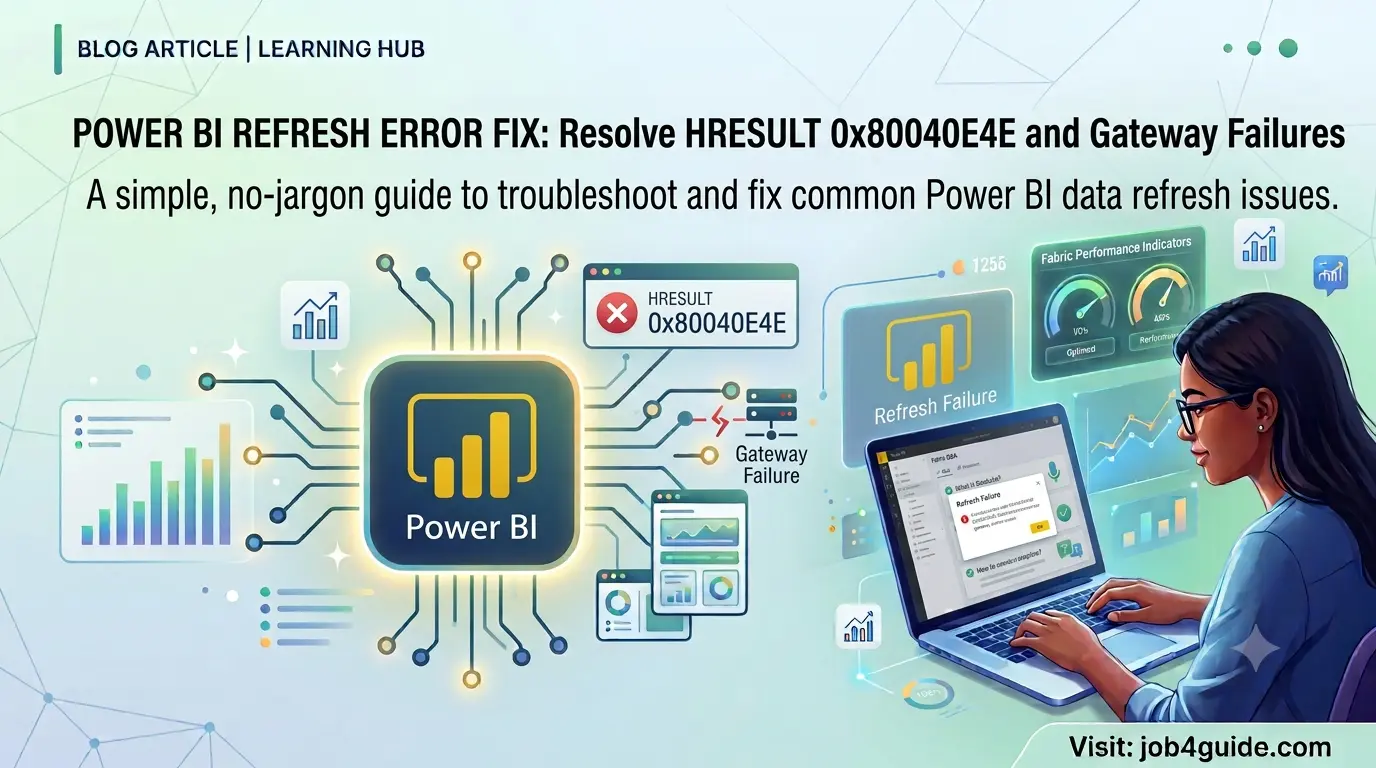
If you work with Power BI, you have probably seen a refresh fail with a strange code like HRESULT 0x80040E4E. It shows up without warning, the error message is hard to read, and Google gives you a dozen different answers. This guide cuts through that. We will explain what this error actually means in plain words, why it happens, and how to fix it step by step, including the gateway problems that usually sit behind it.
This is written for anyone who uses Power BI at work, whether you built the report yourself or you just need it to refresh on time for a Monday morning meeting. No deep technical background needed.
What Does HRESULT 0x80040E4E Actually Mean?
HRESULT is just a type of error code that Windows and Microsoft products use internally. The number itself, 0x80040E4E, does not tell you much on its own. In Power BI, this specific code almost always shows up during a dataset refresh, and it means one thing in simple terms:
Power BI tried to pull fresh data from your source, but something broke that conversation before it could finish.
That “something” could be a lot of things. It could be the gateway, the data source itself, your login details, or even the network in between. The code does not point to one exact cause, which is why it feels so confusing at first. Think of it less like a specific diagnosis and more like a general “connection failed” message.
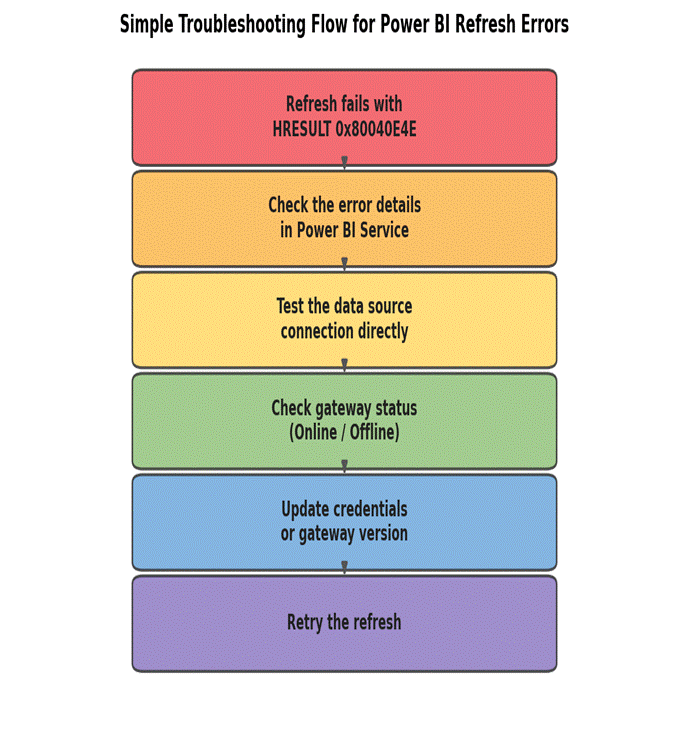
Figure 1: A simple way to think through the problem, step by step.
Common Causes Behind This Error
Before jumping into fixes, it helps to know what usually causes this. Based on how Power BI refreshes work, these are the most common reasons:
- The on-premises data gateway is offline, sleeping, or was recently restarted
- Saved credentials for the data source have expired or changed
- The gateway version is outdated and does not support a newer connector feature
- A firewall or VPN is blocking the connection partway through
- The data source itself (SQL Server, Excel file, SharePoint, etc.) is temporarily unavailable
- The refresh is timing out because the dataset is too large or the query is too slow
- Two refreshes are overlapping and fighting for the same connection
Where This Error Actually Happens
It helps to picture the path your data takes. Power BI Service in the cloud does not talk to your on-premises data directly. It goes through a middleman, the gateway, and then to the actual source. A break at either point can trigger this same error code.
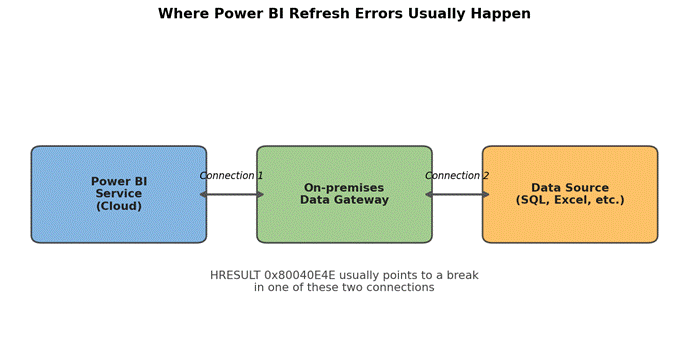
Figure 2: Data has to pass through two connections. Either one can fail.
Quick Checklist Before You Start
Run through this short checklist first. Many refresh problems get solved right here, before you touch any settings.
| Check | Why It Matters |
| Gateway status shows ‘Online’ | An offline gateway cannot pass data through at all |
| Gateway version updated | Old versions miss bug fixes for known refresh errors |
| Credentials are current | Passwords that changed on the source break the saved login |
| Data source reachable from gateway machine | The gateway, not your laptop, must reach the source |
| Dataset size is reasonable | Very large tables can time out during refresh |
Step-by-Step Fix
Step 1: Read the Full Error Message
In Power BI Service, click on the failed refresh and select “See details.” The pop-up window often has more text below the HRESULT code, such as a source name or a timeout notice. This extra detail narrows down where to look next, so do not skip it.
Step 2: Check the Gateway Status
Go to Settings, then Manage Gateways. Look at the status next to your gateway.
- Green means the gateway is online and working
- Yellow or red means there is a problem worth investigating
If it shows offline, go to the machine running the gateway. Make sure it is turned on, connected to the internet, and that the On-premises Data Gateway service is actually running (check Windows Services if needed).
Step 3: Update the Gateway
Outdated gateways are one of the most common causes of odd refresh errors. Open the On-premises Data Gateway app on the host machine and check for updates. Microsoft releases updates often, and older versions sometimes cannot handle newer connector requests properly.
Step 4: Re-check Your Credentials
- Open the On-premises Data Gateway app
- Go to the Connectors tab and find the data source
- Click Edit Credentials
- Re-enter the username and password, then save
This matters more than people expect. If a database password changed, or an account got locked, Power BI will not always tell you clearly. It just fails the refresh with a generic error.
Step 5: Test the Connection Directly
Try connecting to the same data source using another tool, like SQL Server Management Studio for a database, or just opening the file directly if it is Excel or a folder. If you cannot connect outside of Power BI either, the problem is with the source or network, not Power BI itself.
Step 6: Check the Network and Firewall
If the gateway machine sits behind a strict firewall or VPN, the connection can drop mid-refresh. Ask your IT team to confirm that the gateway machine can freely reach the data source on the correct port, and that outbound traffic to Power BI Service (over HTTPS) is allowed.
Step 7: Look at Dataset Size and Query Speed
Large tables, complex queries, or slow source servers can cause a refresh to run past its allowed time and fail. If this looks like the cause, try these:
- Turn on incremental refresh so only new or changed data is pulled each time
- Remove unused columns and tables from the dataset
- Simplify heavy calculations that run during the query stage, not after
- Schedule the refresh for a quieter time when the source server is less busy
Step 8: Check for Overlapping Refreshes
If you have scheduled refreshes running close together, or someone triggers a manual refresh while a scheduled one is still running, they can conflict. Space out refresh times and avoid manual refreshes right before a scheduled one is due.
Step 9: Restart the Gateway Service
Sometimes the simplest fix works. On the gateway machine, restart the “On-premises Data Gateway” service through Windows Services, or simply restart the machine. This clears out any stuck connections.
Step 10: Check the Gateway Logs
The gateway app has a Diagnostics tab where you can export logs. These logs often contain a clearer inner error message than what shows up in Power BI Service, which can point straight to the real cause, such as a specific timeout or a login failure.
Other Gateway Errors You Might See
HRESULT 0x80040E4E is not the only confusing code Power BI throws. Here are a few others people run into, along with what they usually mean and how to start fixing them.
| Error / Code | What It Usually Means | Quick Fix |
| HRESULT 0x80040E4E | Power BI cannot finish talking to the data source or gateway during refresh | Check gateway status, credentials, and source connection |
| DM_GWPipeline_Gateway_ApiErrorResponseExceptionFormat | The gateway received a request it could not process in time | Restart the gateway service and check network speed |
| Gateway is offline | The gateway machine is off, sleeping, or lost internet access | Turn the machine on and make sure it stays awake and connected |
| Credentials could not be verified | Saved username or password no longer works | Edit the data source credentials in the gateway app |
| The operation has timed out | The refresh took longer than the allowed time limit | Reduce data size, use incremental refresh, or split the report |
| Underlying connection was closed | Network dropped mid-transfer, often on VPN or slow Wi-Fi | Use a wired connection and check firewall rules |
How to Stop This From Happening Again
Fixing the error once is good. Stopping it from coming back is better. A few habits go a long way:
- Keep the gateway updated every month, not just when something breaks
- Use a service account for credentials instead of a personal login that might expire or get locked
- Set up refresh failure alerts so you know right away instead of finding out at the meeting
- Keep the gateway machine on a stable power source and network, not a laptop that sleeps
- Review dataset size every few months as new data keeps growing
- Document your data source list and gateway setup, so the next person does not start from zero
Frequently Asked Questions
Why did my refresh work yesterday but fail today with this error?
Nothing about your report changed, but something on the other end likely did. A password reset, a source server going down briefly, a gateway update, or a network hiccup can all cause a refresh that worked fine yesterday to fail today.
Do I need to be an IT admin to fix this?
Not always. If you have access to the On-premises Data Gateway app and your Power BI workspace settings, you can handle most of the steps above yourself. Firewall and network checks usually need your IT team.
Is this error caused by Power BI itself?
Rarely. Power BI Service mostly acts as the messenger here. The actual problem almost always sits with the gateway, the data source, the credentials, or the network path between them.
Can a slow internet connection cause this error?
Yes. If the connection between the gateway and Power BI Service, or between the gateway and the data source, is slow or unstable, the refresh can time out or drop partway through and show this same error.
What if I do not use a gateway at all?
If your data source is fully cloud-based and does not need a gateway, this specific error is less common, but a similar HRESULT code can still appear if the cloud source is down or your credentials expired. The credential and source-checking steps still apply.
Should I just rebuild the dataset if nothing works?
Rebuilding should be a last resort. In most cases, the fix is a credential update, a gateway restart, or a network fix. Rebuilding fixes the symptom but not the root cause, so the same error can return later.
Final Thoughts
HRESULT 0x80040E4E feels intimidating because of how it looks, but it almost always comes down to something simple: a gateway that is offline, a login that expired, or a connection that could not finish in time. Work through the checklist and steps above in order, and most refresh failures get solved within the first few checks. If the problem keeps coming back, the gateway logs are your best friend, since they usually spell out the real reason in plain terms.
Keeping your gateway updated and your credentials current will prevent most of these errors before they start, saving you the stress of chasing them down the next time a report is due.