The Power BI Report Authoring skill can now work with custom visuals. See what changed, how it works, what you need, and where it can go wrong.
Building a Power BI report with an AI helper has been getting easier. You describe a page, and the helper writes the report files for you. But there was always one gap. The moment you needed something outside the standard chart list, like a special gauge or a chart from another maker, you were back to doing it by hand.
That gap just got smaller. In its October 2026 feature summary, Microsoft said the Power BI Report Authoring skill now works with custom visuals, and the feature is marked generally available. In this guide, I’ll explain what that means in simple words, how it works, what you need to set up, and where you should still be careful.
The short answer: what changed?
Here is the update in four quick points:
- The Report Authoring skill can now work with custom visuals that are already in your report.
- That includes visuals you imported from a file.
- It can also help you find a visual on AppSource when the standard visuals can’t do what you need.
- You can ask it to add the visual, connect your data, set the formatting, and check that everything is valid.
In plain words, you can now say what you want in normal language, and the helper does the fiddly file work for custom visuals too.

What is the Power BI Report Authoring skill?
A “skill” is a set of instructions that teaches an AI coding helper how to do one job well. Think of it like a recipe card. The helper already knows how to read and write files, but the card tells it exactly how Power BI wants those files to look.
The Report Authoring skill covers the report layer of Power BI. It can create and edit pages, visuals, filters, slicers, bookmarks, themes, and formatting. It works with reports saved in the PBIR format inside a PBIP project. Those are the folder-based file types that store a report as many small text files instead of one big locked file.
It also checks its own work. It can check the structure of the files, then reload Power BI Desktop and take a screenshot of the page, so the helper can see what it built. The skill is part of the Power BI authoring plugin in the Skills for Fabric marketplace, and you can use it with tools like GitHub Copilot CLI and Claude Code.
A small note on names: Microsoft first shipped separate skills for planning, design, authoring, and management. Newer guides fold them into one report skill, so your version may use a different name. The job stays the same.
Why custom visuals were hard to automate before
Core visuals like bar charts, tables, and cards are easy for a helper to handle because they have fixed names and fixed slots. Custom visuals are different. Each one comes from a different maker, has its own internal ID, and has its own list of data slots.
That caused three headaches:
- Finding the right ID. Every visual has a technical name in the report files. Get one letter wrong and the visual breaks.
- Mapping fields. Custom visuals often ask for odd slots, like “Target,” “Category,” or “Lower bound.” Putting the wrong field in the wrong slot gives you a blank chart or a confusing one.
- Editing files by hand. Even with an AI helper, you had to open the report files and fix things yourself when the helper guessed wrong.
What the update actually changes
Microsoft says the update cuts down the time spent on finding visual identifiers, editing report files, and fixing field mappings. That is the boring work, and it is where most of the pain was. Here is a simple before-and-after view:
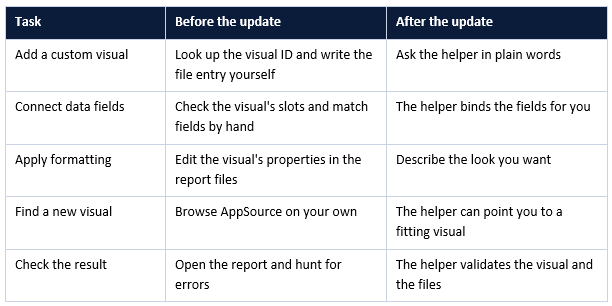
Your role does not go away. You still decide what the report should say and which visual fits. The skill just handles the typing.
Which custom visuals can it use?
Power BI supports three kinds of custom visuals, and it helps to know which is which. The update mentions visuals already added to the report, visuals imported from a file, and AppSource visuals.
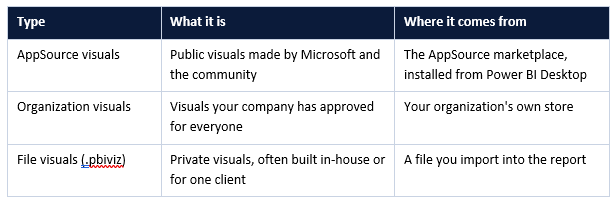
Here is a detail that helps when you work with project files. Power BI Desktop loads AppSource and organization visuals for you. Only private visuals from files land in the report’s CustomVisuals folder.
How it works, step by step
The flow is simple. You talk to the helper, and it handles the rest. The diagram below shows the path a custom visual request takes.

The five steps the skill follows when you ask for a custom visual.
- You ask. Say what you want, like “Add a bullet chart that compares sales to target by region.”
- The helper finds the visual. It uses a custom visual already in the report, one from a file, or points you to a match on AppSource.
- It binds the data. It connects your tables, columns, and measures to the visual’s slots.
- It formats the visual. Titles, colors, size, and position get set based on your request.
- It validates the result. The helper checks the files and can reload Desktop to confirm the page looks right.
Example requests you can try
These are sample prompts to show the style. Change the names to match your own model.
- “Add the bullet chart visual to the Sales page. Use Total Sales as the value and Sales Target as the target, grouped by Region.”
- “I need a timeline chart for project milestones. Is there an AppSource visual that fits?”
- “Import this .pbiviz file into the report and put it on page two with our brand colors.”
Short, clear requests work best. Name the page, the fields, and the look you want.
What you need before you start
The skill is not a button inside Power BI. It is an add-on for your AI coding helper, so there is a little setup. Use this checklist:
- A PBIP project in PBIR format. The skill works only on these files. It does not edit a regular PBIX file.
- Power BI Desktop. It is used to reload the project and take screenshots to check the work.
- An AI helper that supports skills, such as GitHub Copilot CLI or Claude Code.
- The Power BI authoring plugin from the Skills for Fabric marketplace.
- Your data model ready. The tables, columns, and measures must exist before you bind a visual to them.
For Copilot CLI, Microsoft’s guide shows two commands: add the microsoft/skills-for-fabric marketplace, then install the powerbi-authoring plugin. Check the official install page for the latest steps, since names can change.
Limits and things to watch
Good tools still have edges. Keep these points in mind:
Save your manual work first
Microsoft’s guidance says to save changes you made by hand in Power BI Desktop before asking the helper to change the report. Otherwise the helper may work from an older copy of the files.
Build the model first
A visual can only use data that exists. If you need a new measure, create it with the modeling tools first, then ask for the visual.
Only supported visuals
The update says the skill works with supported custom visuals. Not every visual on the market will behave the same, so test the result. Always open the report and look at it yourself before you share it.
Check your company rules
Many companies limit which custom visuals people may use, because a visual runs code inside your report. Power BI admins can control this in tenant settings. Ask your admin which visuals are approved.
Skip the retired visuals
The skill’s guide tells you to avoid visuals that are on their way out, like Q&A, Bing Maps, and filled maps. Use the modern ones instead.
Should you use a custom visual at all?
Just because the helper makes it easy does not mean every report needs one. Custom visuals can slow a page, may not export well, and can confuse readers who have never seen them. Here is a simple way to decide:
| Your situation | Use a core visual | Use a custom visual |
| A normal bar, line, or table will do | Yes | No |
| You need a special chart type, like a bullet chart | No | Yes |
| Many people will view it, including on mobile | Yes, safer | Test first |
| Your brand needs a very specific look | Maybe | Yes |
| Your admin blocks outside visuals | Yes | Only approved ones |
My rule of thumb: start with a core visual. Switch to a custom one only when the question you are answering truly needs it. Microsoft is also adding new core visuals, like the Gantt chart, which is in preview, so the thing you need might already be built in.
Frequently asked questions
Is the custom visuals support available now?
Yes. Microsoft’s October 2026 feature summary lists it as generally available.
Does it work with PBIX files?
No. The skill works with PBIP projects that use the PBIR report format. If you have a PBIX file, save it as a project first.
Can it install a visual from AppSource for me?
The update says it can help identify an AppSource visual that fits your need. Plan to confirm and add it to your report yourself, and check what your admin allows.
Do I still need to know Power BI?
Yes. You need to know your data and what a good report looks like. The skill saves you from file editing, not from thinking.
Is this the same as Copilot inside Power BI?
No. This is a skill you add to an AI coding helper. It edits report files in a project. Copilot in Power BI is a separate feature inside the product.
Final thoughts
Custom visuals were one of the last places where report building still meant digging through files. With this update, the Power BI Report Authoring skill takes on that work. You ask for the visual, it finds or uses one, connects the data, sets the look, and checks the result.
If you already use an AI helper with Power BI, try it on one page with one visual you know well. Compare it with what you would have built by hand. That small test will show you how much time it can save.