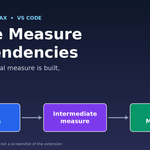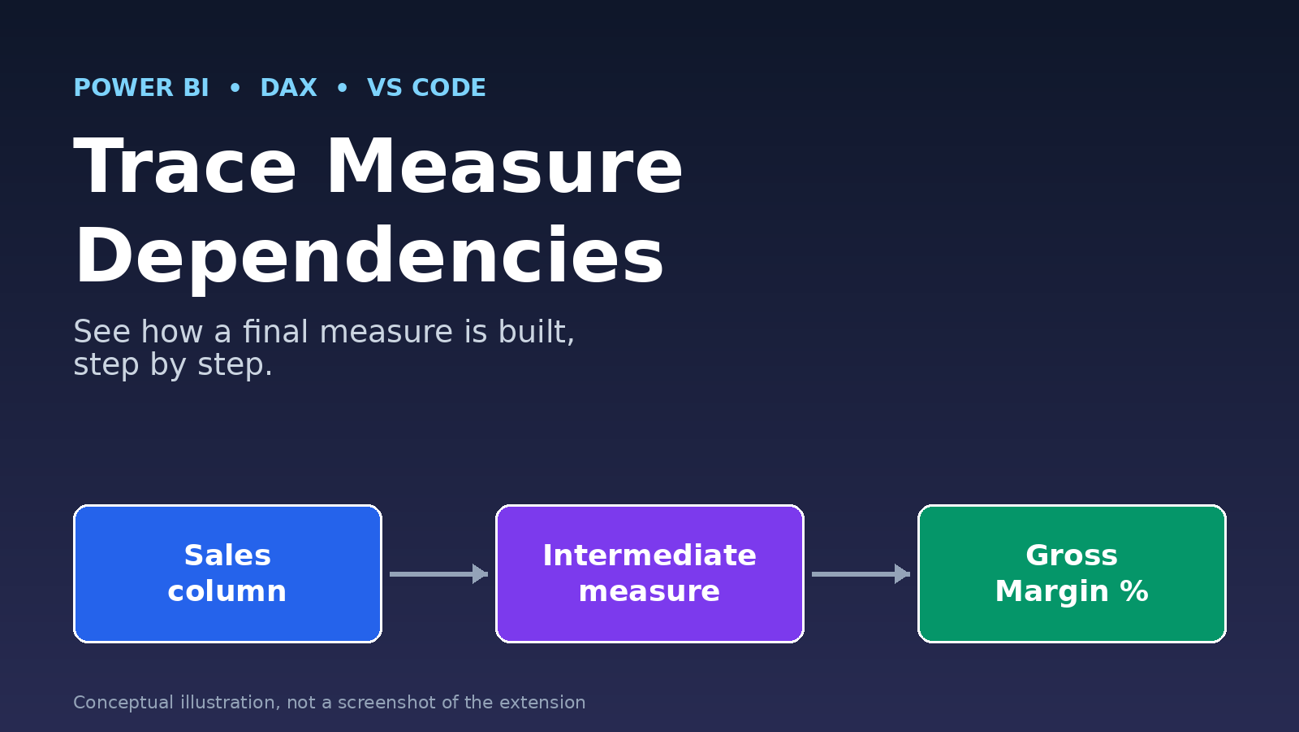
Learn how to trace Power BI DAX measure dependencies in VS Code. See how Semantic Model Viewer links columns, measures, and DAX formulas in one place.
You open a Power BI model that someone else built. One measure, Gross Margin %, shows a number that looks wrong. You click into the formula. It calls two other measures. Those measures call more measures. A few tabs later, you have forgotten which formula you started with.
Most DAX authors have been here. Understanding Power BI DAX measure dependencies is slow when every formula lives in a different place. The updated Semantic Model Viewer for VS Code is built to help with this problem.
The short answer: open your repository in Visual Studio Code, let the extension find your semantic model, and pick a table or column. The extension shows which measures depend on it, either directly or through other calculations. You can then expand the measures inline and read the DAX without leaving the view.
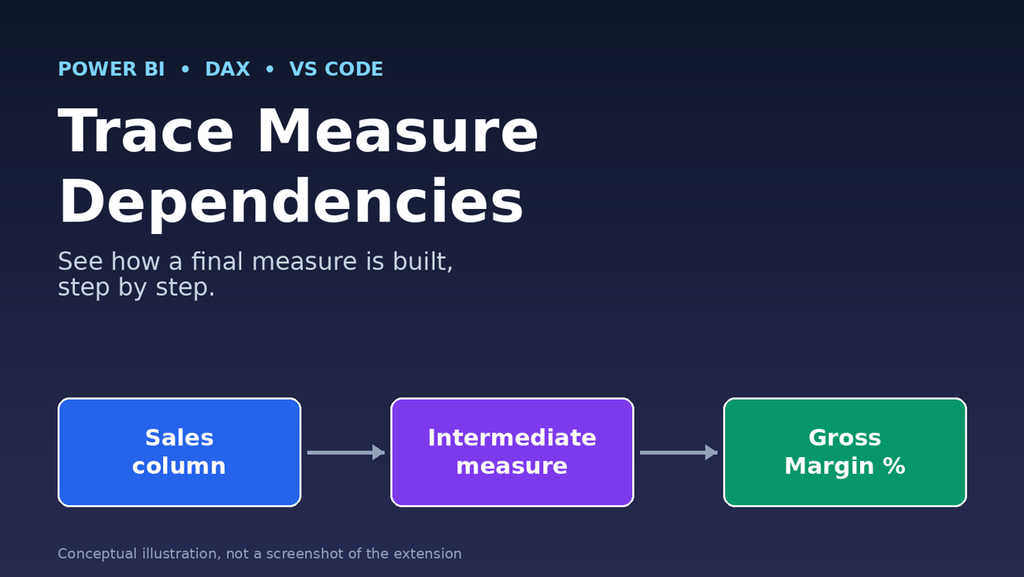
What Is Semantic Model Viewer for VS Code?
Semantic Model Viewer is an extension for Visual Studio Code. It lets you look inside a Power BI semantic model from the same editor where you already work with your project files. A semantic model is the layer that holds your tables, columns, relationships, and DAX measures. Reports are built on top of it.
The latest update focuses on one thing: showing how the parts of a model connect to each other. This is often called DAX dependency analysis, or measure lineage. In plain words, it answers the question, “What is this measure built from, and what depends on it?”
What the update adds
- It works from your repository. You open the project in VS Code, and the extension looks for supported semantic models in the workspace.
- You can select a table or a column and see which measures depend on it.
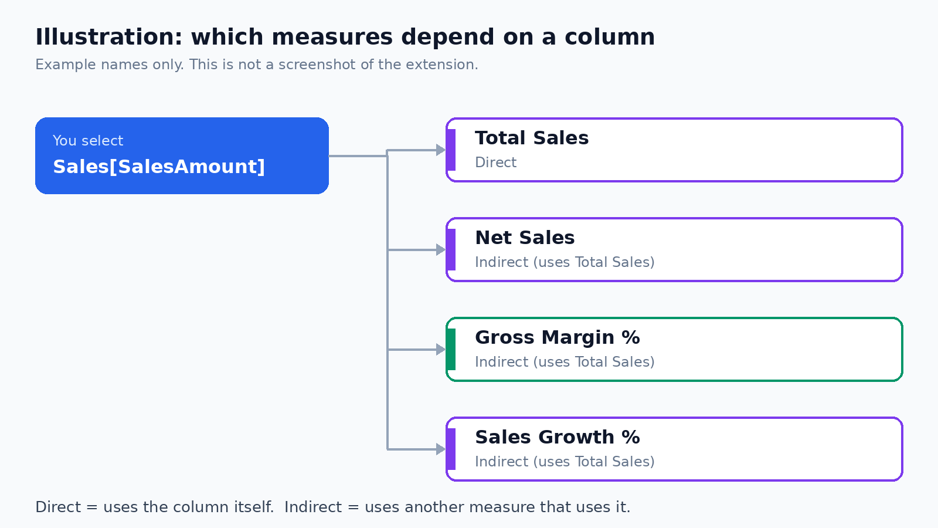
- It covers direct links and indirect links. A measure can use your column itself, or it can use another measure that uses it.
- You can expand referenced measures inline, so the formulas appear next to each other.
- Source columns, middle-step measures, and formulas stay visible together.
That last point is the real benefit. You keep the whole chain in front of you.
Why DAX Measure Dependencies Matter
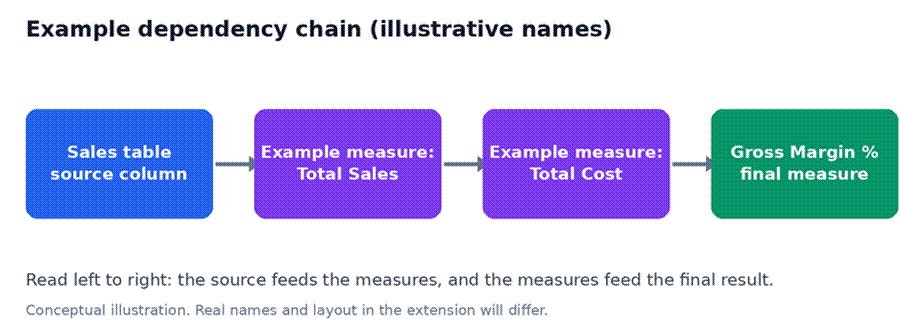
A DAX measure is rarely a single, simple formula. In a real model, a final measure is usually built from smaller ones. One measure adds up sales. Another adds up cost. A third subtracts one from the other. The final measure divides the result. Each piece is easy to read on its own. The trouble starts when you need to see how they fit together.
Dependency tracing helps in a few clear ways:
- You see the full picture. You can follow a result from the final measure back to the source column.
- You find problems faster. If a number looks odd, you can check each step in the chain instead of guessing.
- You change things with more care. Before you edit a column or a measure, you can see what else relies on it.
- You learn a model faster. A new team member can read the logic in order instead of searching for it.
Direct and indirect dependencies
These two terms come up often, so here is a quick way to keep them straight.
| Type | What it means | Simple example |
| Direct | A measure uses the column or table itself in its formula. | A sales total that reads the sales amount column. |
| Indirect | A measure uses another measure, and that measure uses the column. | A margin percentage that uses the sales total. |
The update shows both kinds. That matters because indirect links are the ones people miss. A column can look unused when you check which measures call it, yet it still affects a final number two steps away.
How to Trace DAX Measure Dependencies in VS Code
Here is the basic flow. The exact menu names and layout can change between versions, so check the extension’s page and documentation if something looks different on your screen.
- Open your project repository in VS Code. Use the folder that holds your semantic model files. Opening the repository root is a good start.
- Let the extension find your semantic models. It scans the workspace and picks up the models it supports. You do not need to point it at each file by hand.
- Select the model you want to explore. If your repository has more than one, choose the one that holds the measure you are studying.
- Select a table or a column. Start from the thing you care about. It might be a source column you plan to change, or a table you want to understand.
- Look at the dependent measures. The extension lists measures that depend on your selection, both directly and through other calculations.
- Expand referenced measures inline. Open each linked measure to read its DAX right there. Keep going until you reach the formula you came to understand.
From Sales to Gross Margin %
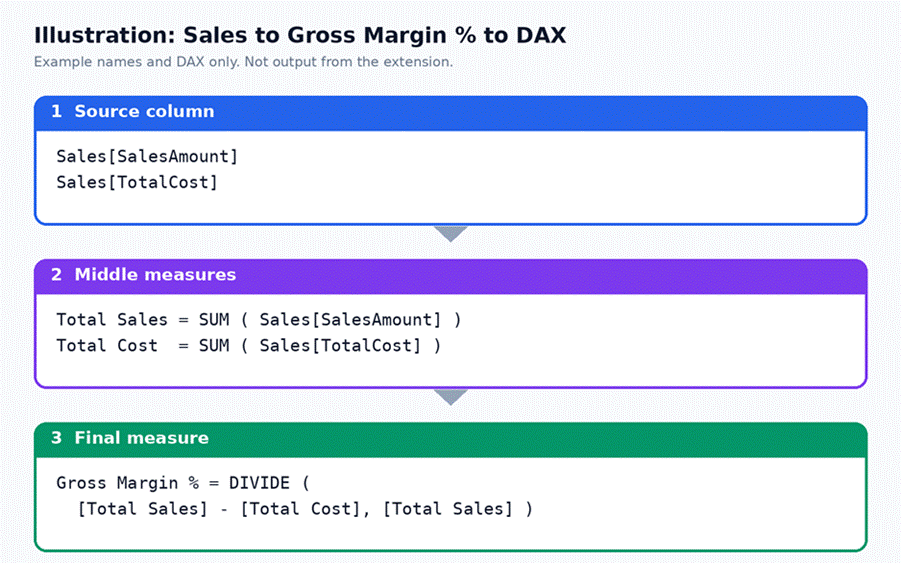
Let’s follow a realistic example. The goal is to understand how Gross Margin % is produced. The names below are simple examples, and your model will look different.
Step 1: Start at the Sales table
Select the Sales table, or one of its columns, such as the sales amount. This is your starting point. You are asking, “Which measures rely on this?”
Step 2: Follow the chain to Gross Margin %
The extension shows the measures linked to your selection. Some use the column directly. Others use it only through another measure. Gross Margin % often sits at the end of such a chain, because it builds on earlier results.
Step 3: Open the middle measures
Now expand the measures between the source and the final result. These middle measures are where logic often hides. A filter, a date rule, or a small adjustment can sit in one of them. When you expand them inline, you read each formula in order.
For context only, here is the kind of DAX you might see in such a chain. This is a made-up example.
| Total Sales = SUM ( Sales[SalesAmount] ) Total Cost = SUM ( Sales[TotalCost] ) Gross Margin % = DIVIDE ( [Total Sales] – [Total Cost], [Total Sales] ) |
Step 4: Read the whole chain together
With the source column, the middle measures, and the final formula in view together, the logic becomes clear. You can see that Gross Margin % depends on sales and cost. You can also see where each of those comes from. If the final number looks off, you now know which step to check first.
Practical Ways to Use This Workflow
These are reasonable ways to use dependency tracing. They are not promises about what the tool will do in every model, so test them on your own project.
| Situation | What you can do | What to look for |
| Joining a new project | Pick a main table and follow the measures that use it. | Which measures are the core ones, and how they connect. |
| Reviewing calculation logic | Expand a final measure and read each step in order. | Steps that repeat, conflict, or look unclear. |
| Investigating a strange result | Trace the measure back to its source column. | A middle measure with a filter or rule you did not expect. |
| Planning a change | Select the column you want to edit. | Every measure that relies on it, directly or not. |
Who Benefits Most From This Workflow?
Anyone who reads DAX regularly can get something from it. It is most useful for:
- Power BI developers who inherit models and need to learn them quickly.
- DAX authors who write layered measures and want to check their own logic.
- BI consultants who join a client project with little time to get up to speed.
- Analytics engineers and Microsoft Fabric professionals who keep semantic models in a repository and work in VS Code already.
What to Check Before You Open a Model
A few quick checks can save time. Since details can change, confirm the specifics on the extension’s official page.
- Is your model supported? The extension finds supported semantic models. Check the documentation to confirm that your model type and file layout are on the list.
- Is the right folder open? The extension looks in your workspace, so open the repository that contains the model.
- Is the extension up to date? Install the latest version so you get the dependency features described here.
- Is the model’s source code current? Pull the latest changes from your repository first, so you do not study an old version.
Conclusion
Understanding Power BI DAX measure dependencies should not feel like a treasure hunt. The updated Semantic Model Viewer for VS Code keeps the source columns, the middle measures, and the final formulas together, so you can read how a result is built without jumping between formulas.
Try it on your own project. Open a repository with a supported semantic model in VS Code, select a table or column, and follow the chain to a measure you use every day. Then take your own screenshots. You may learn something about your model that you did not know.
Frequently Asked Questions
What are DAX measure dependencies?
They are the links between a measure and the things it uses. A measure may use a column, a table, or other measures. If measure B uses measure A, then B depends on A.
How can developers trace dependent measures in VS Code?
Open the repository in VS Code and let the extension find your supported semantic model. Select a table or column, then check the measures that depend on it, directly or through other measures.
How does inline measure expansion help when reading DAX?
It lets you open a referenced measure right where you are reading. You see its formula without switching to another file or tab, which makes long chains easier to follow.
How can dependency tracing help maintain complex Power BI models?
It shows what a change might affect before you make it. It also helps you review logic, find where a number goes wrong, and spot chains that could be simpler.
What should users check before opening a semantic model in the extension?
Confirm that the model is supported, that you opened the correct repository folder, and that you use the latest version of the extension. Check the official documentation for the exact requirements.
Similar Article
- Power Automate Free Online Course for Beginners: Learn It Step by Step in 30 Days
- Power BI Learning Roadmap: A Step-by-Step Guide from Beginner to Job Ready
- 7 Best Microsoft Power Platform Certifications to Boost Your Career
- Power BI Report Authoring Skill Now Supports Custom Visuals for Easier Report Creation